 Domain NamesFind and register your ideal domain name instantly.
 Web HostingEasy-to-use hosting powered by cPanel — ideal for managing websites in Nigeria.
 Windows HostingRun .NET apps with Windows-optimized hosting
 Affiliate ProgramMake money promoting our services
 Reseller HostingMake money by reselling our hosting products under your own brand
 .COM Domains
 All DomainsExplore all supported tld domains in Nigeria
 WhoisFind out who owns any domain, as well as verify your registration details
 VPS Hosting in Nigeria
 Dedicated ServersReimagine your site speed with your own complete server
 AI Website BuilderDesign your site with drag-and-drop tools
 Online Store BuilderStart your online shop without code
 Support PortalFind answers or get expert help
 Contact UsReach our team via chat or email
 BlogRead our extensive guides on web hosting and more
Most website owners don’t think about storage until they run out.
Thank you for reading this post, don't forget to subscribe!By then, you are scrambling, deleting files blindly, wondering why your 30GB plan filled up so fast, and praying you don’t delete something critical.
The truth is, storage limits aren’t just about the number you see when you sign up.
They are about backups, emails, databases, logs, and file versions that quietly consume space until you hit a wall.
This guide breaks down what different storage tiers can realistically host, how to maximize every gigabyte, and step‑by‑step instructions to check your usage and free up space.
By the end, you will have a clear plan to keep your site running smoothly without hitting limits.
Website Storage Tiers: What Each Size Can Handle
Not all storage plans are created equal.
The plan that fits a personal blog won’t cut it for an e‑commerce store.
Here is what you can actually do at each tier with actual Truehost pricing.
30GB- Starter Plan
Price: NGN 1,275 per month (billed 3 years)
This is the entry point for most Nigerian websites.
You can host up to ten separate websites on one account, though for optimal performance it is best to keep active sites to a handful.
What kind of site fits here? A typical small business website:
- a homepage,
- about page,
- services,
- blog with 50-100 posts,
- and a contact form.
That is around 500-800MB for files, plus a database of 50-100MB.
Add 100-200 compressed images each around 100–200KB, and you are still well under 2GB.
The plan also handles around 25,000 monthly visitors comfortably, assuming most pages are text‑heavy with few large assets.
What fits comfortably:
- Up to 10 websites on one account
- Approximately 25,000 visits per month
- Text‑heavy pages with company profiles, blog posts
- 100–200 optimized images
- Basic contact forms
Getting the most out of it:
- Compress every image before upload; aim for 100-200KB per image or less.
- Use external hosting for videos (YouTube, Vimeo) instead of uploading.
- Remove unused themes and plugins if using WordPress.
- Store backups off‑server (Google Drive, Dropbox) rather than on your hosting account.
50GB- Business Plan
Price: NGN 6,125 per month (billed 3 years)
This is the step up, like moving from a studio to a two‑bedroom apartment.
It is built for around 50,000 visits per month and is ideal for growing businesses with more content, a blog, or a small e‑commerce store.
Let us get specific.
Say you run a boutique clothing brand in Lagos.
Your site has 500-1,000 blog posts, a product catalogue with 50-100 high‑quality photos, a database storing customer accounts and order history, and you host your business email on the same server.
That is easily 20-30GB. This plan gives you the headroom to grow without worrying about monthly caps.
What this tier accommodates:
- 500–1,000 blog posts with featured images
- 50–100 product or portfolio images
- Database storing comments, user data
- Email accounts hosted on the same server
Stretching every gigabyte:
- Convert images to WebP format which reduces file size by 25–35% without quality loss.
- Delete post revisions older than 2–3 versions, a typical WordPress site can have hundreds of old revisions.
- Regularly clear spam comments and expired transients, these can add up to hundreds of MB.
- Move email to a separate email hosting, Google Workspace or Microsoft 365 to free up server space, a mailbox with 10GB of emails counts against your storage.
Unlimited Storage- Unlimited Plan
Price: NGN 9,300 per month (billed 3 years)
Unlimited sounds like a dream, but what does it really mean?
In practice, this plan gives you the freedom to host multiple client websites, school projects, or a growing e‑commerce store without counting every megabyte.
You can store dozens of sites, hundreds of product images, and keep several recent backups on the server.
Consider a web designer in Abuja managing 20 client sites, each with its own media library and database.
Or a university department hosting student portfolios and project files.
Or an online store with 500 products, each with five images, plus customer reviews and uploads.
That is the kind of load this plan is designed for.
What this plan can handle:
- Multiple client websites or school projects
- E‑commerce stores with 100–500 products
- User‑uploaded content and reviews
- 3–4 recent backups retained on server
Making the most of unlimited space:
- Set up automatic database optimisation to run weekly which reduces clutter.
- Limit stored order data to 12 months; archive older records offline.
- Use a CDN for product images to improve performance and reduce server load.
- Implement lazy loading so images only load when users scroll which saves bandwidth and server I/O.
50GB NVMe – VPS Starter
Price: NGN 8,000 per month (billed 3 years)
Now we are talking about dedicated resources, a VPS with 1 CPU core, 2GB RAM, and NVMe storage that is several times faster than standard SSD.
This tier suits a growing online store with 200-500 products, a busy blog with thousands of daily visitors, or a custom web application that needs consistent performance.
The NVMe storage means page loads are snappy, and the dedicated CPU ensures your site stays responsive even during traffic spikes.
What this VPS tier is built for:
- 1 dedicated CPU core, 2GB RAM
- Growing online store or busy blog
- Medium e‑commerce with 200-500 products
- Faster NVMe storage for better performance
Optimising dedicated resources:
- Use object storage (like AWS S3) for media files while keeping your website on VPS, this offloads large files and keeps your VPS lean.
- Implement caching plugins that leverage server‑level resources (Redis, Memcached).
- Set retention policies: keep only 2 backups on server, store the rest off‑site.
100GB NVMe- VPS Pro
Price: NGN 12,250 per month (billed 3 years)
Double the power: 2 CPU cores, 4GB RAM.
This is where serious businesses land, those with large product catalogues, video content, or membership platforms.
You can host over 1,000 product pages with high‑resolution images, video tutorials, and customer accounts with order history.
For example, a Nigerian online grocery store with 1,500 products, each with multiple images, and a blog with recipes.
The database might be 2-3GB, the images 50-80GB, and you will want room for backups.
This tier gives you that room plus the CPU and RAM to handle concurrent checkouts during peak hours.
What this upgraded VPS handles:
- 1,000+ product pages with high‑resolution images
- Video tutorials or product demos
- Customer accounts and order history
- 5+ recent backups for disaster recovery
Using this storage wisely:
- Use dedicated video hosting (Vimeo Pro, Wistia) instead of self‑hosting video files videos are storage‑hungry and bandwidth‑intensive.
- Implement tiered storage: recent/active content on fast NVMe, older content on cheaper storage like object storage.
- Set up automated archiving for logs and old backups.
200GB NVMe – VPS Enterprise
Price: NGN 35,000 per month (billed 3 years)
This is the top tier for most businesses: 4 CPU cores, 8GB RAM, and 200GB NVMe storage.
It is designed for high‑traffic e‑commerce with extensive product catalogues, membership platforms with user‑generated content, and agency sites managing multiple clients under one roof.
Imagine a platform like a Nigerian job board with thousands of user profiles, resumes, and company listings.
Or a learning management system with HD video courses and student discussions.
Or a large‑scale WooCommerce store with 10,000 products and complex filters.
This tier provides the resources to handle that load without slowdowns.
What this enterprise tier can support:
- High‑traffic e‑commerce with extensive product catalogues
- Membership platforms with user‑generated content
- HD video content
- Agency sites managing multiple clients
Getting the most from enterprise resources:
- Use CDN for global content delivery (e.g., Cloudflare, BunnyCDN) to reduce server load.
- Implement Redis or Memcached for object caching (speeds up dynamic content).
If you exceed these resources, consider a dedicated server or a custom cluster.
How to Manage Your Storage Limits
Even the largest plan can fill up if you are not managing it.
Here are the strategies that keep storage under control, with real numbers on what you can save.
1) Manage Backups Intelligently
Backups are often the silent killer.
A 5GB site needs 5GB for each backup copy.
If your system keeps 4 weekly copies, that is 20GB, often more than your entire hosting plan.
By keeping only one backup on the server and moving older backups to cloud storage (Google Drive, Dropbox), you can free up 80% of your backup storage.
Action steps:
- Keep only 1–2 recent backups on the server.
- Download older backups to your local computer or cloud storage.
- Turn off automatic backups if they run daily; weekly is usually sufficient.
- Use backup plugins that support off‑site storage e.g., UpdraftPlus with Google Drive.
2) Optimize Images Ruthlessly
Images are the biggest storage consumer on most websites.
One high‑resolution product photo can exceed 5MB. Ten products with five images each equals 250MB just for product photos.
Compressing images to WebP can reduce file size by 25–35%. Resizing to actual display dimensions can cut another 30–50%. A 1GB image folder can shrink to 300–400MB.
Action steps:
- Compress images before upload using tools like TinyPNG or ShortPixel.
- Convert to WebP format (25–35% smaller than JPEG).
- Resize images to exactly the dimensions your site displays.
- Delete unused images from your media library regularly.
3) Clean Your Database
Databases grow invisibly. Every post revision, comment, and user action adds data.
A WooCommerce site’s database can hit 500MB–2GB without obvious signs.
Limiting post revisions to 2–3 can save hundreds of MB.
Deleting spam comments and expired transients can save another 50–200MB. A typical cleanup can reduce database size by 30–50%.
Action steps:
- Limit post revisions to 2–3 per post.
- Delete spam comments and old drafts.
- Remove expired transients (temporary WordPress data).
- Use plugins like WP‑Optimize for scheduled database cleanup.
4) Move Email Off Your Server
If your email accounts are hosted on the same server as your website, every email and attachment counts against your storage limit.
A single mailbox with years of emails can be 5–10GB.
By moving email to email hosting, Google Workspace or Microsoft 365, you free up that entire storage for your website.
If that’s not possible, deleting old messages can recover gigabytes.
Action steps:
- Check email storage in cPanel under “Email Disk Usage”.
- Delete old messages, especially from Spam and Trash folders.
- Consider moving to Google Workspace or Microsoft 365.
- Set up email forwarding instead of full mailboxes.
5) Clear Log Files and Cache
PHP error logs, access logs, and caching plugins can accumulate gigabytes over months. A busy site can generate 100–200MB of logs per week.
Deleting logs older than 30 days can free up 500MB to 2GB. Clearing cache files can free up another 200–500MB.
Action steps:
- Access your server via File Manager or FTP.
- Navigate to /logs or /wp-content/cache.
- Delete logs older than 30 days.
- Configure your caching plugin to clear cache weekly.
How to Check Your Storage Usage
Most hosting providers use cPanel. Here’s exactly how to find what’s eating your space.
Step 1: Log Into cPanel

Access your cPanel through your hosting account. The URL is typically yourdomain.com/cpanel.
Step 2: Check Overall Usage
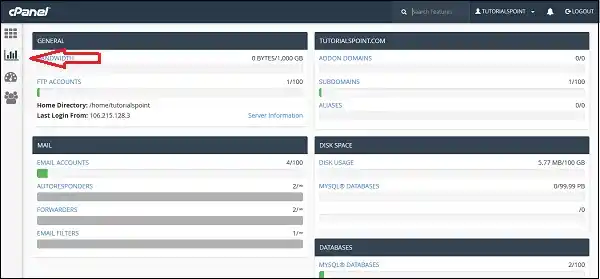
In the statistics sidebar on the right or left, look for something like: “17.91 GB / 58.59 GB (30.56%)”. If you see 80% or higher, it’s time to investigate.
Step 3: Use Disk Usage Tool
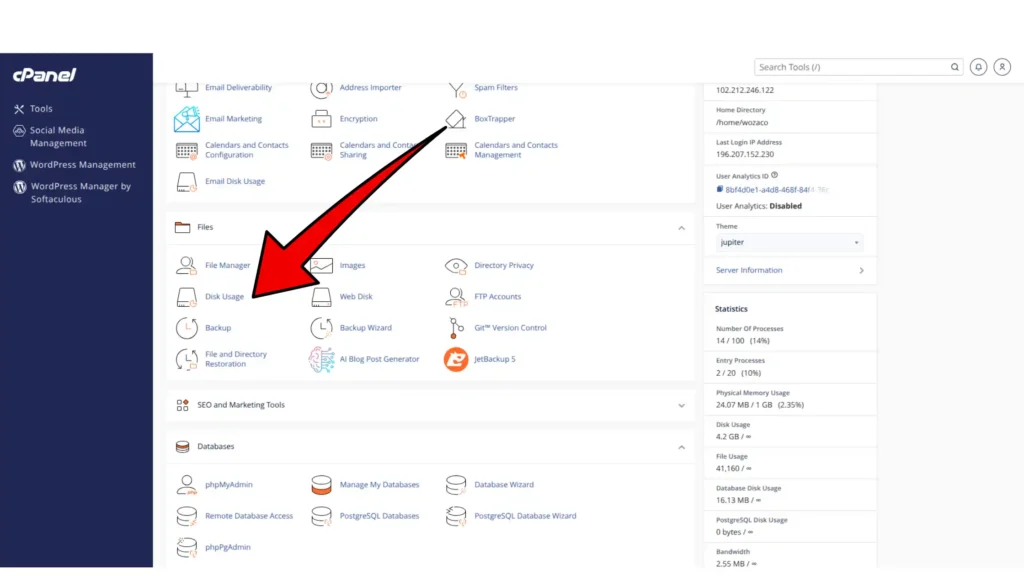
In the Files section, click Disk Usage. Allow time for the scan, it has to crawl your whole website’s folders.
Once the scan completes, you’ll see:
- A folder tree with sizes in MB or GB.
- Click the arrow next to any folder to drill down.
- The Location column shows where space is concentrated.
Key folders to check:
- public_html, your main website files
- mail, email storage (often the biggest surprise)
- tmp, temporary and cached data
- mysql or databases, your database files
Step 4: Check Email Storage Separately
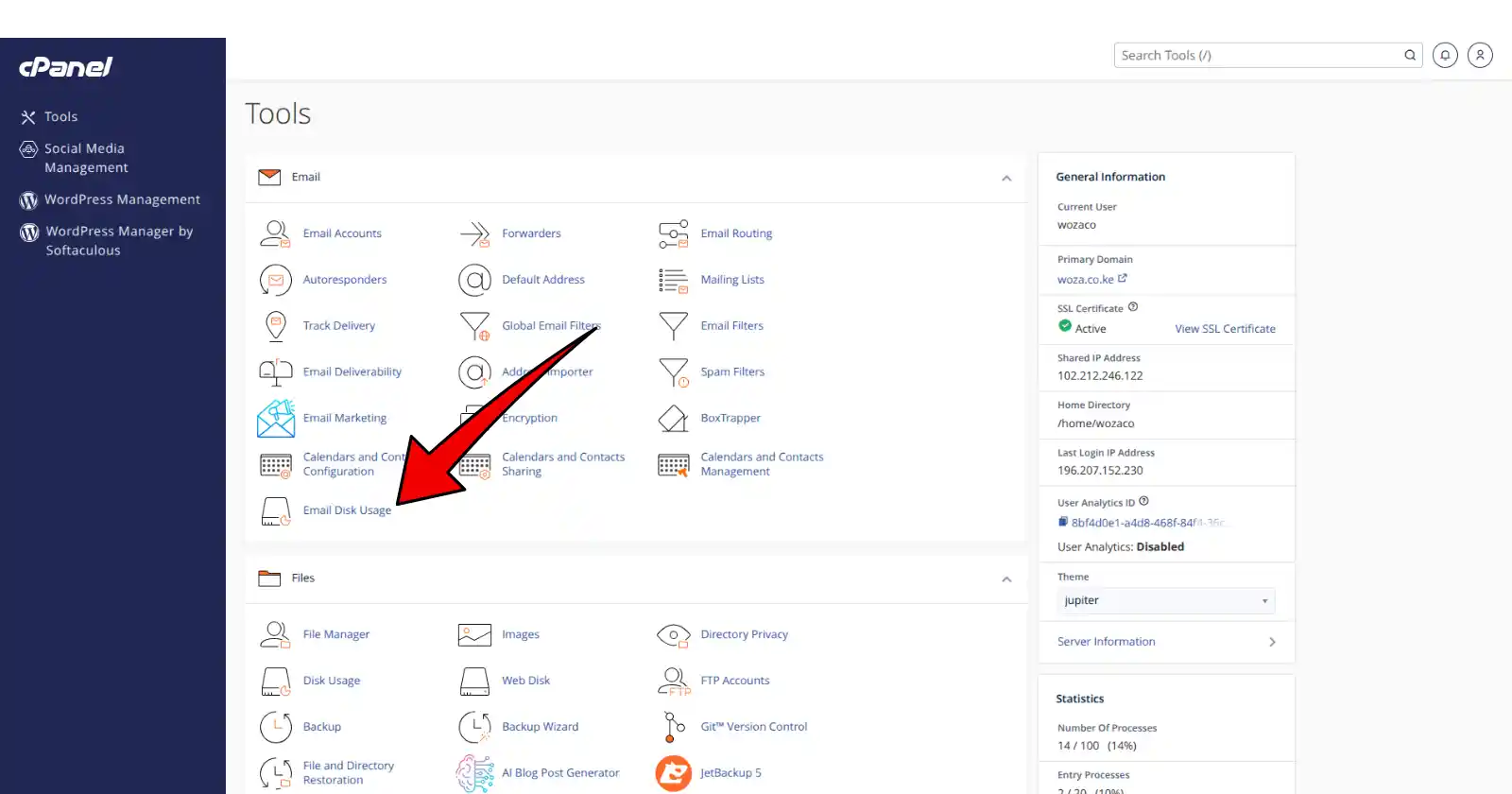
In cPanel, search for Email Disk Usage.
Click on it, then select which account you’d like to view. Click Manage to delete emails, you’ll get options to decide the type of deletion.
Step 5: Check Inode Usage (File Count)
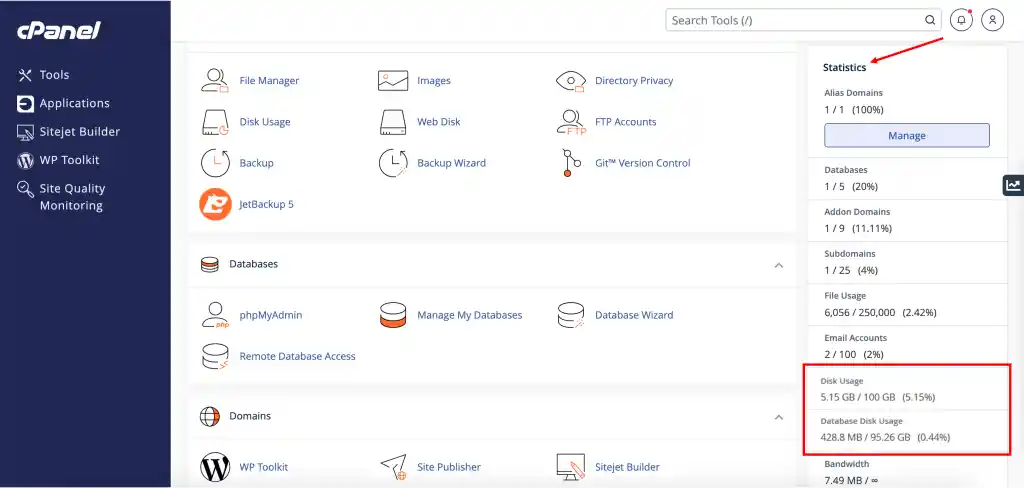
Some hosts limit the number of files you can store, not just total space. Shared hosting typically caps at 150,000–250,000 files.
To check inodes in cPanel:
Look for File Usage or Inode Usage in the Statistics section.
If you’re approaching the limit, you have too many small files (often from cache plugins).
For VPS accounts, the inode limit is typically 1,000,000.
Step 6: Check Resource Usage Over Time
In cPanel’s Metrics section, click Resource Usage.
This shows CPU, memory, and I/O trends. If you see frequent spikes near 100%, your site needs more resources, not just storage.
Step 7: Check Bandwidth Usage
While not storage, bandwidth limits affect how much data can be transferred.
In the Metrics section, click Bandwidth to see monthly usage.
High bandwidth typically means increasing website traffic or large media files being delivered.
Conclusion
Website storage is the foundation of your website, but it is also a growth lever.
When you know what each tier can handle, you can choose the plan that fits your current needs, and know exactly when to upgrade.
A 30GB Starter plan is perfect for a new blog.
A 50GB Business plan gives e‑commerce room to expand.
And when you are ready for dedicated power, Truehost’s NVMe VPS tiers deliver speed and isolation.
Find your perfect storage tier today and grow without guessing.