 Domain NamesFind and register your ideal domain name instantly.
 Web HostingEasy-to-use hosting powered by cPanel — ideal for managing websites in Nigeria.
 Windows HostingRun .NET apps with Windows-optimized hosting
 Affiliate ProgramMake money promoting our services
 Reseller HostingMake money by reselling our hosting products under your own brand
 .COM Domains
 All DomainsExplore all supported tld domains in Nigeria
 WhoisFind out who owns any domain, as well as verify your registration details
 VPS Hosting in Nigeria
 Dedicated ServersReimagine your site speed with your own complete server
 AI Website BuilderDesign your site with drag-and-drop tools
 Online Store BuilderStart your online shop without code
 Support PortalFind answers or get expert help
 Contact UsReach our team via chat or email
 BlogRead our extensive guides on web hosting and more
WordPress powers over 40% of all websites globally because it is free, flexible, and beginner-friendly.
Making it the go-to choice for Nigerian blogs, e-commerce stores, and business websites.
You do not need to write a single line of code to get a professional site live.
But WordPress needs somewhere to live. That is where cPanel comes in.
It is the world’s most popular hosting control panel, a point-and-click dashboard that lets you manage files, databases, email, and security without any technical expertise.
Here at Truehost, we include a full cPanel license with every hosting plan at no extra cost.
This is a complete, step-by-step guide to install WordPress on cPanel in minutes, written specifically for users in Nigeria.
What You’ll Need
Before you log into anything, make sure you have these four things in place.
- A Domain Name.
You need a registered domain, your yourbusiness.com or yourbusiness.com.ng.
If you do not have one yet, you can register one directly through us at Truehost.
We offer .com.ng and .ng domains at some of the most competitive rates in Nigeria, with instant activation.
- A cPanel Hosting Account.
You need an active hosting plan that includes cPanel access.
We built our cPanel hosting plans specifically for Nigerian websites, optimised for .ng domains, with fast WordPress installs and payment gateway-ready security for platforms like Paystack and Flutterwave.
- Your cPanel Login Credentials.
When you sign up for a hosting plan, your provider sends you a welcome email containing your cPanel username and password.
Keep that email handy, you will need those details to log in.
If you signed up with us, check your inbox for the Truehost welcome email; it contains everything.
- A Stable Internet Connection.
You will be uploading files, configuring settings, and running an installation wizard.
A stable connection, whether fibre, home broadband, or a reliable 4G mobile connection, will save you from interrupted uploads and timeout errors.
Step 1: Access Your cPanel Dashboard
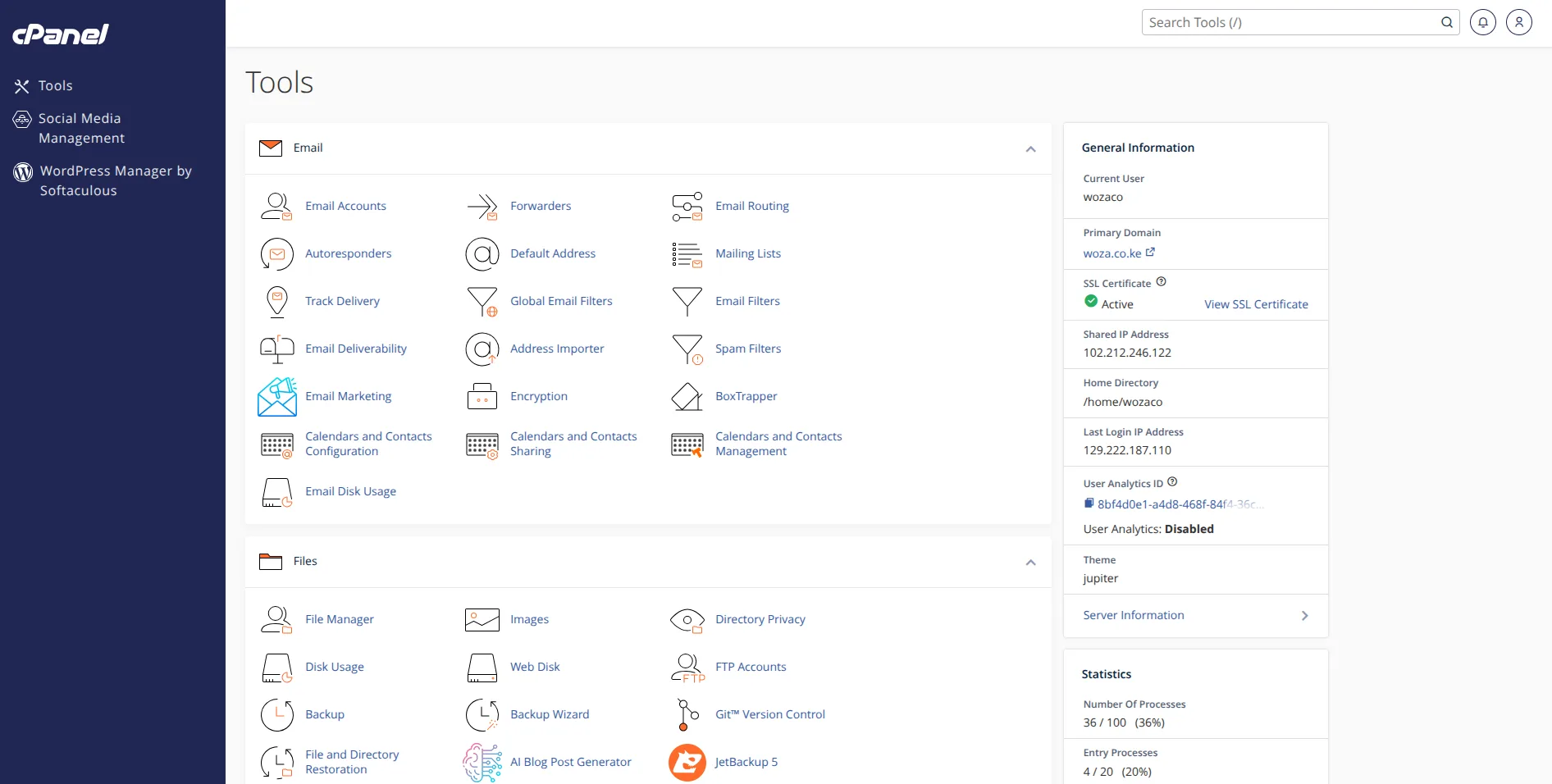
There are two ways to reach your cPanel dashboard.
Option 1 Direct URL: Open your browser and type http://yourdomain.com/cpanel, replacing yourdomain.com with your actual domain name.
You will be prompted to enter your cPanel username and password.
Option 2 Through Your Hosting Dashboard: Log into your Truehost client area, navigate to your active hosting plan, and click Log in to cPanel.
This method logs you in automatically without needing to enter your credentials again.
Once you are inside cPanel, take a moment to get your bearings. The dashboard is organised into sections. The ones you will use most often are:
- Softaculous Apps Installer: under the Software section; this is your one-click WordPress installer
- File Manager: for uploading and managing website files directly
- MySQL Databases: for creating and managing the databases your website uses
- SSL/TLS: under Security; for enabling your free SSL certificate
You do not need to memorise all of this right now. The sections you need will come up naturally as you work through this guide.
Step 2: Install WordPress Using Softaculous (One-Click Installer)
This is the method we recommend for almost everyone.
It takes less than five minutes, requires no technical knowledge, and handles the entire setup automatically.
What is Softaculous? Softaculous is an auto-installer that comes bundled with most cPanel hosting plans, including ours.
It lets you install WordPress, and dozens of other web applications, with a few clicks, without ever touching a database or uploading a zip file manually.
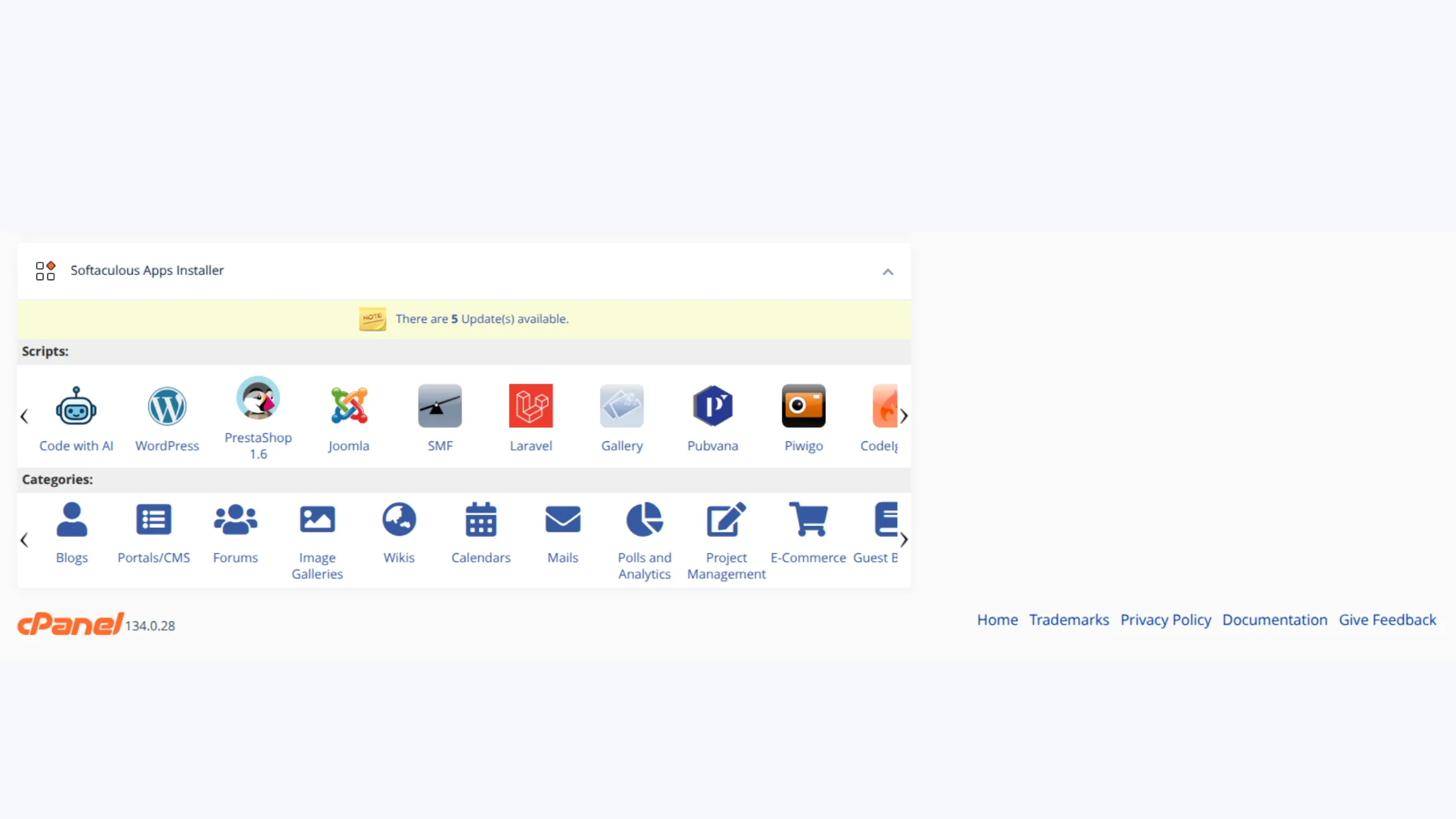
a) Inside cPanel, scroll down to the Software section and click Softaculous Apps Installer. This opens the Softaculous dashboard.
b) Locate the WordPress icon, it is usually featured prominently on the Softaculous homepage, and click it.
c) Click the Install Now button to open the configuration form.
d) Configure Your Installation:
- Protocol: Select https:// if you have an SSL certificate active (recommended). If not yet, select http:// and switch to https after enabling SSL in Step 4 of this guide.
- Domain: Use the dropdown to select your domain name.
- In Directory: Leave this field completely blank if you want WordPress installed on your main domain. If you want it in a subfolder, like a blog section at
yourbusiness.com/blog, type the folder name here. - Site Title and Description: Enter your website name and a short description. These can be changed later from inside WordPress.
- Admin Username: Choose something other than “admin” it is the first username hackers try. Use your name, a brand handle, or any unique combination.
- Admin Password: Use a strong password. Softaculous has a password generator if you need one.
- Admin Email: Enter a working email address, this is where WordPress will send password resets and admin notifications.
- Plugins (Optional): Softaculous may suggest a few commonly used plugins to install alongside WordPress. Review them and check any you want included from the start.
e) Scroll to the bottom and click Install.
Softaculous will run the installation and display a success screen showing your site URL, your WordPress admin URL (yourdomain.com/wp-admin), your username, and your password.
Save or screenshot these details immediately.
Beyond installation, Softaculous also handles WordPress updates, automated backups, and site cloning, useful when you want to create a staging version of your site before pushing changes live.
Step 3: Manual Installation (No Auto-Installer)
If you prefer full control over how WordPress is installed, or if your hosting plan does not include Softaculous, the manual method gives you the same result through a few more steps.
a) Go to wordpress.org and download the latest version of WordPress. You will get a .zip file.
b) Upload via File Manager: In cPanel, click File Manager and navigate to the public_html folder.
This is the root directory of your website, anything placed here is accessible via your domain.
Click Upload and select the WordPress .zip file you downloaded. Once the upload completes, right-click the zip file and select Extract.
This creates a /wordpress/ folder inside public_html. If you want WordPress running at your root domain (not in a subdirectory), move all the files from /wordpress/ directly into public_html.
c) Create a MySQL Database: In cPanel, click MySQL Databases.
Create a new database, name it something like wp_db. Then create a new database user with a strong password.
Finally, add that user to the database and grant them ALL PRIVILEGES. Write down the database name, username, and password, you will need them in the next step.
d) Run the Installation Wizard: Open your browser and visit your domain.
WordPress will detect the missing configuration and launch the installation wizard automatically.
Enter the database name, username, password, and host, use localhost for the host field.
Click Run the Installation, then fill in your site title, admin username, password, and email. Click Install WordPress and the wizard will complete the setup.
Step 4: Secure Your Site with a Free SSL Certificate
An SSL certificate encrypts the connection between your website and your visitors’ browsers.
In practical terms, it activates the padlock icon in the browser address bar and switches your URL from http:// to https://.
For Nigerian websites, this matters for three reasons: it builds immediate trust with visitors, it is a Google ranking signal, and it is a hard requirement for accepting payments through Paystack or Flutterwave, both gateways refuse to process transactions on non-HTTPS sites.
i) In cPanel, scroll to the Security section and click SSL/TLS.
ii) Click Manage SSL Sites.
iii) Select your domain from the list and click Issue or Install, depending on your cPanel version.
Most modern cPanel setups support AutoSSL or Let’s Encrypt, both of which are completely free.
Follow the on-screen prompts and your certificate will be issued and installed within a few minutes.
Once SSL is active, go back into your WordPress settings and update your site URL from http:// to https:// under Settings → General.
Step 5: Log Into Your New WordPress Dashboard
With WordPress installed and SSL active, it is time to log in and explore your new site.
Go to yourdomain.com/wp-admin or yourdomain.com/wp-login.php, and enter the admin username and password you set during installation.
You will land on the WordPress dashboard.
Here is a quick orientation of what you will use most:
- Posts: for blog articles and news updates
- Pages: for static content like Home, About, and Contact
- Appearance → Themes: for changing the look and feel of your site
- Plugins: for adding functionality like contact forms, SEO tools, and e-commerce
- Settings → General: this is where you should set your timezone; select Africa/Lagos so timestamps on posts, comments, and scheduled content reflect Nigerian time
Spend a few minutes clicking through these sections before making any changes. Getting familiar with the layout first saves confusion later.
Manage Your WordPress Site from cPanel
Installing WordPress on cPanel is one of the most straightforward things you can do as a website owner in Nigeria, and now you have the full picture.
Use the Softaculous one-click method if you want to be live in under five minutes. Use the manual method if you want granular control over every part of the setup.
Either way, the result is the same: a fully functional WordPress site running on your own domain, secured with a free SSL certificate, and managed through cPanel.
Here at Truehost, we built our cPanel hosting plans with exactly this workflow in mind.
We offer local servers for faster load speeds across Nigeria, a full cPanel license included in every plan, one-click WordPress installation via Softaculous, and 24/7 local support in English.
Our plans are designed to be affordable enough for a startup and reliable enough for a growing business.
Ready to install WordPress and get your website live? Visit Truehost today and choose a cPanel hosting plan that fits your business.