 Domain NamesFind and register your ideal domain name instantly.
 Web HostingEasy-to-use hosting powered by cPanel — ideal for managing websites in Nigeria.
 Windows HostingRun .NET apps with Windows-optimized hosting
 Affiliate ProgramMake money promoting our services
 Reseller HostingMake money by reselling our hosting products under your own brand
 .COM Domains
 All DomainsExplore all supported tld domains in Nigeria
 WhoisFind out who owns any domain, as well as verify your registration details
 VPS Hosting in Nigeria
 Dedicated ServersReimagine your site speed with your own complete server
 AI Website BuilderDesign your site with drag-and-drop tools
 Online Store BuilderStart your online shop without code
 SSLs
SSLs Support PortalFind answers or get expert help
 Contact UsReach our team via chat or email
 BlogRead our extensive guides on web hosting and more
An n8n workflow for WhatsApp automation fixes the gap between when a customer messages you and when you reply.
It replaces manual, one-by-one replies with a visual, node-based pipeline that connects the WhatsApp Business Cloud API to your business logic.
Messages get answered automatically, at any hour, without you opening your phone.
This is important because manual outreach does not scale. WhatsApp Business already serves over 200 million active businesses, on a platform with more than 3 billion monthly users.
Customers expect fast replies on a channel they already trust.
The same setup covers more than simple replies:
- Support bots that answer FAQs instantly
- Sales agents that qualify leads while you sleep
- Booking systems that confirm appointments automatically
- Multi-modal AI agents that handle text, voice notes, and images
This guide takes you from a blank n8n canvas to a working, production-ready WhatsApp bot.
Prerequisites
Before you touch a single node, get these in place.
- A WhatsApp Business Account with an approved phone number and at least one approved message template.
- A Meta developer app, ready to move to live mode in Step 1.
- An n8n instance, self-hosted or on n8n Cloud, with a public HTTPS URL.
One thing to know upfront: default tokens from Meta’s Graph API Explorer expire in 1–2 hours.
That is why Steps 1–2 focus on getting a permanent system user token from the start, instead of relying on a temporary one.
Skip any one of these, and you will spend your first hour debugging a webhook that was never going to fire.
Steps To Building Your First Basic Workflow
Step 1: Switch your Meta app to live mode
Go to the Meta developer portal.
Open your app settings.
Toggle your app from development mode to live mode. Do this early. Nothing downstream works properly while your app sits in development.
Step 2: Generate a system user token
Head to Business Settings, then System Users.
Create a new system user.
Assign your WhatsApp Business Account (WABA) as an asset under that system user.
Grant these two permissions:
whatsapp_business_messagingwhatsapp_business_management
One important note. Copy the token immediately after generating it. Unlike the Graph API Explorer token, this one does not expire on its own. It only stops working if you revoke it.
Step 3: Add WhatsApp credentials in n8n
Inside n8n, go to Credentials and create a new WhatsApp Business Cloud API credential.
Paste in your system user token.
Paste in your Phone Number ID.
Test the connection before moving on. A failed test almost always means a copy-paste error, not a deeper problem.
Step 4: Set up the Verify Webhook (first half of the basic n8n template)
This step handles Meta’s handshake. Before Meta sends you real messages, it checks that your webhook is legitimate.
Meta sends a GET request with a challenge string. Your workflow needs to send that exact string back.
It is like a password check. You set the password (your verify token) on both sides inside your Code node and inside the Meta portal.
If the two match, Meta trusts your endpoint and starts forwarding real events to it. If they do not match, verification fails outright, and no messages will ever reach you.
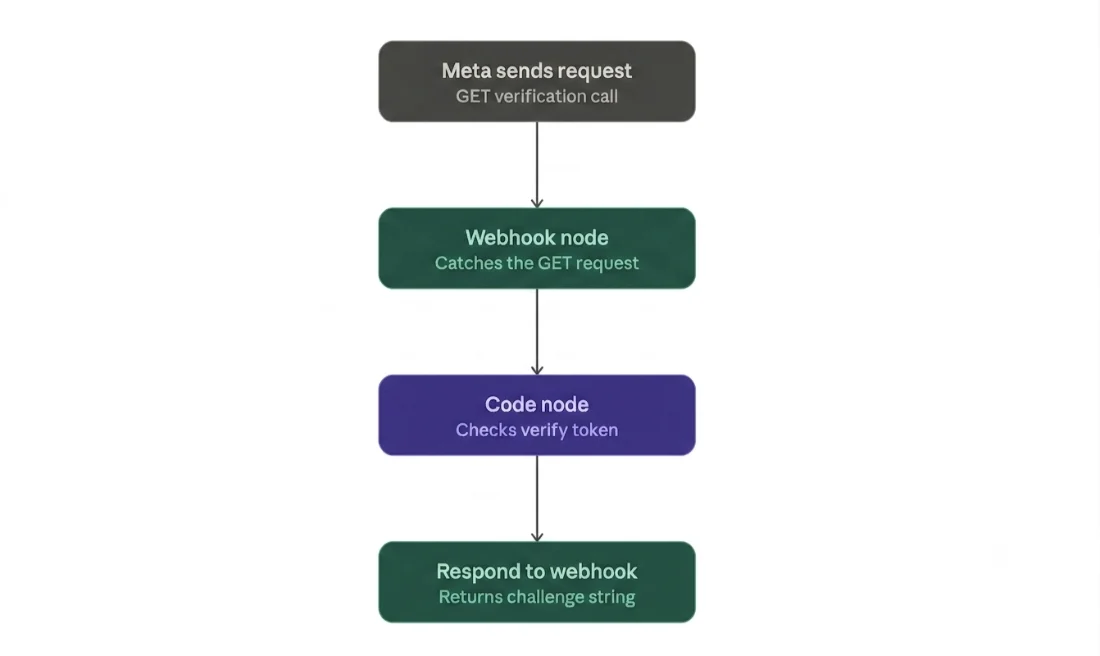
Build it this way:
- Add a Webhook node configured to catch Meta’s GET verification request.
- Add a Code node right after it. This node pulls
hub.mode,hub.verify_token, andhub.challengeout of the query parameters, then checks your token against the one Meta sent.
const query = $input.first().json.query;
const mode = query['hub.mode'];
const token = query['hub.verify_token'];
const challenge = query['hub.challenge'];
const VERIFY_TOKEN = 'your-custom-verify-token';

if (mode === 'subscribe' && token === VERIFY_TOKEN) {
  return [{ json: { challenge } }];
} else {
  throw new Error('Verification failed: token mismatch');
}
- Add a Respond to Webhook node that returns the challenge value as plain text. Not JSON. Plain text.
Then head back to the Meta portal. Select your app, open WhatsApp Configuration, and edit the webhook.
Enter your production webhook URL and your verify token any string you choose works, as long as it matches the code above. Click Verify and Save.
Before you click that button, your n8n workflow must be active. Meta cannot verify a webhook that is sitting inactive.
Step 5: Build the Respond Webhook (second half, receiving & replying to messages)
This second webhook receives POST requests from Meta. That includes real user messages and status notifications like ‘delivered’ or ‘read.’
Add a Code node to pull the incoming message out of the payload. Messages arrive nested under entry → changes → value → messages.
const body = $input.first().json.body;
const message = body.entry?.[0]?.changes?.[0]?.value?.messages?.[0];

if (!message) {
  return [{ json: { hasMessage: false } }];
}

return [{
  json: {
    hasMessage: true,
    from: message.from,
    text: message.text?.body || '',
    messageId: message.id
  }
}];
Add an If node. Check whether hasMessage is true.
If it is true, send a reply. Use either the WhatsApp Send Message node, or an HTTP Request node hitting the Graph API’s /messages endpoint directly.
This reply is a plain custom message, not a pre-approved WhatsApp template message. You can only send it inside an open 24-hour conversation window.
That window is generous. Meta made customer-initiated service conversations free and unlimited from November 1, 2024.
Once a customer messages you, you can reply as many times as you need within that 24-hour window at no extra messaging cost.
Finally, add a Respond to Webhook node that returns 200 OK. This closes out the request cleanly so Meta does not retry it.
Step 6: Activate and test
Toggle your workflow to Active inside n8n.
Send a real test message to your WhatsApp number.
Confirm a reply comes back. If it does, your first n8n workflow for WhatsApp automation is live.
Quick-Reference Table: Steps + Common Mistakes
| Step | Action | Common mistake |
|---|---|---|
| 1 | Switch app to live mode | Skipping this, staying in development |
| 2 | Generate system user token | Using a temporary user token instead |
| 3 | Add credentials in n8n | Entering Phone Number ID instead of the token |
| 4 | Verify webhook | Mismatched verify token strings |
| 5 | Respond webhook + reply logic | Forgetting to check for user message before replying |
| 6 | Activate and test | Testing before activating the workflow / not confirming the HTTPS endpoint is publicly reachable |
Keep this table nearby. Most support tickets trace back to one of these six rows.
Where to Go From Here
A basic reply bot is a starting point, not a finish line. Three upgrades take it further.
First, the AI upgrade. Swap your If-node logic for an AI Agent connected to a vector store.
That turns a simple bot into a product-aware sales assistant that answers detailed questions on its own.
Second, watch for scale problems before they bite. Schedule Trigger timing mismatches cause missed sends; use range filters instead of exact time matches.
Unthrottled bulk messaging runs straight into Meta’s rate limits.
These limits now apply at the business portfolio level, not per phone number, and they progress through tiers of roughly 250, 2,000, 10,000, 100,000, and unlimited unique contacts per day.
Meta checks accounts for tier upgrades every 6 hours, so a clean send history moves you up faster than it used to.
Third, plan your path to production. That means Queue Mode backed by Redis and PostgreSQL, proper monitoring and backups, and webhook signature verification to confirm requests come from Meta.
Skip these, and a single traffic spike can knock your workflow offline when customers need it most.
Ready to Build Yours?
You now have a code-light, scalable system that replies to customers the moment they message you.
That is the real value of an n8n workflow for WhatsApp automation: it runs regardless of you being awake or not.
The one thing that determines how well it runs long-term is where it lives.
A workflow this important needs an instance that stays online, keeps your webhook reachable over HTTPS, and does not fall over under load.
That is what we built n8n self-hosting for.
Every plan runs n8n in Queue Mode out of the box, with unlimited workflows, unlimited concurrent executions, and over 100 pre-made workflows to help you get started faster:
- N8N Starter: ₦14,000/month: 1 vCPU, 2GB RAM, 50GB NVMe storage, 4TB bandwidth
- N8N Pro: ₦28,000/month: 2 vCPU, 4GB RAM, 100GB NVMe storage, 6TB bandwidth
- N8N Business: ₦63,000/month: 4 vCPU, 8GB RAM, 200GB NVMe storage, 8TB bandwidth
All three come with automated installation and dedicated support, so you are not left debugging server config on top of your webhook config.
Open an account with us, and you can have your instance ready before your next test message goes out.
n8n Workflow for WhatsApp Automation FAQ
What is an n8n WhatsApp automation workflow?
It is a visual pipeline built in n8n that connects to the WhatsApp Business Cloud API. It listens for incoming messages through a webhook, runs your logic, replies, routing, AI responses, and sends messages back, all without manual intervention.
Do I need coding skills?
No. n8n is low-code by design. You will paste in two small JavaScript snippets during setup, but you do not need to write logic from scratch. Basic comfort with copying, pasting, and reading error messages is enough.
Why aren’t my messages sending?
Check three things first. Is your workflow active? Does your verify token match on both sides? Are you trying to send a template message outside the 24-hour window, when only a pre-approved template, not a custom reply, is allowed?
How do I set up scheduled broadcasts?
Use n8n’s Schedule Trigger node to fire a workflow at set times, then loop through your contact list sending approved template messages. Stay inside your messaging tier limit, and use range filters rather than exact-time matches to avoid missed runs.
Self-hosted vs. cloud, which is more cost-effective?
For most businesses running steady volume, self-hosting on a VPS works out cheaper over time since you are not billed per execution. If you would rather skip server management entirely, our n8n self-hosting plans give you a managed, always-on instance without the setup headache, starting from ₦14,000 a month.