 Domain NamesFind and register your ideal domain name instantly.
 Web HostingEasy-to-use hosting powered by cPanel — ideal for managing websites in Nigeria.
 Windows HostingRun .NET apps with Windows-optimized hosting
 Affiliate ProgramMake money promoting our services
 Reseller HostingMake money by reselling our hosting products under your own brand
 .COM Domains
 All DomainsExplore all supported tld domains in Nigeria
 WhoisFind out who owns any domain, as well as verify your registration details
 VPS Hosting in Nigeria
 Dedicated ServersReimagine your site speed with your own complete server
 AI Website BuilderDesign your site with drag-and-drop tools
 Online Store BuilderStart your online shop without code
 Support PortalFind answers or get expert help
 Contact UsReach our team via chat or email
 BlogRead our extensive guides on web hosting and more
You can’t truly run a website if you can’t access its admin panel.
Thank you for reading this post, don't forget to subscribe!If you’ve ever opened your website and thought, “Okay… now what?”, you’re not alone.
A lot of people launch a site, see it live, and then hit a wall the moment they want to change something.
Updating content.
Installing plugins.
Adding users.
Fixing small issues.
All of that happens in one place: your website admin panel.
The problem? Many beginners don’t know where this panel lives, what it looks like, or how to log in without breaking something. And when you’re stuck outside the admin area, your website starts to feel like a locked room.
This guide is here to change that.
I’ll walk you through how to access your website admin panel step by step.
By the time you’re done reading, you’ll know exactly where your admin panel is, how to log in, and what to do next, no matter which platform you’re using.
What Is a Website Admin Panel?
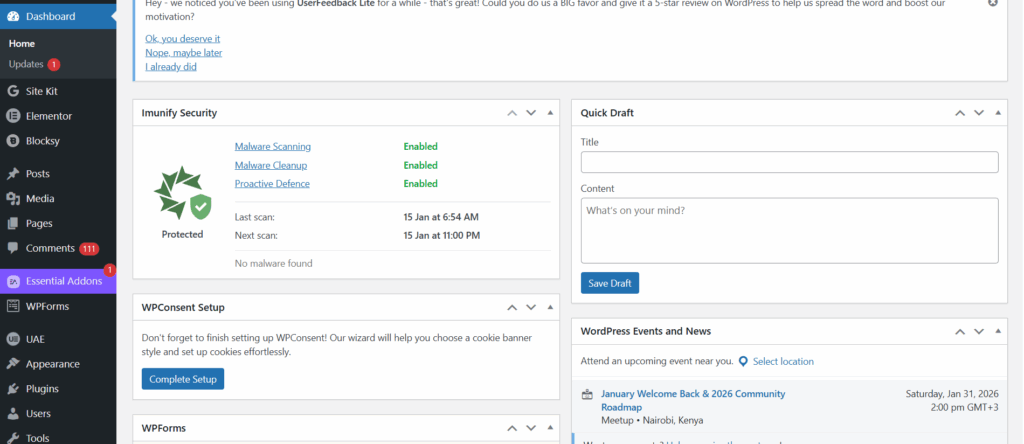
Your website admin panel is where all the real work happens.
It’s the private area you log into to control and manage your website. Visitors never see it, but it’s what gives you power over everything on your site.
This is where you handle tasks like:
- Editing pages and blog posts
- Uploading images and videos
- Installing themes and plugins
- Managing users and passwords
- Adjusting important site settings
Why You Need the Website Admin Panel
You need the admin panel because your website is never “done.”
- Content needs updating.
- Security needs checking.
- Designs need tweaking.
- Problems need fixing.
Without access to the admin panel, even small changes become impossible. You can’t update information, improve performance, or protect your site properly.
Main Types of Admin Panels
Not all admin panels are the same.
The type of website admin panel you use depends on what you need to manage, the level of control you require, and the types of access problems you might encounter.
Understanding these differences makes it easier to know where to log in, what you can control, and how to fix things if access is lost.
Let’s break them down.
1) Website Admin Panel (CMS Dashboard)
This is the admin panel that most people interact with daily.
It comes from your content management system (CMS), such as WordPress.
This panel focuses on content and site appearance.
You use it to:
- Create and edit pages and blog posts
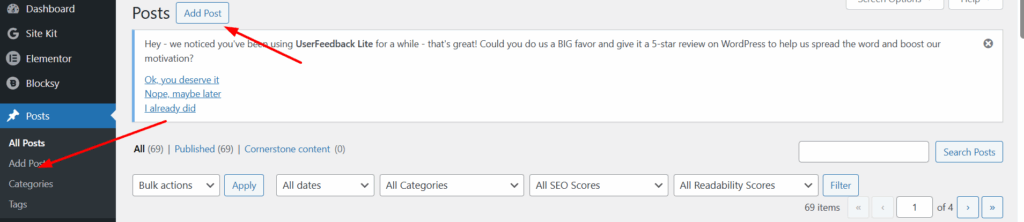
- Upload images, videos, and files
- Install and manage themes and plugins
- Add or remove website users
- Control basic site settings
This panel is ideal if your main job is updating content and managing how the site looks.
If you lose access here, your website may still be online, but you won’t be able to update or manage it.
2) Hosting Admin Panel (Server Control Panel)
This admin panel controls your hosting environment, not the website content itself.
Common examples include cPanel and Plesk.
You use this panel to:
- Manage files and folders
- Create and access email accounts
- Manage databases
- Install or reset CMS logins
- Control security and backups
This panel gives deeper access and carries higher security risks if misused.
It’s also the panel you rely on when your website admin panel stops working.
3) Website Builder Admin Panel
This type of admin panel is used with all-in-one website builders.
Everything, design, content, hosting, and settings, lives in one place.
You use it to:
- Edit your website visually
- Manage pages and layouts
- Handle payments or products (for online stores)
- Control basic hosting and domain settings
These panels are beginner-friendly but offer less advanced control compared to hosting admin panels.
If access is lost, recovery usually depends on account verification rather than server-level fixes.
Key Differences Between Admin Panel Types
| Admin Panel Type | What It Controls | Skill Level | Recovery Options |
| Website Admin Panel | Content and site features | Beginner–Intermediate | Password reset, email recovery |
| Hosting Admin Panel | Server, files, databases | Intermediate–Advanced | Hosting support, server tools |
| Website Builder Panel | Design, content, hosting | Beginner | Account recovery |
Why Knowing the Difference Matters
Each admin panel serves a different purpose.
- They require different login details
- They come with different security risks
- They use different recovery methods if you’re locked out
Knowing which admin panel you need saves time, prevents mistakes, and helps you regain access faster when something goes wrong.
The more you understand your admin panels, the more control you have over your website.
How to Access Your Website Admin Panel (By Platform)
1) WordPress Website Admin Panel
WordPress is the most popular platform, so let’s start here.
To access your WordPress admin panel, type one of these into your browser:
- yourwebsite.com/wp-admin
- yourwebsite.com/wp-login.php
Replace yourwebsite.com with your actual domain name.
You’ll see a login page asking for your username and password.
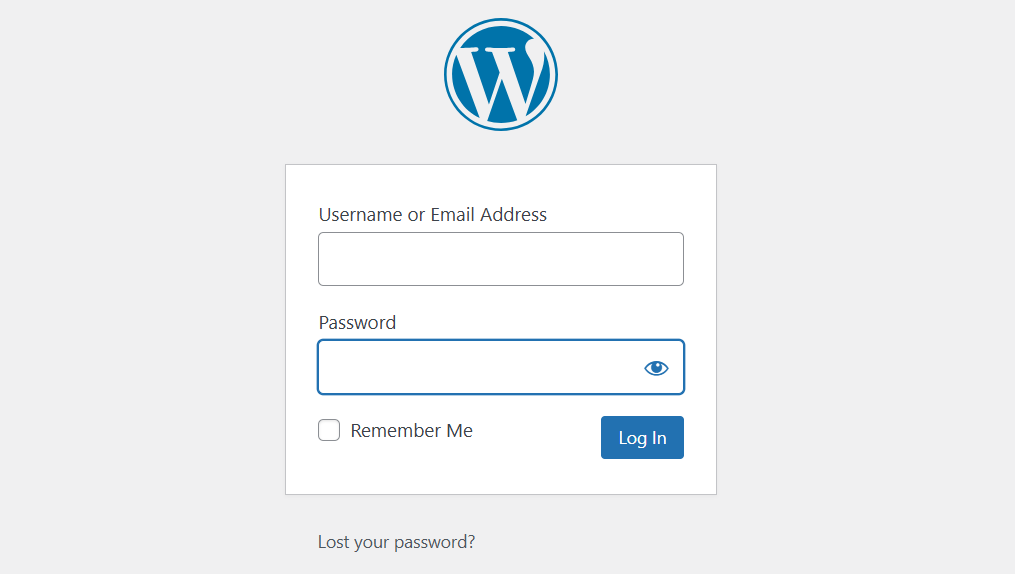
Once logged in, you’ll land on the WordPress dashboard.
That’s your website admin panel.
2) cPanel Admin Access (Hosting Control Panel)
Sometimes people confuse cPanel with a website admin panel.
They’re different, but connected.
cPanel controls your hosting, not your website content.
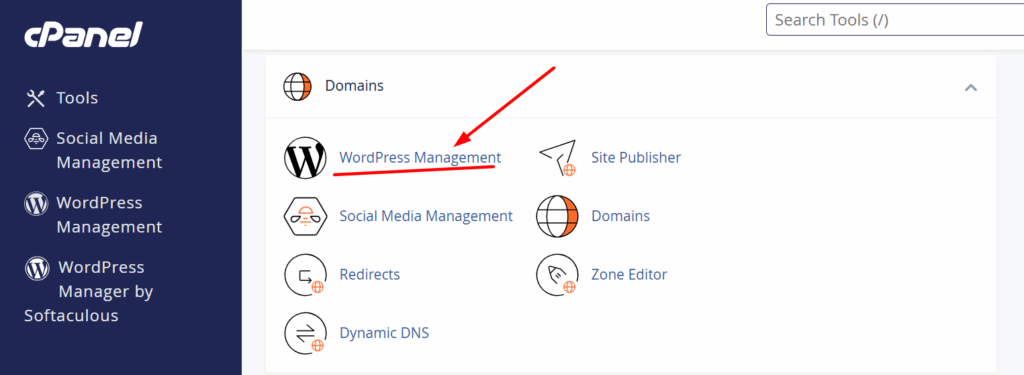
To access cPanel:
- Log in through your hosting account
- Or visit yourwebsite.com/cpanel
Inside cPanel, you can:
- Install WordPress
- Access file manager
- Create emails
- Reset website passwords
At Truehost, cPanel access is available directly from your client dashboard, making things easier for beginners.
3) Website Builder Admin Panel
If you used a website builder, your admin panel lives inside the builder platform.
Examples include:
- Truehost Website Builder
- Wix
- Shopify
To access it:
- Visit the builder’s homepage
- Log in to your account
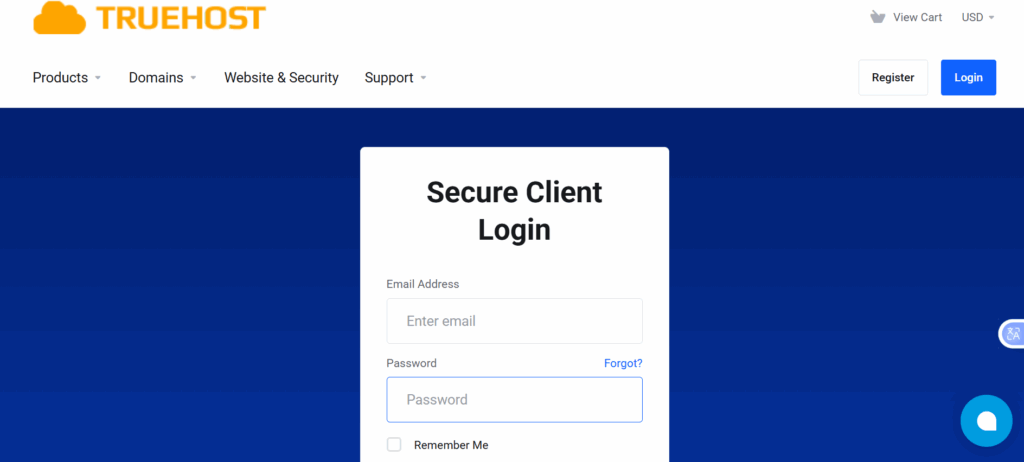
- Select your website
You’ll be taken straight to the editor or dashboard.
From there, you manage everything visually.
How to Find Your Admin Panel URL If You Forgot It
Forgot your login link? It happens more often than you think.
Here are quick ways to find it.
a) Check your welcome email
Hosting providers usually send login details after signing up.
Search your inbox for words like hosting, WordPress, or admin.
b) Ask your hosting provider
If you host with Truehost, support can help you locate your admin panel fast.
Sometimes the fastest fix is simply asking for help.
c) Use cPanel
From cPanel, you can access WordPress using tools like Softaculous or WordPress Manager.
No password guessing needed.
What to Do If You Forgot Your Admin Password
Locked out? Don’t panic.
You have options.
i) Reset from the login page
On most admin panels, click “Forgot Password”.
You’ll receive a reset link by email.
ii) Reset via cPanel
From the File Manager or WordPress Manager, you can reset admin credentials safely.
iii) Contact support
If all else fails, your hosting provider can assist.
At Truehost, this is handled quickly to avoid downtime.
Common Problems When Accessing the Website Admin Panel
Sometimes things don’t go as planned.
Here are common issues and simple fixes.
a) Wrong URL
Make sure you typed the correct admin link.
One extra letter can break it.
b) Browser cache issues
Clear your browser cache or try incognito mode.
c) Plugin conflicts
Some security plugins may block login pages.
Access your site through cPanel to disable them.
Security Tips for Your Website Admin Panel
Once you know how to get in, you need to make sure the “bad guys” stay out.
Your admin panel is the top target for hackers. If they get in, they can delete your site or steal customer data.
i) Use a strong password
Avoid passwords like “admin123” or your birthday. Use a mix of capital letters, numbers, and symbols.
ii) Enable Two-Factor Authentication (2FA)
2FA sends a code to your phone every time someone tries to log in. It is like having a second lock on your door.
iii) Keep your SSL active
Always ensure your login page starts with https://. This encrypts your data so hackers can’t “sniff” your password over public Wi-Fi.
At Truehost, we provide Free SSL certificates with our hosting plans to keep you secure.
Final Thoughts
Accessing your website admin panel is how you stay in control of your website.
When you know where your admin panel is and how to log in, managing content, fixing issues, and growing your site becomes easier and less stressful. You’re no longer guessing or depending on someone else for simple updates.
That said, your experience with admin access depends heavily on your hosting.
Unreliable hosting can make admin pages slow, break logins, or lock you out when you need access most. This is where having the right hosting partner makes a real difference.
At Truehost, we make admin access simple and dependable. Our hosting comes with easy-to-use control panels, built-in CMS tools, strong security, and fast support when you need help getting back in. From WordPress to Joomla, Drupal, or even a website builder, you enjoy a smoother admin experience from day one.
If you want fewer headaches and more control over your website, reliable hosting is the best place to start.