 Domain NamesFind and register your ideal domain name instantly.
 Web HostingEasy-to-use hosting powered by cPanel — ideal for managing websites in Nigeria.
 Windows HostingRun .NET apps with Windows-optimized hosting
 Affiliate ProgramMake money promoting our services
 Reseller HostingMake money by reselling our hosting products under your own brand
 .COM Domains
 All DomainsExplore all supported tld domains in Nigeria
 WhoisFind out who owns any domain, as well as verify your registration details
 VPS Hosting
 Dedicated ServersReimagine your site speed with your own complete server
 AI Website BuilderDesign your site with drag-and-drop tools
 Online Store BuilderStart your online shop without code
 Support PortalFind answers or get expert help
 Contact UsReach our team via chat or email
 BlogRead our extensive guides on web hosting and more
When it comes to transferring your domain, there are several steps that you need to follow.
Only, a transfer cannot be successful when your domain is already locked.
Domains are by default locked at the time of registration so as to protect them from being transferred away without your direct permission.
Don’t worry though, it is not as complicated as it sounds.
In today’s piece I am going to explain to you how to unlock a domain for transfer in the simplest way I can.
Let us jump right in!
What Does It Actually Mean When a Domain Is Locked?
Before we start clicking buttons, let us first understand what is happening behind the scenes.
When your domain is locked, it simply means your registrar has placed a protective status or shield on it. That status prevents:
- Random transfers to another registrar
- Ownership domain changes
- Unauthorized modifications
And honestly? It is a good thing.
Domain theft is a real threat.
If domains were transferable at any time without restrictions, it would be chaos.
It is for this very reason that registrars automatically lock domains immediately after:
- Initial registration
- A completed transfer
- Certain account changes
This practice aligns with ICANN transfer policies (ICANN is the global body that oversees domain systems worldwide).
So when you see that your domain is locked, don’t panic. It is a protection measure.
You only need to remove that protection temporarily when you are ready to move the domain.
Important ICANN Rules You Should Know First
This is where most people get confused.
Even if you unlock your domain correctly, there are situations where the transfer still won’t go through.
Now, I am going to talk about the two most common ones.
1) The 60-Day Rule
ICANN enforces a mandatory 60-day transfer restriction after:
- A new domain registration
- A previous transfer
- Certain changes to registrant information
If your domain falls within that 60-day window, you cannot transfer it, even if you unlock it.
And yes, this applies globally, including Nigeria.
So if you registered the domain last month and you are already trying to move it, the system will block you. You simply have to wait.
There is no shortcut around this one.
2) Your Admin Email Must Be Active
This one causes silent failures.
During a domain transfer, confirmation emails are sent to the administrative contact email listed in WHOIS.
If:
- The email is outdated
- It belongs to a former employee
- You no longer have access to it
The transfer request may sit there unapproved.
Before you start the unlocking process, quickly confirm that your contact email is correct and accessible.
It saves you unnecessary stress later.
Step-by-Step: How to Unlock a Domain for Transfer
Now, we go through the entire process clearly so you know exactly what to expect.
Step 1: Log Into Your Current Registrar Account
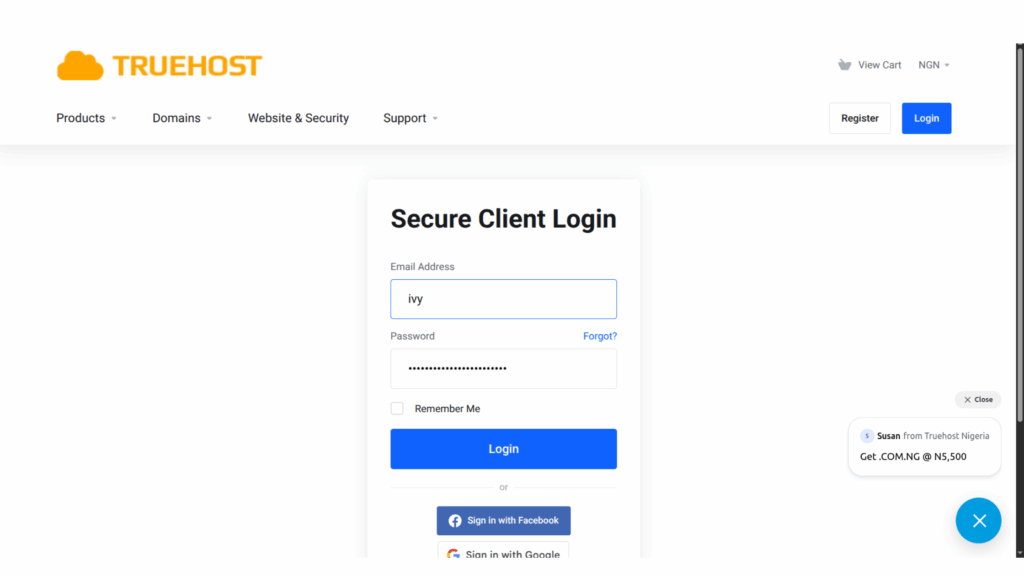
Start by visiting the website where your domain is currently registered.
This is important: your hosting provider is not always your domain registrar. Sometimes they are the same company, sometimes they are not. So be sure before moving forward.
Once on the correct site, sign in to your account dashboard. This is where you manage:
- DNS settings
- Nameservers
- Renewal settings
- Contact details
- Security features
If you cannot access your account, use the password recovery option first. You cannot unlock a domain without full account access.
Step 2: Locate the Domain Management Section
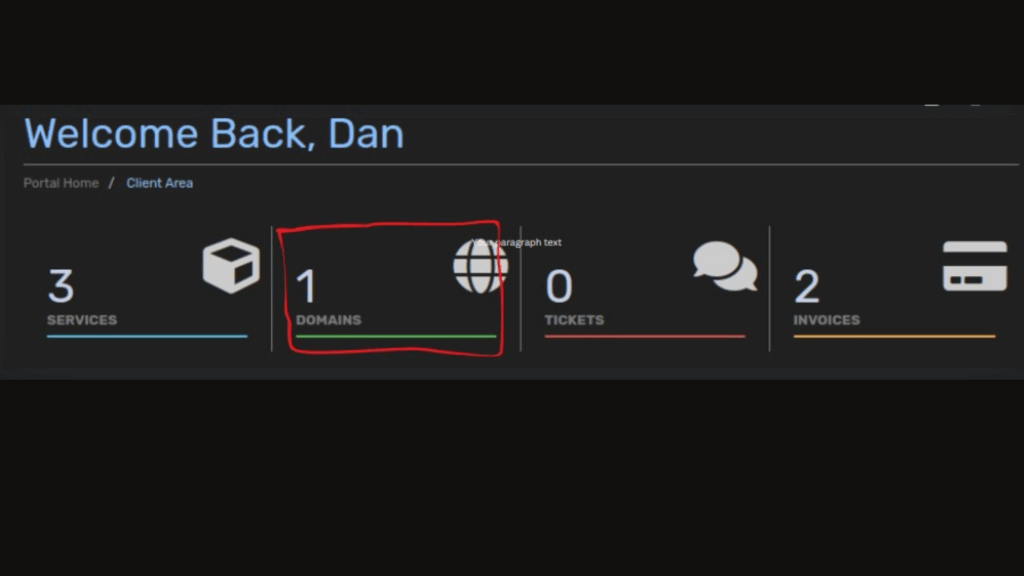
After logging in, look for a section labeled something like:
- My Domains
- Domain List
- Manage Domains
Click on the specific domain you want to transfer.
You should now see a detailed management page showing configuration settings for that domain.
Each registrar designs their interface slightly differently, but the core controls are usually similar.
Step 3: Find the Registrar Lock Setting
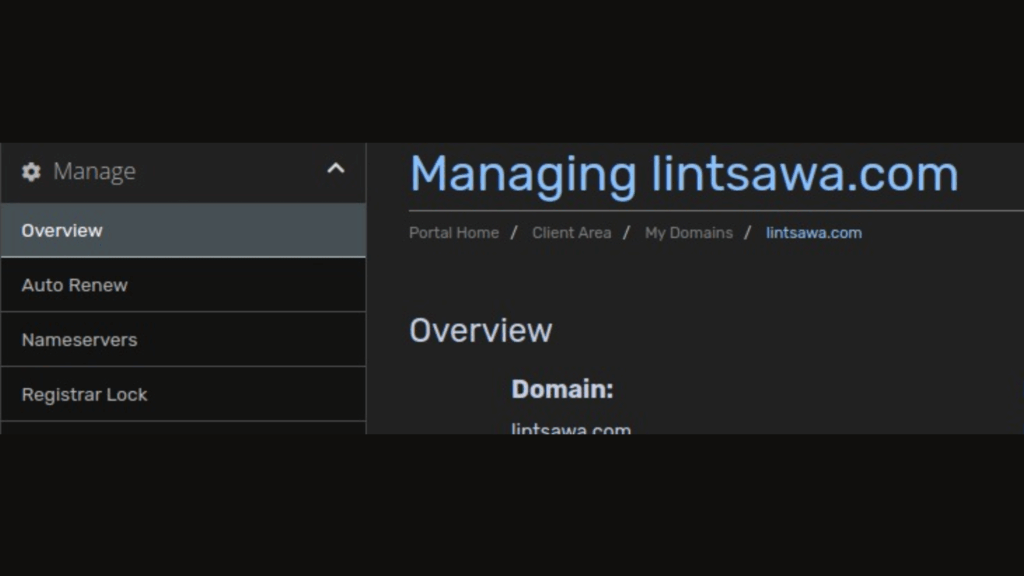
Within the domain settings page, look for the security section.
You may see it labeled as:
- Registrar Lock
- Domain Lock
- Transfer Lock
- Domain Status
In many dashboards, this appears as a toggle switch that shows either Locked or Unlocked.
For example, if you are using Truehost, the process typically involves:
- Logging into your client area
- Clicking on My Domains
- Selecting Manage Domain
- Locating the Registrar Lock option
- Disabling it
The interface is designed to make the process straightforward.
Step 4: Disable the Domain Lock
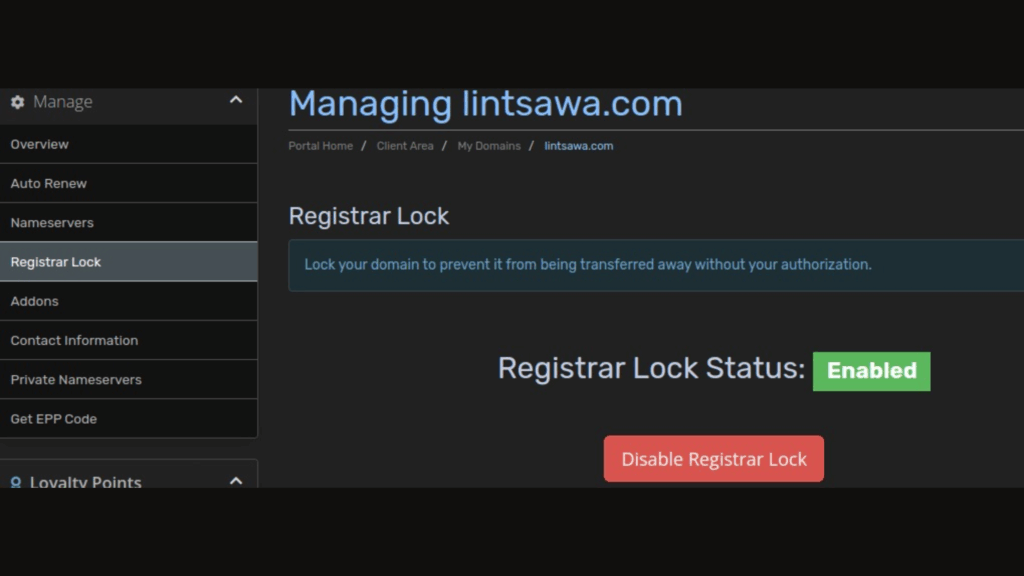
Once you locate the lock setting, switch it off.
Depending on your registrar’s security policies, you may need to:
- Confirm the action via email
- Enter a one-time password
- Complete two-factor authentication
- Verify through SMS
After confirmation, the domain status should update to Unlocked.
At this stage, your domain is eligible for transfer, but the transfer has not yet started.
You have simply removed the restriction.
Step 5: Request the EPP Code (Authorization Code)
Unlocking the domain is only part of the process.
You must also obtain the EPP code.
The EPP code, sometimes called:
- Authorization Code
- Auth Code
- Transfer Code
is essentially a password that authorizes the transfer.
Without this code, the new registrar cannot proceed.
Most registrars provide an option to generate or request the EPP code directly within the domain management page.
It may be displayed instantly or sent to your registered email address.
Keep this code secure. You will need it in the next step.
Step 6: Verify Domain Eligibility
Before leaving your current registrar’s dashboard, quickly confirm:
- The domain is not expired
- There are no unpaid invoices
- The 60-day ICANN restriction does not apply
- The admin email is correct
If any of these conditions are not met, resolve them before initiating the transfer.
It prevents unnecessary delays.
Initiating the Transfer at Your New Registrar
With your domain unlocked and your EPP code ready, it is time to start the transfer at your new registrar.
This is the point where everything you have prepared comes together, and the process actually begins.
If you are moving your domain to Truehost, here is how the steps typically unfold:
- Go to the domain transfer section
Every registrar has a dedicated area for transferring domains.
At Truehost, this is usually labeled clearly as Transfer Domain. This is where you tell the new registrar that you want to bring your domain to them.
Make sure you are in the correct section, entering transfer details elsewhere could confuse the system or create delays.
- Enter your domain name
Here, you type in the full domain you are transferring, for example, mybusiness.com.
Double-check the spelling.
A small typo could cause the transfer to fail.
It is also a good idea to make sure the domain extension matches exactly, such as .com, .net, or .org.
This ensures the system knows exactly which domain to associate with your transfer request.
- Provide the EPP code
The EPP code, also called an authorization code, is your permission slip for the transfer.
When you input this code, you are confirming to the new registrar that you, the rightful owner, approve the move.
Without it, the transfer can’t happen. Keep in mind that this code is case-sensitive in some systems, so copy and paste carefully to avoid errors.
- Complete payment
Most domain transfers involve a one-year renewal, which is added to your existing expiration date.
For instance, if your domain was set to expire in 6 months, completing the transfer will extend the registration for an additional year beyond that.
It is actually a way to ensure your domain stays active during and after the move.
Some registrars, like we at Truehost, offer you clear pricing in Naira, making it easy for Nigerian businesses to budget and pay without surprises.
Once you submit the transfer request, your current registrar will send a confirmation email to the administrative contact listed in WHOIS.
This is a critical step, if you don’t approve it, the transfer cannot proceed.
The email usually includes a link or instructions to confirm that you indeed want the domain moved.
Approving it promptly helps avoid unnecessary delays.
If you ignore the confirmation email or your admin email is outdated, the transfer may stall or eventually cancel.
That is why verifying your email beforehand is so important. A few minutes of preparation now can save days of waiting later.
Final Thoughts
Learning how to unlock a domain for transfer removes a lot of the uncertainty that trips people up.
And if we are being honest, domain locking is just a security feature, not a technical hurdle.
It is there to protect you from unauthorized changes or transfers, and knowing that makes the process feel much less intimidating.
When you understand this, unlocking your domain becomes a straightforward, predictable step. You simply:
- Log in to your registrar and locate the domain lock
- Disable the lock
- Verify your contact information
- Request the EPP code
That is it. Once these steps are completed, your domain is fully unlocked and ready for any authorized transfer or management actions you want to take.
For anyone considering moving their domain to a provider like Truehost, having it unlocked is the first and most important step.
Once unlocked, everything else, be it that it is consolidating domains, improving management, or simplifying billing, becomes much easier.