 Domain NamesFind and register your ideal domain name instantly.
 Web HostingEasy-to-use hosting powered by cPanel — ideal for managing websites in Nigeria.
 Windows HostingRun .NET apps with Windows-optimized hosting
 Affiliate ProgramMake money promoting our services
 Reseller HostingMake money by reselling our hosting products under your own brand
 .COM Domains
 All DomainsExplore all supported tld domains in Nigeria
 WhoisFind out who owns any domain, as well as verify your registration details
 VPS Hosting in Nigeria
 Dedicated ServersReimagine your site speed with your own complete server
 AI Website BuilderDesign your site with drag-and-drop tools
 Online Store BuilderStart your online shop without code
 SSLs
SSLs Support PortalFind answers or get expert help
 Contact UsReach our team via chat or email
 BlogRead our extensive guides on web hosting and more
Last updated on May 12th, 2026 at 10:07 am
If you have ever tried to switch email providers and felt overwhelmed by the technical jargon like IMAP, MX records, DNS propagation, you are not alone.
Many Nigerian business owners stick with a mediocre email host simply because they dread the migration process.
The good news is that it doesn’t have to be complicated.
Email migration is simply the process of moving your emails, contacts, calendars, and settings from one provider to another.
So why do Nigerian businesses migrate? Common reasons include
- switching from a free email plan like Gmail to a professional domain email
[email protected] - moving away from an unreliable or expensive hosting provider
- upgrading to more storage or security features
- or consolidating domain, hosting, and email under one provider for easier management
The best part?
Most modern email hosts offer built-in migration tools or dedicated support teams to handle the technical side for you.
You don’t need to be an IT expert. You just need a clear, step‑by‑step guide.
Below, I’ll walk you through exactly how to migrate your business email in five straightforward steps.
Follow them in order, and your team will be sending and receiving from the new host before you know it, with zero downtime and zero lost emails.
Step 1: Audit Your Current Email Setup

Before moving a single email, you need a complete inventory of what you currently have.
This step takes just 30 minutes but saves hours of confusion later.
What to document:
1) How many email accounts need to be migrated?
List every single address your business uses, including shared ones like info@, support@, sales@, admin@.
It is easy to focus on your own inbox and forget that the billing@ address receives payment notifications. If you miss one, that account will stop working after migration.
2) How much data is in each mailbox?
Check the storage used by each account. A 2 GB mailbox migrates quickly.
A 20 GB mailbox (years of attachments) may take hours.
Knowing this helps you schedule the migration properly, run the large ones overnight.
3) What email client is everyone using?
Note whether your team uses Outlook, Apple Mail, Thunderbird, webmail, or mobile apps.
This matters because each client may need its settings updated after migration.
4) Do you have email forwarders, aliases, or autoresponders?
Forwarders redirect emails (e.g., hello@ → [email protected]).
Aliases are alternative names for a mailbox (e.g., support@ and help@ go to the same person). Autoresponders send automatic replies like “I’m on leave.” These are often forgotten but critical. Write them all down.
5) Check your current provider’s export options.
Most providers support IMAP migration (copying emails directly) or allow you to download a backup file (.pst for Outlook, .mbox for others).
For very large mailboxes, exporting a backup file first is a reliable safety net.
Pro tip for Nigerian businesses: If your current provider is a free service like Gmail or Yahoo, you may need to enable “less secure apps” or generate an app password to allow migration. Check their help docs before starting.
Step 2: Set Up the New Email Host Before Migrating
The first mistake that causes migration disasters is cancelling the old host before the new one is fully ready.
Do not do this. Keep your old accounts active until the very end.
a) Sign up with your new provider first.
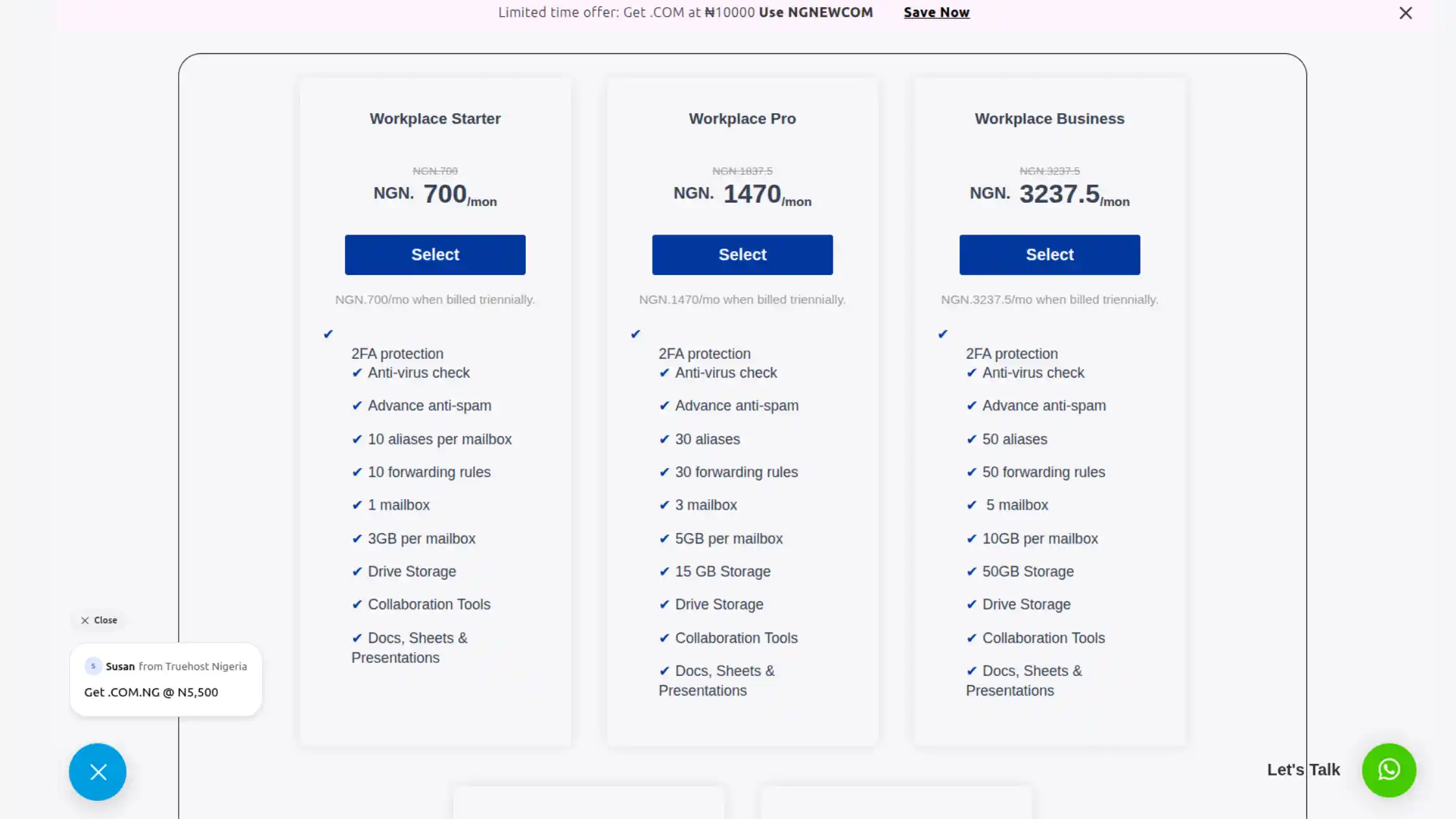
For Nigerian businesses, Truehost offers affordable professional email hosting starting at ₦1,500 per user per month.
Their cPanel interface is intuitive, and they provide a free migration tool.
b) Recreate all email accounts on the new host.
Log into your new hosting control panel. For Truehost, go to cPanel → Email Accounts.
Create each email address exactly as it existed on the old host, same username, same mailbox type. Set a new temporary password for each account.
c) Recreate forwarders, aliases, and autoresponders.
Using the list from Step 1, rebuild each forwarder and alias under cPanel → Forwarders and cPanel → Email Routing.
Set up autoresponders under cPanel → Autoresponders. This ensures that when emails start arriving at the new host, they behave exactly as your customers expect.
d) Configure spam filters and custom settings.
If you had custom junk mail rules or whitelists/blacklists on your old host, replicate them now.
For Truehost, adjust spam sensitivity under cPanel → Apache SpamAssassin.
e) Test that the new accounts are accessible.
Before touching DNS or migrating data, log into each new mailbox via Truehost webmail (Roundcube or Horde).
Send a test email from one account to another within the new system. Confirm everything works.
Your old host is still live, so your team can continue working normally during this setup phase.
Step 3: Migrate Your Emails
This is the actual data move, copying emails, folders, and sometimes contacts from the old mailbox to the new one.
You have three options, depending on your technical comfort and mailbox sizes.
Option 1: IMAP migration (drag and drop).
This works well for smaller mailboxes under 2 GB.
Use an email client like Outlook, Thunderbird, or Apple Mail to connect to both the old and new accounts simultaneously.
Then drag emails or entire folders from the old account to the new one. The client copies everything over, preserving folder structures.
- Pros: No special tools required.
- Cons: Slow for large mailboxes; you must keep your computer running.
Option 2: Use a built-in migration tool (recommended for most).
Many modern email hosts provide an automated migration tool directly in their control panel.
In Truehost cPanel, look for Email Migration or Transfer Tool.
You will need the old host’s IMAP server address, your old email address, and password.
The tool connects to the old server, pulls all emails, and deposits them into your new mailbox.
You can migrate multiple accounts at once.
- Pros: Fast, hands‑off, runs on the server.
- Cons: Requires that your old host supports IMAP access (most do).
Option 3: Manual export and import.
Export all emails from the old provider as a .pst file (Outlook) or .mbox file (others).
Then import that file into your new mailbox using an email client or the new host’s import tool.
This is the most reliable method for very large mailboxes (e.g., 20+ GB) because you have a local backup.
- Pros: Full control, works even if the old host is slow.
- Cons: More steps, requires enough local storage.
Migration best practices:
- Start with the most important accounts first, owner’s email, sales@, support@ because these face your customers.
- Run large migrations overnight when email traffic is low (a 10 GB mailbox can take 3–6 hours over IMAP).
- Do not delete anything from the old host until you have confirmed everything arrived safely.
For Truehost users, the built-in migration tool combined with local support makes this step genuinely hassle-free.
If you get stuck, open a ticket, and they will often assist with the transfer at no extra charge.
Step 4: Update Your DNS Records
This is the step that actually switches email delivery from the old host to the new one.
Until you update your DNS, the internet still thinks your old host is responsible for your domain’s email.
What you need to change: MX records.
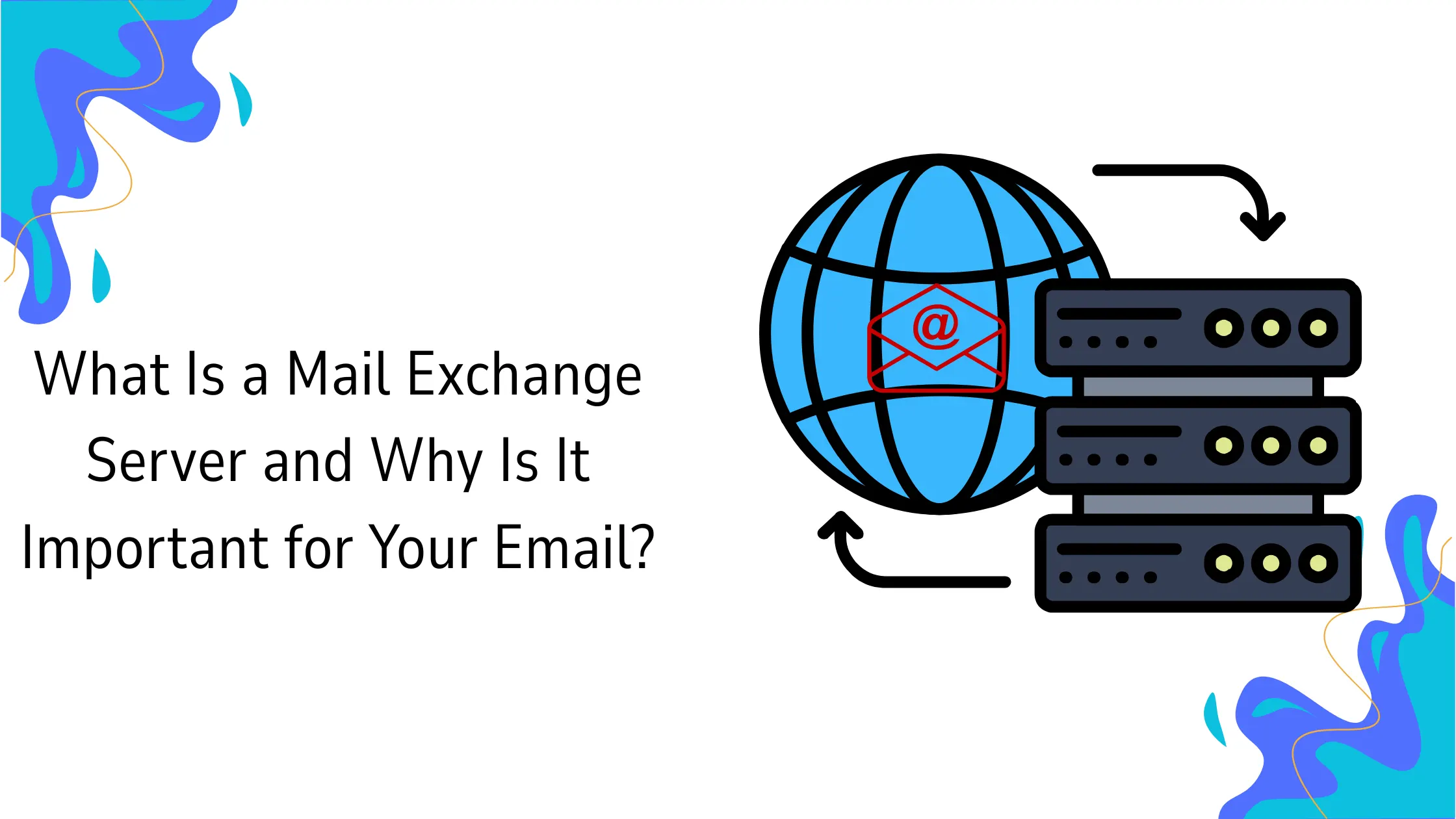
MX (Mail Exchange) records tell the world where to deliver email for your domain. Your new host will provide a set of MX record values.
They typically look like:
Priority 0: mail.truehost.com.ng and
Priority 10: mail2.truehost.com.ng.
Where to make the change:
- Log into the website where your domain’s DNS is managed. This is often your domain registrar (Truehost, QServers, or Namecheap) or your hosting provider. If you bought your domain and hosting from Truehost, you can make changes directly in cPanel or the client area.
- Locate the DNS management section (Zone Editor or DNS Records).
- Find the existing MX records pointing to your old host. Delete them or set their priority higher (less preferred).
- Add the new MX records provided by Truehost with the correct priority numbers.
- Save the changes.
- Wait for DNS propagation.
DNS changes don’t happen instantly. They take anywhere from a few minutes to 48 hours to fully propagate across the internet.
During this period, some emails will go to your old host, while others will arrive at the new one. Keep both accounts active.
Check both inboxes for incoming emails. Do not delete the old accounts yet.
Once you see that new emails are consistently arriving at the new host, test by sending from an external Gmail address, propagation is complete.
For most Nigerian domains, this happens within 2–6 hours, but some ISPs cache DNS for longer.
Step 5: Update Email Settings on All Devices and Test
Once DNS has propagated, the final step is updating every device, client, and third‑party tool that connects to your old email.
What needs updating:
- Desktop email clients like Outlook, Thunderbird, Apple Mail
- mobile apps like iPhone Mail, Gmail app, Samsung Email, Outlook mobile
- and third‑party integrations like CRM systems like HubSpot, Zoho
- booking tools like Calendly, YouCanBook.me
- and newsletter platforms such as Mailchimp, Brevo that use your old email’s SMTP settings to send on your behalf.
What settings to use: Your new host will provide the exact IMAP (incoming) and SMTP (outgoing) server addresses.
For Truehost, typical settings are:
- IMAP server mail.yourdomain.com.ng or imap.truehost.com.ng),
- SMTP server mail.yourdomain.com.ng or smtp.truehost.com.ng,
- ports IMAP 993 (SSL) and SMTP 465 (SSL) or 587 (TLS), authentication required using full email address and password.
Test thoroughly: Send a test email from each account and confirm it arrives correctly in another inbox like a personal Gmail.
Reply from a different address and confirm the reply lands in the right new mailbox.
Spot‑check a few older emails to ensure folders, drafts, and sent items migrated correctly.
Notify your team: Provide each team member with their new password (if changed) and the updated IMAP/SMTP settings.
Give them a simple checklist to update their own devices.
Once everything is confirmed working for at least 48 hours, and no old emails are being lost, you can finally cancel the old hosting account.
But keep a local backup of your old emails for a month, just in case.
Common Mistakes to Avoid
1) Cancelling the old host too early. Emails sent during propagation disappear forever. Wait at least 48 hours after DNS update and confirm all devices work.
2) Forgetting shared mailboxes. info@, support@ stop working, customers can’t reach you. Use your Step 1 audit list and double‑check every address.
3) Skipping the test phase. You tell clients “we’ve migrated” but replies aren’t working. Always send and receive test emails from multiple external accounts.
4) Ignoring third‑party integrations. Your CRM or booking tool stops sending notifications. Make a list of every tool that uses your email as a sender; update SMTP settings before migration.
5) Losing contacts. Phone numbers and email addresses of key clients disappear. Export contacts as .vcf or .csv from your old provider before migrating; import into the new account.
Frequently Asked Questions
Will I lose any emails during migration?
No, if you follow the steps in order. Keeping the old host active throughout ensures no emails are lost. The only risk is cancelling the old host before the migration and DNS update are fully complete.
How long does email migration take?
Setup (Steps 1–2) takes 1–2 hours. The actual email data transfer depends on mailbox size: a small mailbox takes minutes; a 10‑year‑old inbox with 15 GB of attachments can take 6–8 hours. DNS propagation adds another few hours to 48 hours. Plan to start on a Thursday afternoon so everything settles before Monday morning.
Do I need technical knowledge to migrate business email?
Not really. Hosts like Truehost offer migration tools that handle the technical transfer automatically. The trickiest part is updating DNS records, and your new host can provide the exact values, it’s just copy‑and‑paste. Truehost’s support team can walk you through it if needed.
Can I migrate email without any downtime?
Yes. By keeping the old host active until DNS propagates and all devices are updated, your team can continue sending and receiving email throughout the migration without interruption. Some emails may arrive at the old mailbox, others at the new one, but none will be lost.
Set Up Your Email With Truehost
The process sounds technical, but done in the right order, it’s straightforward. The biggest risk is rushing and skipping steps.
Take your time, use the Truehost migration tool, and ask for help when you need it.
Ready to switch? Truehost makes the move as close to hassle‑free as possible.
With local support, ₦aira pricing starting at just ₦1,500/user/month, and a built‑in migration tool, you can have professional email at your own domain name without the stress.
Get started today: Visit Truehost, choose your email plan, and follow the steps above.