 Domain NamesFind and register your ideal domain name instantly.
 Web HostingEasy-to-use hosting powered by cPanel — ideal for managing websites in Nigeria.
 Windows HostingRun .NET apps with Windows-optimized hosting
 Affiliate ProgramMake money promoting our services
 Reseller HostingMake money by reselling our hosting products under your own brand
 .COM Domains
 All DomainsExplore all supported tld domains in Nigeria
 WhoisFind out who owns any domain, as well as verify your registration details
 VPS Hosting
 Dedicated ServersReimagine your site speed with your own complete server
 AI Website BuilderDesign your site with drag-and-drop tools
 Online Store BuilderStart your online shop without code
 Support PortalFind answers or get expert help
 Contact UsReach our team via chat or email
 BlogRead our extensive guides on web hosting and more
Setting up a custom email domain is one of the most practical steps a business can take.
Your email address is often the first impression a client sees, and a branded address like [email protected] signals professionalism in a way that [email protected] never can.
It is a small change on the surface, but it shifts how people perceive your business before a single word of your email is even read.
The challenge is that getting there requires configuring DNS records correctly, and for most business owners, DNS is unfamiliar territory.
Terms like MX records, SPF, DKIM, and DMARC sound more complicated than they actually are.
Once you understand what each one does and why it exists, the whole process becomes far less intimidating.
This guide walks you through the entire process step by step of configuring email authentication and avoiding the mistakes that trip most people up the first time around.
What You Need Before You Start
Having a few things ready before you begin makes the whole process smoother and saves you from stopping halfway to hunt for information.
- Your domain name. The one you want to use for business email, something like
yourbusiness.comoryourcompany.ng. - Access to your domain’s DNS management. This is wherever you registered or transferred your domain. Common providers include Truehost, Namecheap, GoDaddy, and HostAfrica. You will need to be able to log in and add or edit DNS records.
- Your email hosting provider’s MX record details. Your provider gives you these during setup. Do not guess at these values, copy them exactly as provided.
- Your email hosting provider’s IP address. You will need this when setting up the A record in Step 2.
- A list of all services that send email using your domain. This is critical specifically for SPF setup in Step 4. If you use tools like Mailchimp, a CRM, or any automated email platform alongside your main email, those services need to be included in your SPF record.
Once you have all of this, you are ready to go.
Step 1: Access Your DNS Management Dashboard
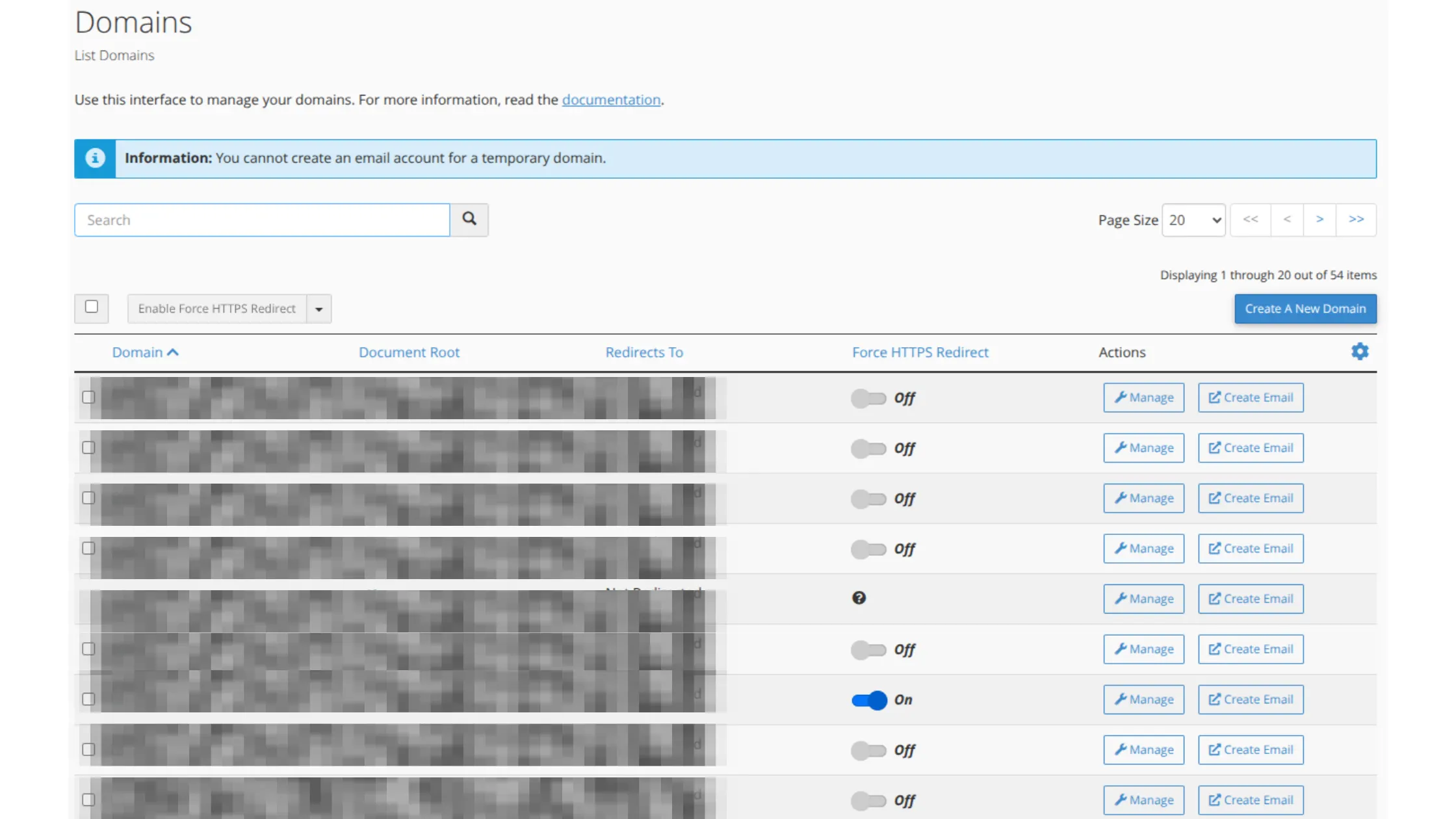
The first thing you need to do is get to the place where you can add and edit DNS records.
- If you use Truehost shared hosting:
- Log in to your Truehost account.
- Look for the cPanel login link, or use the direct cPanel URL your Truehost account provides.
- Once inside cPanel, you will find DNS management under the Domains section.
- If you use another domain registrar:
- Log in to your registrar account, whether that is Namecheap, GoDaddy, HostAfrica, or another provider.
- Navigate to DNS settings, DNS management, or Zone Editor.
- The exact label varies by provider, but it is always in the account dashboard somewhere. This is where every record you add from here on will live.
Step 2: Add an A Record for Your Mail Server
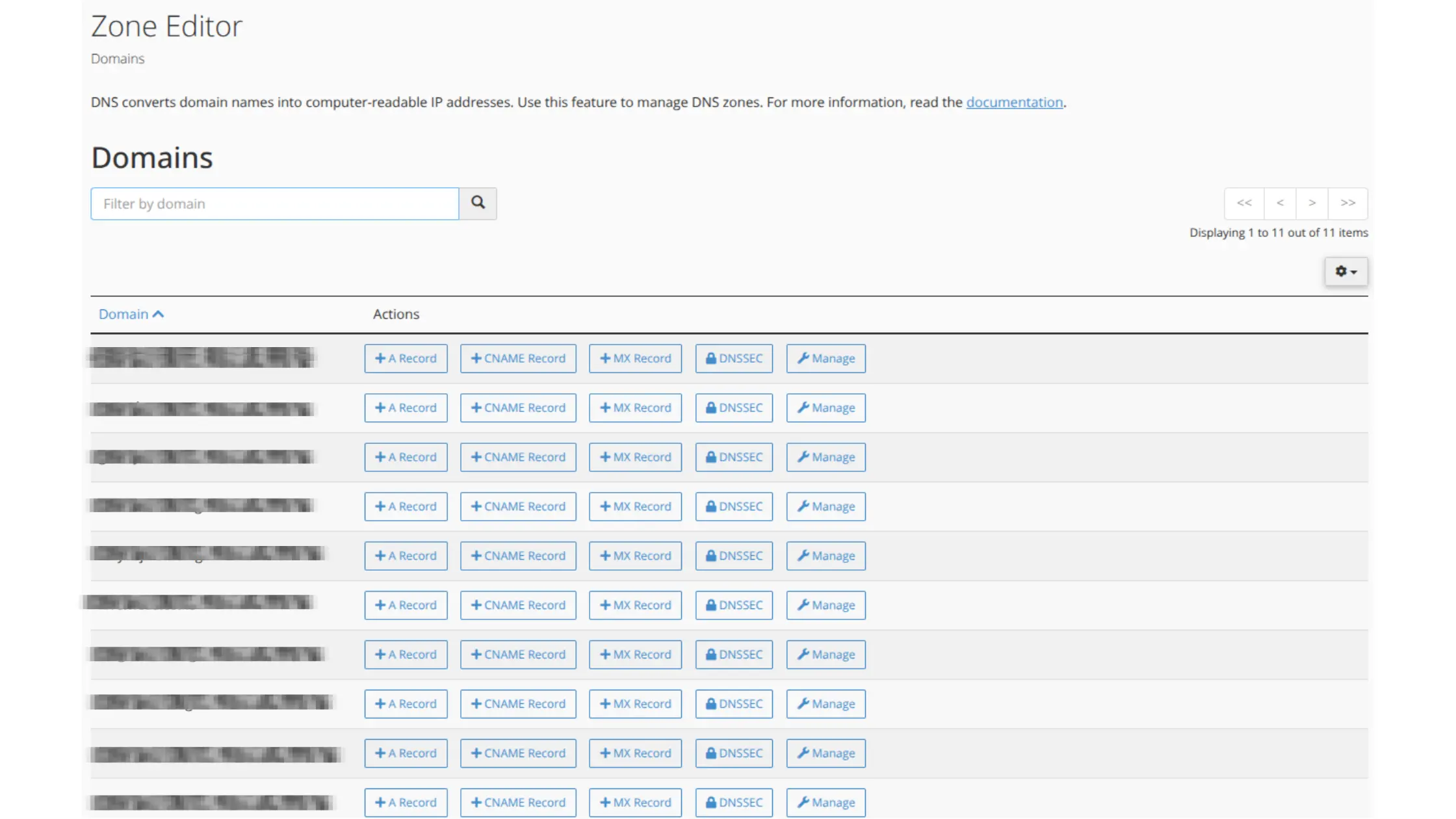
Before setting up MX records, you need an A record that points your mail subdomain to your email hosting server’s IP address.
This step exists because MX records must point to a hostname, not directly to an IP address.
The A record is what makes that hostname resolve to the correct server.
Skipping this step or getting it wrong is one of the most common reasons email setup fails silently.
How to do it in cPanel:
- In cPanel, go to the Simple DNS Editor or Zone Editor.
- Select your domain from the drop-down menu.
- Under Add an A Record, enter
mail.yourdomain.comin the Name field. - In the Address field, enter your email hosting server’s IP address, the one your hosting provider gave you.
- Click the Add A Record button to save.
Once this is in place, you have a hostname that your MX records can point to. Now you can move to the next step.
Step 3: Add MX Records
This is the core step in setting up a custom email domain. Everything before this was preparation; this is what actually makes email delivery work.
General steps:
Go to your DNS management dashboard and find the MX records section.
Before adding anything new, remove any existing MX records linked to your old email provider.
This is important, leaving old records alongside new ones causes routing confusion where some messages go to the old server and some to the new one, and you have no reliable way to know which.
Once the old records are cleared, add the new MX records using the priority and hostname values your email hosting provider gave you.
For Truehost email hosting specifically:
- In cPanel, go to the Mail section and click MX Entry.
- Select your domain name from the drop-down.
- Under Add new records, enter
mail.yourdomain.comas the destination value. - Click the Add New Record button to save.
Priority best practices to keep in mind: Lower numbers mean higher priority, a server with priority 1 is tried before one with priority 10. Use priority increments of 10 to allow for flexible scaling later.
Start with priority 1 rather than 0 for cleaner configuration. Make sure each server has a unique priority level to avoid conflicts where the sending server has to choose randomly between two equally ranked options.
Step 4: Configure SPF (Sender Policy Framework)
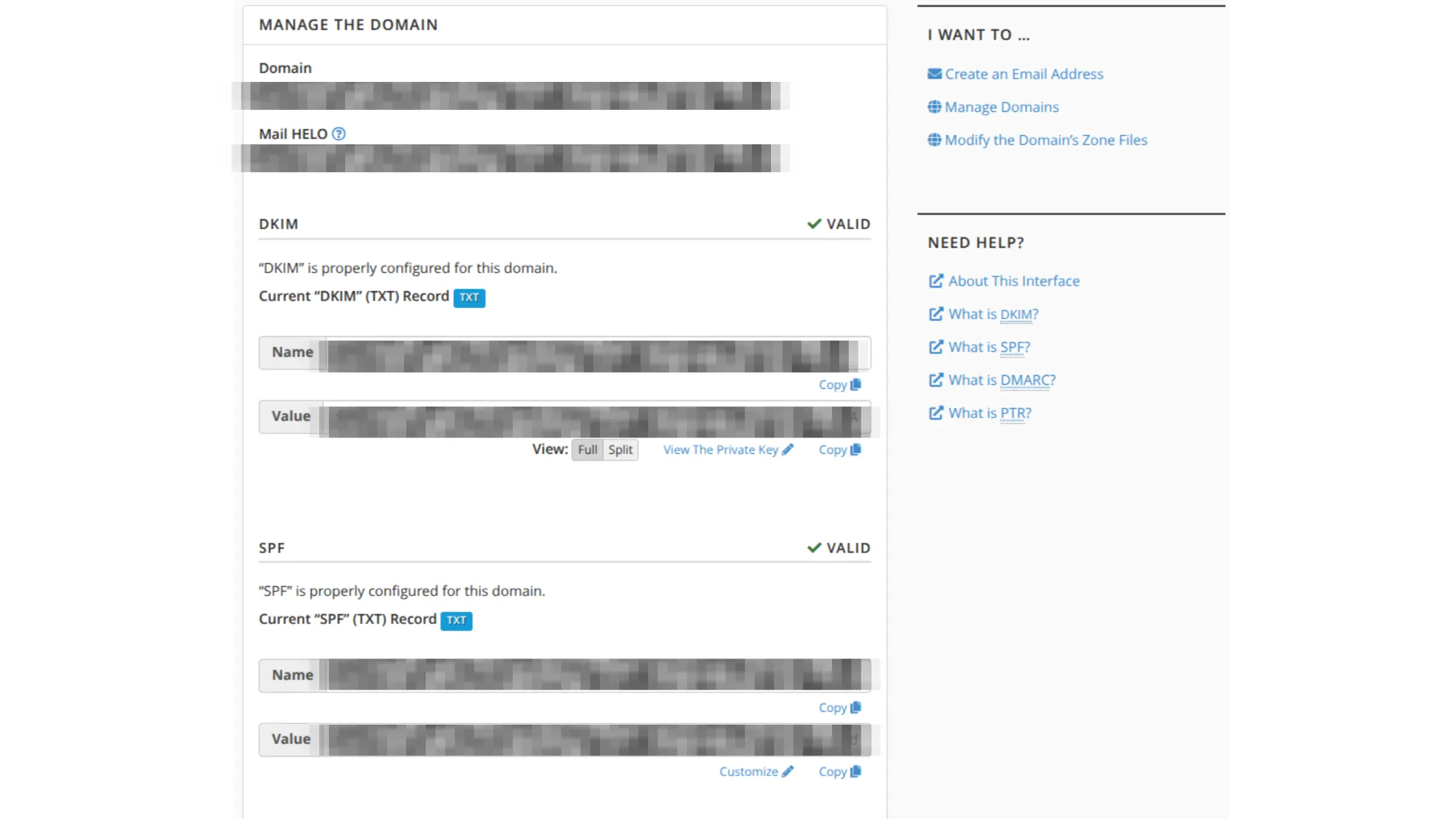
SPF helps receiving mail servers verify that emails from your domain are actually being sent by authorised servers.
Without it, anyone could technically send emails that appear to come from your domain, which is exactly how email spoofing and phishing attacks work.
Since February 2024, Google and Yahoo now require SPF, DKIM, and DMARC for bulk email senders.
Microsoft Outlook enforced similar requirements starting May 2025. Even if you are not a bulk sender, having these records configured properly protects your deliverability and your domain’s reputation.
How to set up SPF:
- In cPanel, go to Email Deliverability under the Email section.
- Click Manage next to your domain.
- Scroll to the Sender Policy Framework (SPF) section.
- In the Record field, enter the SPF value.
For Truehost email hosting, that looks like this:
v=spf1 a mx ~allIf an SPF record already exists, click Customise rather than adding a new one. If no SPF record exists, click Install The Suggested Record.
Key rules to follow:
Your domain must have exactly one SPF record. If you have multiple SPF records, all SPF checks fail, it is not additive, it breaks everything.
If you use multiple services that send email on your behalf, they all need to be consolidated into that single record rather than each adding their own.
SPF also allows a maximum of 10 DNS lookups.
Each include: statement in your record counts as at least one lookup. If you use several third-party services, watch this count carefully.
Start with ~all, which is a soft fail, it flags suspicious emails but does not reject them outright.
Once you have confirmed that all your legitimate sending services are included in the record, you can move to -all for a hard fail.
Step 5: Configure DKIM (DomainKeys Identified Mail)
DKIM adds a digital signature to every email you send.
When a receiving mail server gets your message, it checks that signature against a public key stored in your DNS to verify two things: that the message genuinely came from your domain, and that the content was not altered in transit.
How to set up DKIM in cPanel:
- Log in to your cPanel account.
- Go to Email Deliverability under the Email section.
- Click Manage next to your domain.
- Scroll down to the DomainKeys Identified Mail (DKIM) section.
- Click Install The Suggested Record to generate a DKIM key for your domain.
Different email services use different DKIM selectors, this is the part of the record name that identifies which service generated the key:
| Provider | Selector |
|---|---|
| Google Workspace | google._domainkey |
| Microsoft 365 | selector1._domainkey, selector2._domainkey |
| Mailchimp | k1._domainkey |
| SendGrid | s1._domainkey, s2._domainkey |
If you use multiple services that send email on your behalf, each one gets its own DKIM record with its own selector.
Unlike SPF, having multiple DKIM records does not cause problems, they coexist without conflict.
Step 6: Configure DMARC (Domain-based Message Authentication, Reporting and Conformance)
DMARC is the policy layer that sits on top of SPF and DKIM.
It tells receiving mail servers what to do with messages that fail those authentication checks, and it gives you reporting so you can see what is happening with email sent from your domain, including attempts to spoof it.
How to set up DMARC:
In cPanel, go to Zone Editor under Domains. Click Manage next to your domain. Click Add Record. Enter the following:
- Name: _dmarc
- TTL: 600 (the default is fine)
- Type: TXT
- Value: v=DMARC1; p=none
The right approach to DMARC policy:
Do not jump straight to a strict policy.
Start with p=none, which puts DMARC in monitoring mode, it collects reports but takes no action on failing emails.
Leave this in place for two to four weeks while you review the aggregate reports and identify any legitimate services that are failing authentication. Fix those first.
Once you are confident that all legitimate email from your domain is passing both SPF and DKIM checks, move progressively to stricter policies:
v=DMARC1; p=quarantine; rua=mailto:[email protected]Then, when you are fully satisfied:
v=DMARC1; p=reject; rua=mailto:[email protected]The rua address is where aggregate reports get sent. Make sure it is a mailbox someone actually monitors, those reports tell you a lot about your email sending patterns and any suspicious activity on your domain.
Step 7: Wait for DNS Propagation
Once you have saved all your records, the work is done on your end. But DNS changes are not instantaneous, they need time to propagate across the internet’s global network of DNS servers.
Allow up to 24 hours for DNS propagation to complete fully. In practice, most changes are visible within a few hours, and some providers update much faster than that.
Google Workspace, for example, typically requires only 15 to 30 minutes after adding a DKIM record before you can test it.
During propagation, some users may see the updated records while others are still seeing the old ones, depending on which DNS server their connection is routing through. This is normal.
Do not panic if delivery seems inconsistent in the first few hours, give it the full 24 hours before troubleshooting.
Common Setup Mistakes to Avoid
Knowing what tends to go wrong saves real time. These are the issues that come up most often when setting up a custom email domain for the first time:
- Equal MX priorities. If all your MX records have the same priority number, the sending server has to choose randomly between them, which causes unpredictable routing. Set unique priority levels across all records.
- Invalid backup servers. If you set up a secondary MX server but that server is not actually functional, it creates a false sense of redundancy. Confirm any backup server is fully operational before relying on it.
- Direct IP entries in MX records. MX records must point to hostnames, not raw IP addresses. If you enter an IP address directly, most mail servers will reject it. Always point MX records to a hostname that resolves through an A record.
- Overly long TTLs. A very high TTL value means DNS changes take longer to propagate. Use shorter TTLs, 3600 seconds is a reasonable standard, so future changes take effect more quickly.
- Multiple SPF records. Every time a new email service is added and adds its own SPF record, it creates a conflict. All authorised senders must be consolidated into a single SPF record for your domain.
- Domain verification failures. Usually caused by a TXT record that was not copied correctly or DNS that has not yet propagated. Double-check the value character by character, wait 30 to 60 minutes, and try again before assuming something is fundamentally broken.
Setting up a Custom Email Domain
Setting up a custom email domain takes a few straightforward steps but genuinely rewards attention to detail.
Double-check each record before saving, give propagation the time it needs before testing, and always start with monitoring policies, p=none for DMARC, ~all for SPF, before moving to stricter enforcement.
Once everything is configured correctly, your business email will be professional, secure, and reliable.
And more importantly, every email you send will arrive looking exactly like it came from a business that has its act together.
And if you are still sending business emails from a free Gmail or Yahoo account, you can simply fix that today.
Truehost’s email hosting plans start from ₦8,400 per year, billed in naira, with automatic MX configuration if your domain is registered on the same account.
Everything covered in this guide gets handled for you, so you can skip straight to having a professional email address that actually looks the part.