 DomainsFind and register your ideal domain name instantly.
 Web HostingEasy-to-use hosting powered by cPanel — ideal for managing websites in Nigeria.
 Windows HostingRun .NET apps with Windows-optimized hosting
 Affiliate ProgramMake money promoting our services
 Reseller HostingMake money by reselling our hosting products under your own brand
 .COM Domains
 All DomainsExplore all supported tld domains in Nigeria
 WhoisFind out who owns any domain, as well as verify your registration details
 Dedicated ServersReimagine your site speed with your own complete server
 AI Website BuilderDesign your site with drag-and-drop tools
 Online Shop BuilderStart your online shop without code
 Support PortalFind answers or get expert help
 Contact UsReach our team via chat or email
 BlogRead our extensive guides on web hosting and more
Most people search for the best VPS management tools right after their first control panel starts to feel limited. They install a panel, run one site, and assume the job is done.
Then traffic grows, a login gets flagged, or a server slows down with no warning. That gap between “set up” and “fully managed” is where most VPS owners get stuck.
This guide breaks VPS management tools into the five jobs they actually do: administration, monitoring, security, backups, and automation.
Instead of ranking one control panel against another, we match each tool to the task it solves best.
By the end, you will know exactly which tools fit your setup. This holds whether you run one small site or manage a growing fleet of servers.
Why VPS Management Needs More Than One Tool
A single control panel handles file uploads, domains, and databases well. It rarely covers uptime alerts, brute-force login attempts, or scheduled backups on its own.
Treating a panel as the whole solution leaves real gaps in a server’s day-to-day care.
VPS management splits into five distinct jobs. Administration covers the daily tasks of managing files, domains, and databases.
Monitoring tracks server health in real time, so problems are caught before they cause downtime. Security handles firewalls, login protection, and certificate renewal.
Backups protect data against failure or human error. Automation speeds up deployment for developers pushing frequent updates.
Each section below solves one of these jobs. Pick the tools that match your setup instead of trying to force one panel to do everything.
A short decision framework at the end pulls the picks together based on your skill level and server count.
Tools for Everyday Server Administration
Control panels give VPS owners a visual way to manage a server without touching the command line.
They handle file transfers, domain setup, database creation, and basic security settings from one dashboard.
1) aaPanel and CyberPanel work well for solo site owners on a budget. Both are free to install and support one-click LAMP or LEMP stack setups on Ubuntu and CentOS.
aaPanel keeps a light footprint and updates often, which suits smaller VPS plans with limited RAM. CyberPanel pairs with OpenLiteSpeed, so sites running on it tend to load faster under moderate traffic.
2) cPanel/WHM and Plesk are well-suited to agencies and resellers running several client sites from a single server. Both charge a monthly fee tied to the number of accounts managed.
Plesk runs on Linux and Windows, while cPanel runs only on Linux. Both include one-click app installs and built-in security add-ons.
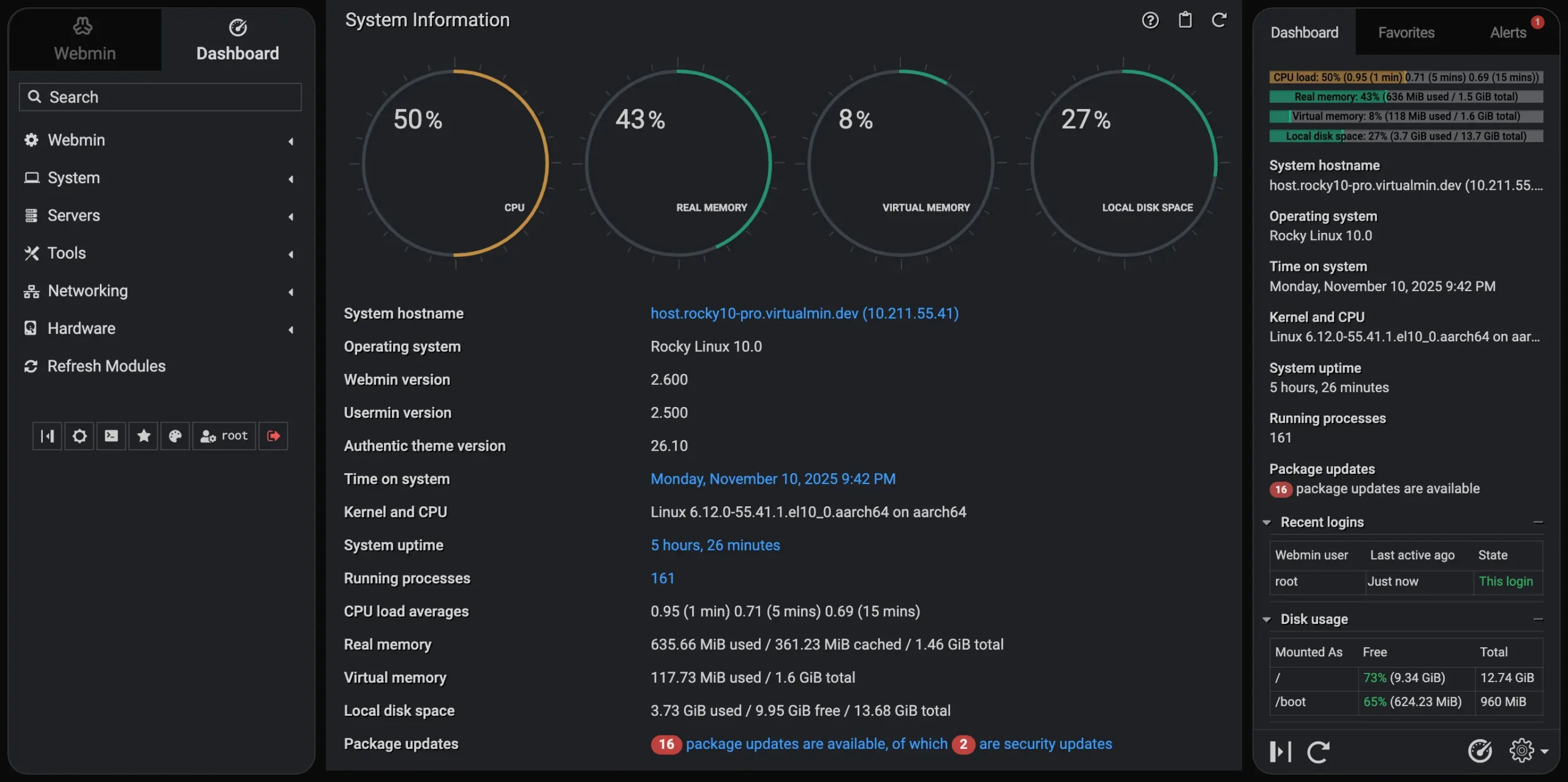
3) Webmin and Virtualmin suit readers who want more control and are willing to accept a steeper learning curve.
The panel is free and modular, so admins install only the features they need. It works well for readers who manage DNS, mail, and multiple domains from a single interface.
Some VPS owners skip a panel entirely. Some admins manage a single server via SSH and feel comfortable editing config files directly. For them, a panel just adds overhead.
Command-line management also uses fewer server resources, since there is no dashboard running in the background.
Tools for Server Monitoring and Performance
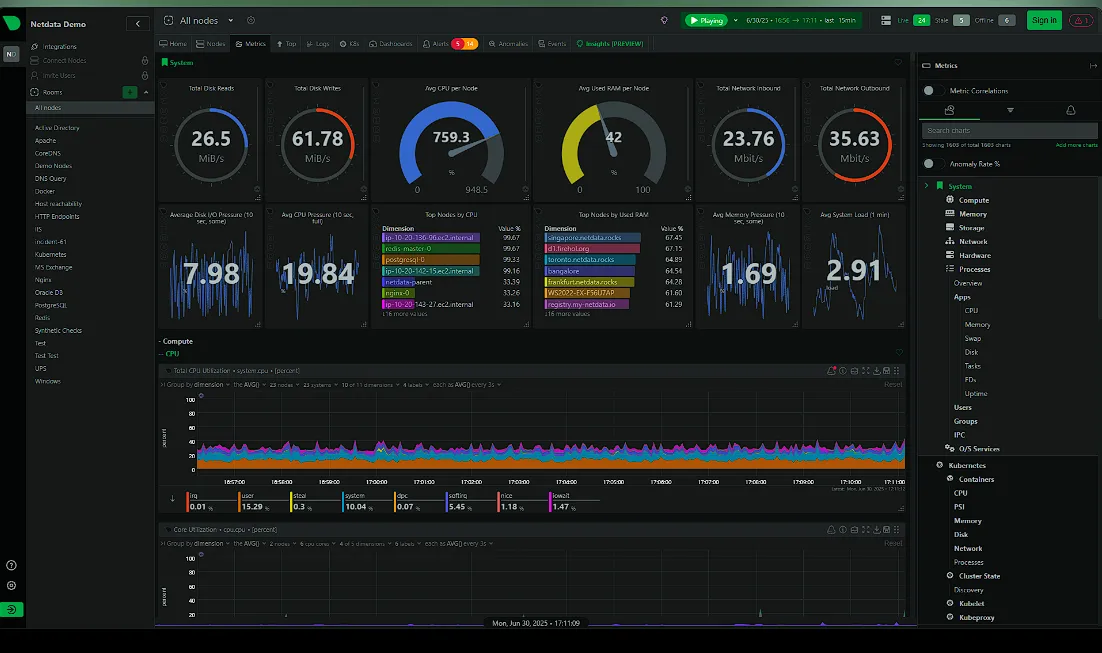
A control panel shows what a server is doing right now. Monitoring tools track that data across hours and days. This flags problems before they turn into outages.
I) Netdata gives real-time dashboards for CPU, RAM, disk, and network activity. It installs free and updates its charts every second, so spikes in resource use show up right away.
Many admins run it alongside a control panel rather than instead of one. It fills the monitoring gap most panels leave open.
II) Uptime monitors like UptimeRobot and Uptime.com check whether a site or server responds at set intervals. Free tiers usually check every five minutes and send an alert by email or SMS when a site goes down.
These tools work best paired with something that tracks resource use. Uptime alerts only confirm a problem after it starts.
III) PRTG is ideal for VPS owners managing several servers at once. It builds historical reports that show trends across weeks or months.
Single-server tools like Netdata do not track this as clearly. The tradeoff is cost and setup time, so smaller setups rarely need it.
The metrics that predict trouble early are CPU load, memory use, disk space, and response time.
A server running near its RAM limit for hours at a time will slow down long before it crashes. Catching that pattern early beats reacting to a support ticket later.
Tools for Security and Access Control
Security tools protect the server itself, separate from the sites or apps running on it. Skipping this step leaves even a well-managed VPS open to attacks.
1) Fail2Ban blocks IP addresses after repeated failed login attempts. Setup takes minutes, and it runs quietly in the background once configured. It stops the most common form of brute-force attack without requiring constant attention.
2) UFW and CSF handle firewall rules, closing ports that do not need to stay open. UFW works well for smaller setups that need basic protection with minimal configuration. CSF adds more granular control and pairs naturally with cPanel-based servers.
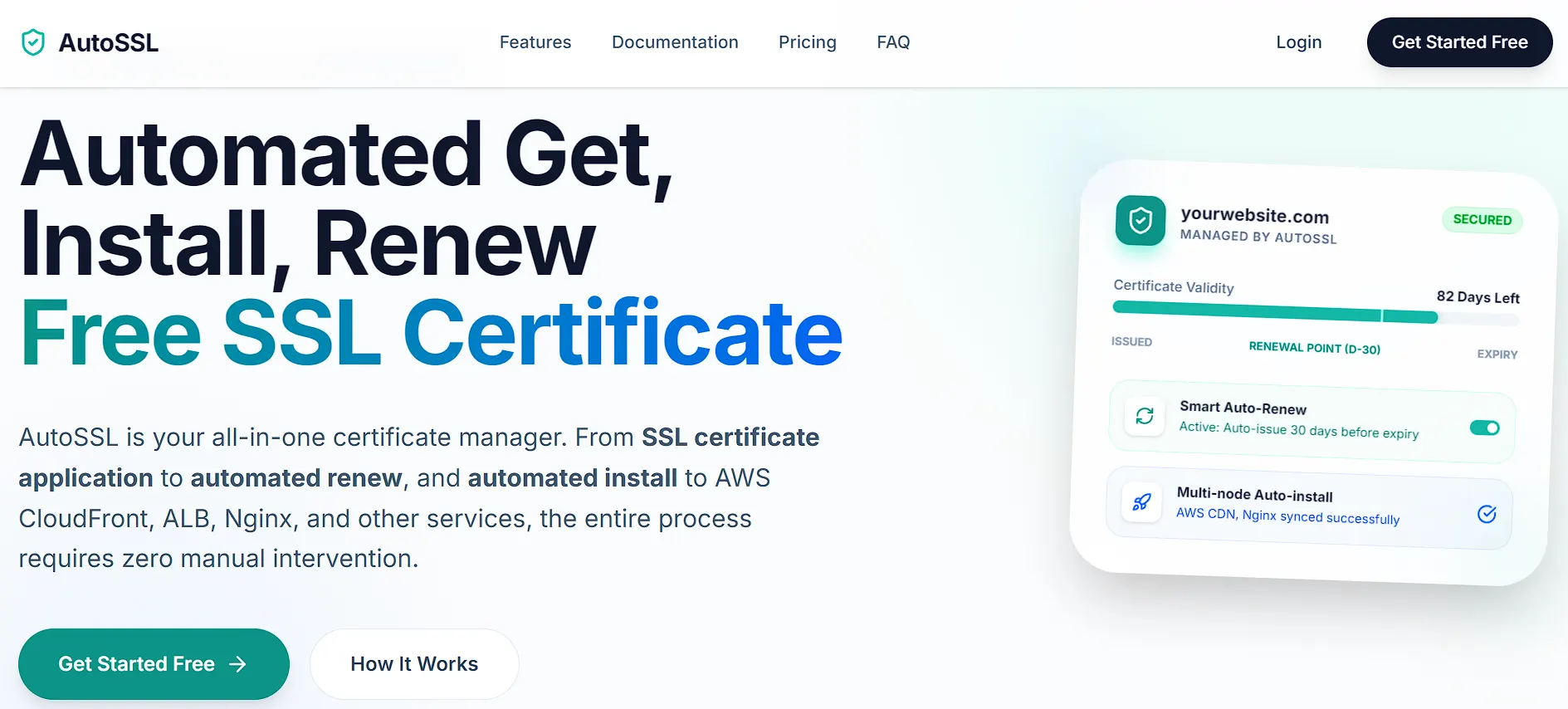
3) Let’s Encrypt and AutoSSL automate certificate renewal, so a site never runs without HTTPS. Manual renewal used to be a common failure point because certificates expire and are forgotten. Automating this step removes that risk entirely.
Two-factor authentication and SSH key setup should come first, before any other security tool.
A password alone is not enough protection for a server holding client data or business applications. Both take under 10 minutes to configure and block the most common entry points attackers use.
Tools for Backups and Disaster Recovery
Backups protect against hardware failure, accidental deletion, and bad updates that break a live site. A server without a backup plan is one mistake away from losing everything on it.
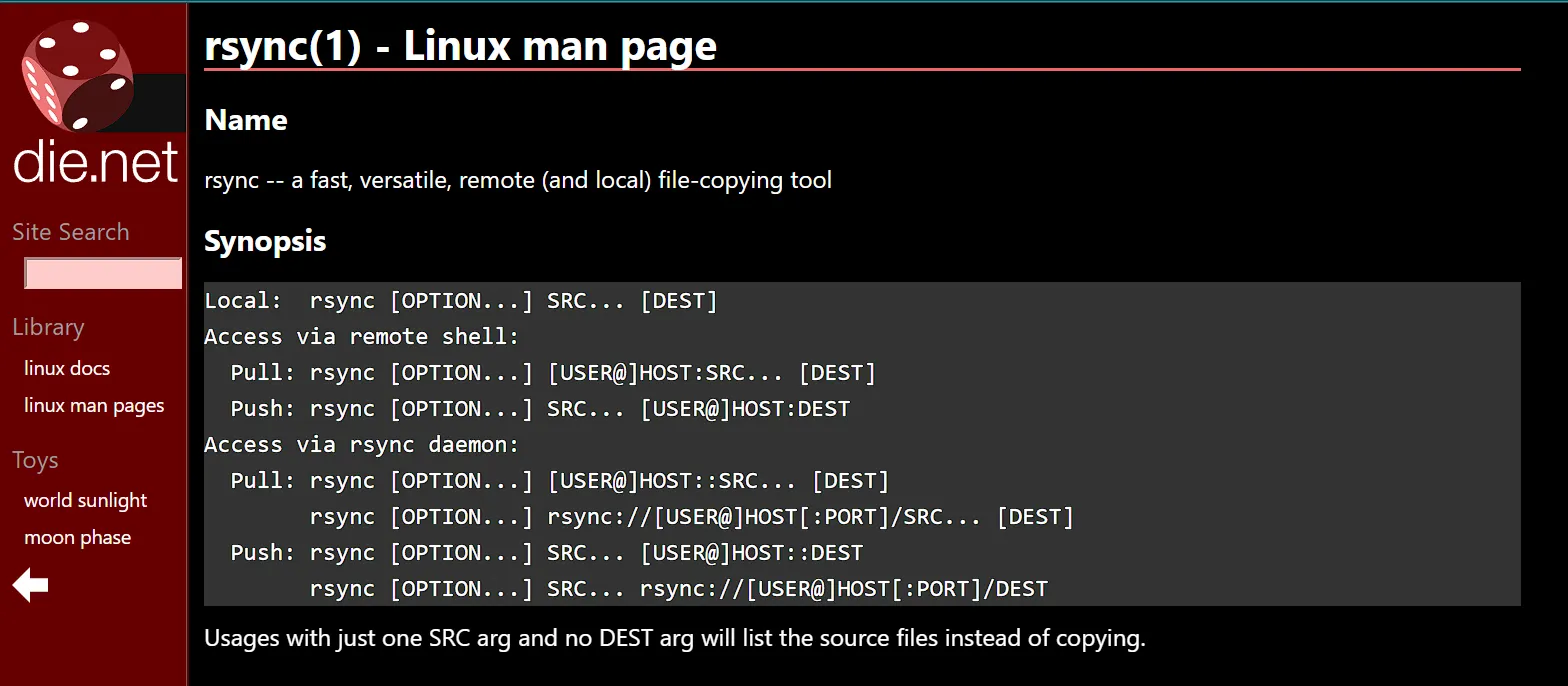
I) Rsync copies files and databases on a schedule set through cron jobs. It costs nothing and works well for admins who are comfortable writing a short script once and letting it run.
The trade-off is that Rsync requires a destination server or storage location to be set up separately.
II) Snapshot tools built into most hosting providers capture the entire server state at a set point in time. They restore faster than a manual backup because the entire server image is rebuilt at once.
Snapshots work best as a second layer alongside file-level backups, rather than in place of them.
III) Off-site storage solves a real risk. A backup stored on the same server offers no protection if that server fails.
Cloud storage options, such as S3-compatible buckets, keep a copy outside the original hosting environment. This step is often skipped, and it is the one that saves a site when local backups fail, too.
How often to back up depends on how fast the site’s content changes. A blog updated weekly needs fewer frequent backups than an e-commerce store processing orders daily.
Match the backup schedule to the pace of new data, not a fixed default.
Tools for Automation and Deployment
Automation tools reduce the manual steps developers repeat with every update. That includes spinning up a new server.
1) RunCloud and ServerAvatar automate PHP deployment for developers running several projects at once.
Both connect to Git repositories, so pushing new code triggers a deployment without manual file transfers. They also add basic monitoring and team access controls on top of deployment automation.
2) Ansible scripts server configuration, so setting up a new VPS takes minutes instead of hours. It fits admins managing more than a handful of servers.
Writing the initial script pays off once it runs on multiple machines. Ansible requires no agent to be installed on the target server, which keeps setup simple.
3) Docker packages an application and its dependencies into a container that runs consistently on any server. This removes the “it worked on my machine” problem that comes up often in development.
Docker suits teams that deploy frequently and want consistent environments across staging and production.
Git-based deployment ties these tools together for teams pushing updates several times a week. A push to the main branch can automatically trigger a build, a test run, and a deployment.
This setup takes time to configure once, then saves hours on every release after that.
How to Match Tools to Your Setup
I) Solo site owner on a budget: Start with one free control panel, such as aaPanel. Skip dedicated monitoring until traffic grows past a level you can track by checking the panel daily.
Add Fail2Ban and a basic firewall from day one, since security setup takes little time either way.
II) Developer running multiple projects: Pair CloudPanel or RunCloud with Netdata for real-time visibility. Git-based deployment saves time when multiple projects require regular updates.
Rsync backups on a nightly schedule cover most needs at this stage.
III) Agency or reseller: cPanel/WHM or Plesk handles multiple client accounts from one dashboard. Add CSF for firewall control and a dedicated uptime monitor for each client site.
Off-site backups are increasingly required here, since client data carries higher stakes.
IV) Growing business scaling past one server: Ansible or Docker keeps server setup consistent as the count grows. PRTG fits well at this stage, since it tracks trends across all servers from a single place.
Snapshot backups paired with off-site storage give a second layer of protection as the server count climbs.
FAQs
What is the best free VPS control panel?
aaPanel and CyberPanel both rank high among free options. aaPanel suits smaller VPS plans with lighter resource use, while CyberPanel fits sites that benefit from OpenLiteSpeed’s speed gains.
Do I need a control panel if I’m comfortable with SSH?
No. Admins who are comfortable editing config files and running commands directly often skip a panel entirely. This saves server resources, since no dashboard runs in the background.
What is the difference between a monitoring tool and a control panel?
A control panel manages files, domains, and databases through a dashboard. A monitoring tool tracks server health over hours and days and sends alerts before problems become downtime. Most setups benefit from running both.
How much does VPS management software typically cost?
Free control panels like aaPanel cost nothing to run. Paid options like cPanel or Plesk charge a monthly fee based on the number of accounts. Prices usually start at around $15–$20 per month. Monitoring and security tools often have free tiers with paid upgrades for larger setups.
Manage Your VPS With Ease
No single tool covers every job a VPS needs done well. A control panel handles daily admin tasks.
Monitoring catches problems early, security tools close common attack points, and backups protect against the mistakes nobody plans for.
The strongest setups combine tools from each category rather than relying on a single panel to do it all.
Setting up a control panel from scratch is often the hardest part. A managed VPS plan skips that step entirely.
Truehost VPS hosting ships with a control panel pre-installed. That leaves your setup time free for monitoring and security instead of configuration.
Check the current Truehost VPS plans and get a server up and running with the basics already in place.