 Domain NamesFind and register your ideal domain name instantly.
 Web HostingEasy-to-use hosting powered by cPanel — ideal for managing websites in Nigeria.
 Windows HostingRun .NET apps with Windows-optimized hosting
 Affiliate ProgramMake money promoting our services
 Reseller HostingMake money by reselling our hosting products under your own brand
 .COM Domains
 All DomainsExplore all supported tld domains in Nigeria
 WhoisFind out who owns any domain, as well as verify your registration details
 VPS Hosting in Nigeria
 Dedicated ServersReimagine your site speed with your own complete server
 AI Website BuilderDesign your site with drag-and-drop tools
 Online Store BuilderStart your online shop without code
 Support PortalFind answers or get expert help
 Contact UsReach our team via chat or email
 BlogRead our extensive guides on web hosting and more
To register a .sch.ng domain through our current order flow, first confirm that the school qualifies.
Then choose a name that reflects its approved identity, search the complete address, select the exact .sch.ng result, and provide the evidence links requested on the Domains Configuration screen.
Complete checkout, answer any review questions, and verify DNS separately after approval.
The current workflow asks for evidence before final checkout. Do not pay first and assume you can repair an ineligible or mismatched application later.
Before you start
Prepare these items:
the school’s full approved name;
confirmation that it belongs in the
.sch.ngcategory;a proposed name that reflects the approved institution;
the legal-registration and education-approval evidence applicable to the school;
a typed, stamped, and scanned approval or authorisation letter;
institution-controlled contact and account details;
viewable document links; and
a decision about which DNS provider will host the nameservers.
Our domain requirements page owns the full eligibility and evidence checklist. If you still need the namespace distinction, read .sch.ng explained.
1) Confirm that the school qualifies
NiRA reserves .sch.ng for approved primary schools, secondary schools, and other approved non-degree-awarding institutions.
The applicant also needs an eligible Nigerian legal form and approval from the relevant authority.
Check that the school, documents, proposed name, and person placing the order all point to the same institution.
Our current form offers Secondary School, Primary School, and Kindergartens in its school-type selector.
Choose only an option that accurately describes the applicant.
If the institution qualifies under NiRA’s wider non-degree-awarding category but the selector does not describe it, contact our support team before paying rather than selecting an inaccurate type.
Success check: you can identify the approving authority and explain how the requested name relates to the approved school name.
2) Choose a name that matches the school
Start with the institution’s approved name. A fictional Bright Path Academy might test brightpathacademy.sch.ng.
NiRA allows the same name or a similar variant, but do not assume every abbreviation qualifies. Compare the proposed label with the legal and approval documents before searching.
Check spelling, omitted words, initials, and branch names with the person authorised to represent the school.
NiRA limits each approved school to one .sch.ng registration. Use subdomains later for services such as admissions or portals instead of ordering unrelated full domains for internal departments.
Success check: the signatory can defend the label from the school’s current documents without inventing a new trading identity.
3) Search the complete .sch.ng address
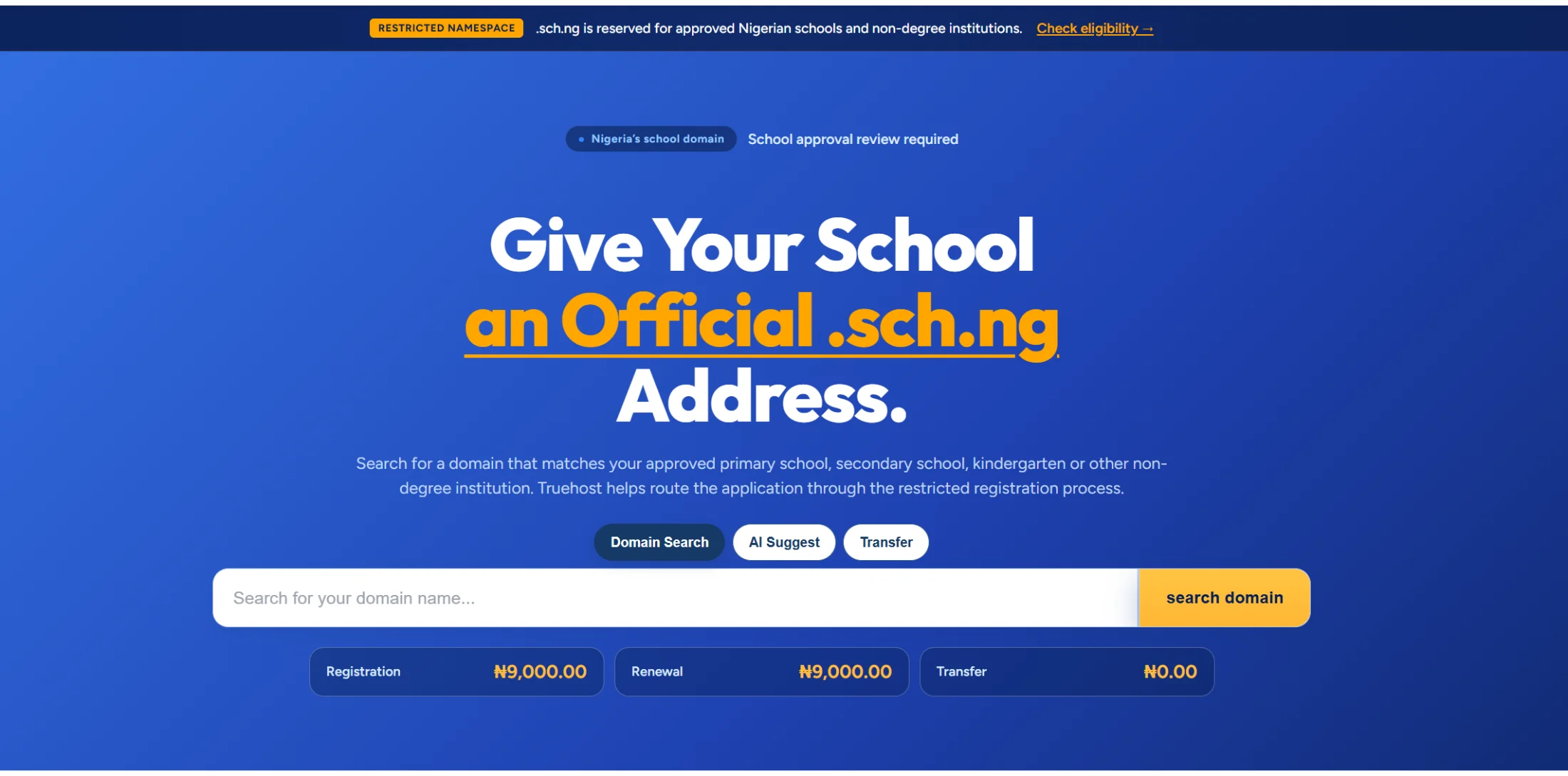
Open the domain search or use the cluster’s check availability page.
Enter the complete address, and select the exact .sch.ng result.
Here at Truehost we offer the cheapest domain prices:
Register .sch.ng for just
₦9,000.00Renew it for ₦9,000.00
Already managing this somewhere else, you can now transfer for ₦0.00
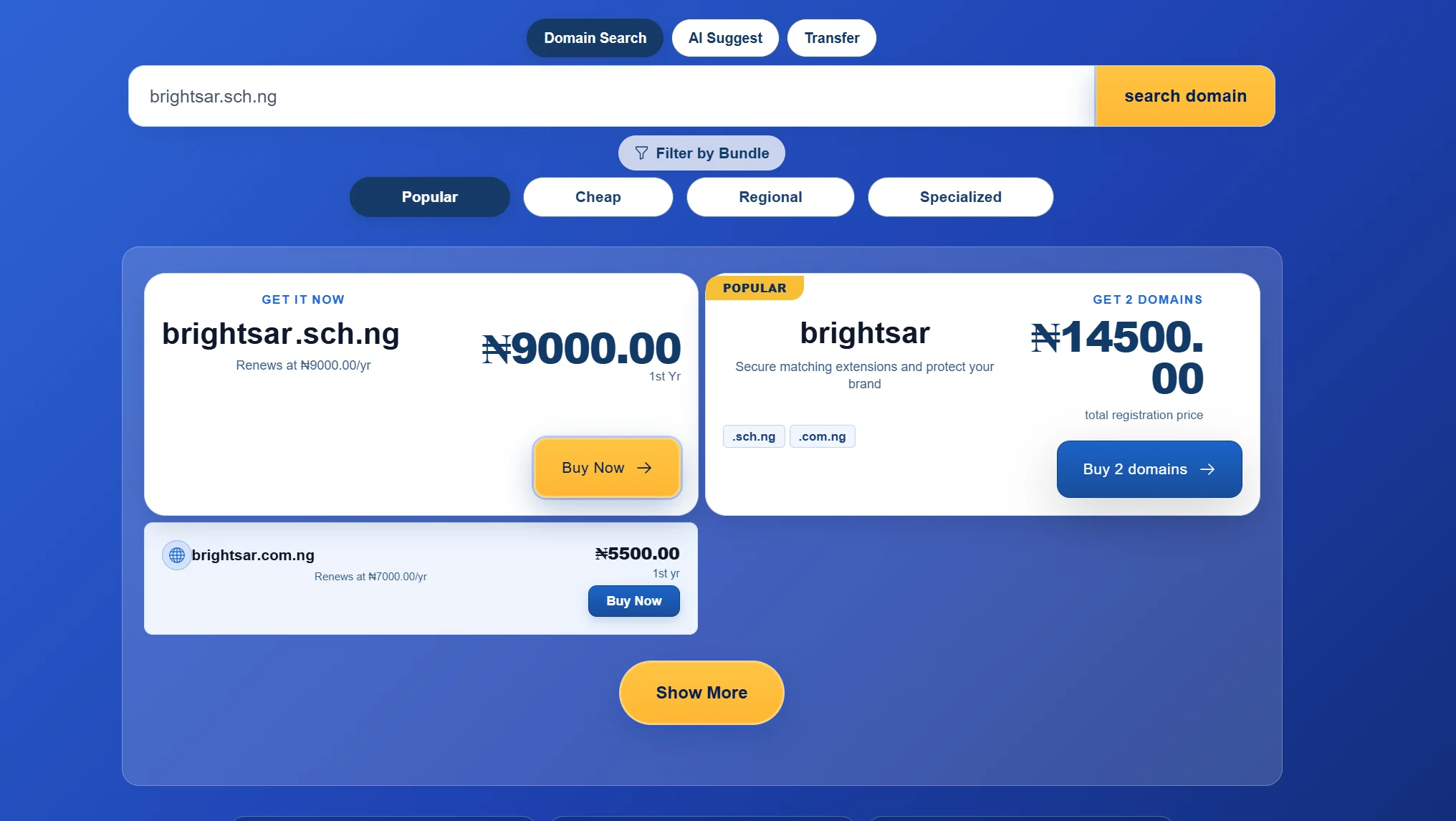
Read the extension before selecting Buy Now. The result page may also offer .com, .com.ng, or a multi-domain bundle.
Those are separate products and do not replace the restricted .sch.ng application.
4) Complete Domains Configuration
Selecting the exact result opens the current Domains Configuration screen.
The fields below reflect our live order path on 22 August 2026 and may change as we update the process.
Current field | What to do |
|---|---|
Type of School | Select the accurate school category. Stop and ask support if no option fits the eligible institution. |
CAC certificate | Paste a viewable link to the requested legal-registration evidence. |
Accreditation certificate | Paste a viewable link to the approval or accreditation evidence issued by the relevant government body. |
Approval letter | Paste a viewable link to the typed, stamped, and scanned school letter requested by the form. |
Nameservers | Keep our displayed default values when they match the intended service, or enter the values supplied by the chosen external DNS or hosting provider. |
The current form uses text fields for document links; it does not directly upload the files from your device.
The linked documents can live in Google Drive or another file-sharing service that the reviewer can access.
Make each evidence link reviewable
For each document:
Scan the complete document at a readable resolution.
Use a filename that identifies the school and evidence type.
Set the link to view-only access for anyone who has the link, unless our team gives you a more restricted supported method.
Open the link in a private browser window to confirm that it does not request your personal sign-in.
Keep the link active until the review and any clarification are complete.
Do not give edit permission. Do not place passwords, unrelated identity records, financial statements, or other files in the shared folder.
Share only the evidence requested for the domain application.
The broad document guide provides additional scanning context, but the live order fields and the dedicated requirements article should control this application.
5) Review nameservers, term, and registrant details
Nameservers tell the registry where the domain’s DNS will be managed.
They do not host the website by themselves and they do not affect whether the school qualifies.
If the school will use our hosting or DNS service, retain the default nameservers shown in the order unless our support team gives different values.
If the school already has an external DNS provider, copy its authoritative nameservers exactly.
Before continuing, review:
the
.sch.ngspelling;the billing term and dynamically displayed price;
optional add-ons;
all evidence links;
the selected school type; and
every nameserver.
Use the institution as the registrant or account owner where the checkout asks for that role.
A consultant or staff member may coordinate the order, but the school should control the recovery email, billing access, and renewal record.
The nameservers step is optional, you can always update the nameservers later via the client area
6) Sign in, pay, and save the order record
Create or sign in to the school’s account with us and complete the checkout using accurate institutional contact details.
Payment records the order; it does not guarantee approval of a restricted domain.
Save the invoice, order number, requested domain, account owner, recovery email, evidence-link locations, and renewal date in the school’s domain register.
Give at least two authorised officers a documented recovery route without sharing one password.
After payment, monitor the account and institutional email. If the live flow changes or the document fields do not appear, reference the order number when you contact support.
Do not create a second order for the same school merely because the first remains under review.
7) Respond to review questions
A reviewer may ask about a name difference, inaccessible link, incomplete scan, school category, approving authority, signature, or contact.
Answer within the existing order or support thread so the full record stays together.
When replacing a file, use a clear versioned filename and state which link it supersedes. Keep the institution’s answers consistent across management, legal, administration, and ICT teams.
Do not invent an approval number or alter a document to force a match. If the school’s legal or approved name has changed, provide the connecting evidence requested by the reviewer or revise the proposed domain through the authorised process.
Approval time depends on the evidence and questions raised. Do not plan a website launch around an unconfirmed fixed number of days.
8) Verify approval and technical activation
When the account shows the domain as active, run separate checks:
Layer | Check | Successful result |
|---|---|---|
Registrar | Open the domain in the account | Status, registrant, and renewal record are correct |
Delegation | Query the authoritative nameservers | They match the intended DNS provider |
Website DNS | Check the root and | They point to the intended web service |
HTTPS | Open the final web address | A valid certificate covers the hostname |
Check MX, SPF, DKIM, and DMARC | Records match the authorised mail service | |
Ownership | Test recovery governance | At least two authorised officers can recover access |
Domain approval, DNS propagation, website deployment, HTTPS, and email setup are different milestones.
An active domain can still show no website when the DNS records or hosting have not been configured.
Use the configuration guide for the technical setup.
Common registration problems
Problem | Likely cause | Next action |
|---|---|---|
The available name is queried | The label does not sufficiently reflect the approved school | Provide connecting evidence or choose an authorised variant |
A reviewer cannot open a document | The share link requires an account or has expired | Test and replace it with view-only access |
The school type does not fit | The current selector does not describe the applicant | Ask support for the correct route before paying |
A scan is rejected | A page, seal, signature, date, or issuing authority is unreadable | Rescan the complete document |
The domain is active but no site appears | Nameservers or DNS records remain incorrect | Verify delegation and hosting records |
Staff lose account access | A personal address or former worker controls recovery | Move ownership to institution-controlled contacts |
Start the application
Confirm eligibility first, then prepare the three current evidence links before opening checkout. This keeps the registration task focused on one consistent school identity from search through review.
When the pack is ready, check availability and select the exact .sch.ng result.