 Domain NamesFind and register your ideal domain name instantly.
 Web HostingEasy-to-use hosting powered by cPanel — ideal for managing websites in Nigeria.
 Windows HostingRun .NET apps with Windows-optimized hosting
 Affiliate ProgramMake money promoting our services
 Reseller HostingMake money by reselling our hosting products under your own brand
 .COM Domains
 All DomainsExplore all supported tld domains in Nigeria
 WhoisFind out who owns any domain, as well as verify your registration details
 VPS Hosting
 Dedicated ServersReimagine your site speed with your own complete server
 AI Website BuilderDesign your site with drag-and-drop tools
 Online Store BuilderStart your online shop without code
 Support PortalFind answers or get expert help
 Contact UsReach our team via chat or email
 BlogRead our extensive guides on web hosting and more
You bought a domain name. You signed up for hosting.
You are excited to get your website live.
But somehow, when you type your domain into a browser, nothing shows up, or worse, you see a this site can’t be reached error.
Domain configuration is the missing link between your domain name and your actual website files.
It is the process that tells the internet’s address system where to send visitors when they type your domain.
Without it, your domain is just a name with nowhere to go.
This guide walks you through exactly what to do.
By the end, you will have a fully configured domain pointing to your website, and you will understand how to manage domain configuration confidently.
What Actually Happens When You Configure a Domain

When you configure a domain, you are essentially updating the global phonebook of the internet (the Domain Name System, or DNS).
You tell the world where your website files live so that browsers can find them.
There are two main ways to do this.
And which one you choose depends on how much control you want and how your hosting is set up.
- Changing nameservers
This is the easiest method.
You point your domain to your hosting provider’s nameservers (like ns1.truehost.com), and they automatically handle all the underlying DNS records.
It is a set it and forget it approach, perfect for most beginners.
- Editing DNS records (A, CNAME, etc.)
This method gives you more granular control.
You keep your domain’s DNS management at your registrar and manually create records that point your domain and subdomains to specific IP addresses or services.
This is useful if you want to host your website with one company but keep your email with another like Google Workspace or Zoho.
Domain configuration is very important. I can’t stress it enough!
Skip this step, and your domain points to nothing, visitors will see an error page or your registrar’s parking page.
Do it wrong, and your email breaks, or your site loads the wrong page or someone else’s site entirely.
Proper domain configuration ensures that when someone types your domain, they land exactly where you intend.
Before You Start: What You Need
Before diving into the configuration process, gather these essentials.
Having everything ready will save you from scrambling mid‑setup.
a) Your domain name. The exact name you registered (e.g., yourbusiness.ng). Keep it handy.
b) Login access to your domain registrar account. This is the company where you purchased the domain (Truehost, GoDaddy, Namecheap, etc.). You will need to log in to change nameservers or DNS records.
c) Your hosting account details. Access to your hosting control panel. Be it cPanel, Plesk, or a custom dashboard. Your welcome email from Truehost contains these credentials.
d) Nameservers or DNS records from your host. Your hosting provider will supply either a pair of nameservers (like ns1.truehost.com, ns2.truehost.com) or specific IP addresses (for A records) and mail server details (for MX records). These are usually in your welcome email or can be found in your hosting control panel under Server Information.
Having these four items ready before you start makes the process smooth and reduces the chance of making mistakes.
Option 1: Configure by Changing Nameservers (Simplest)
If you are new to website management, this is the route I recommend.
By changing your domain’s nameservers to point to your hosting provider, you delegate all DNS management to them.
Your host then automatically handles the records needed for your website, email, and other services.
Step 1: Find Your Host’s Nameservers
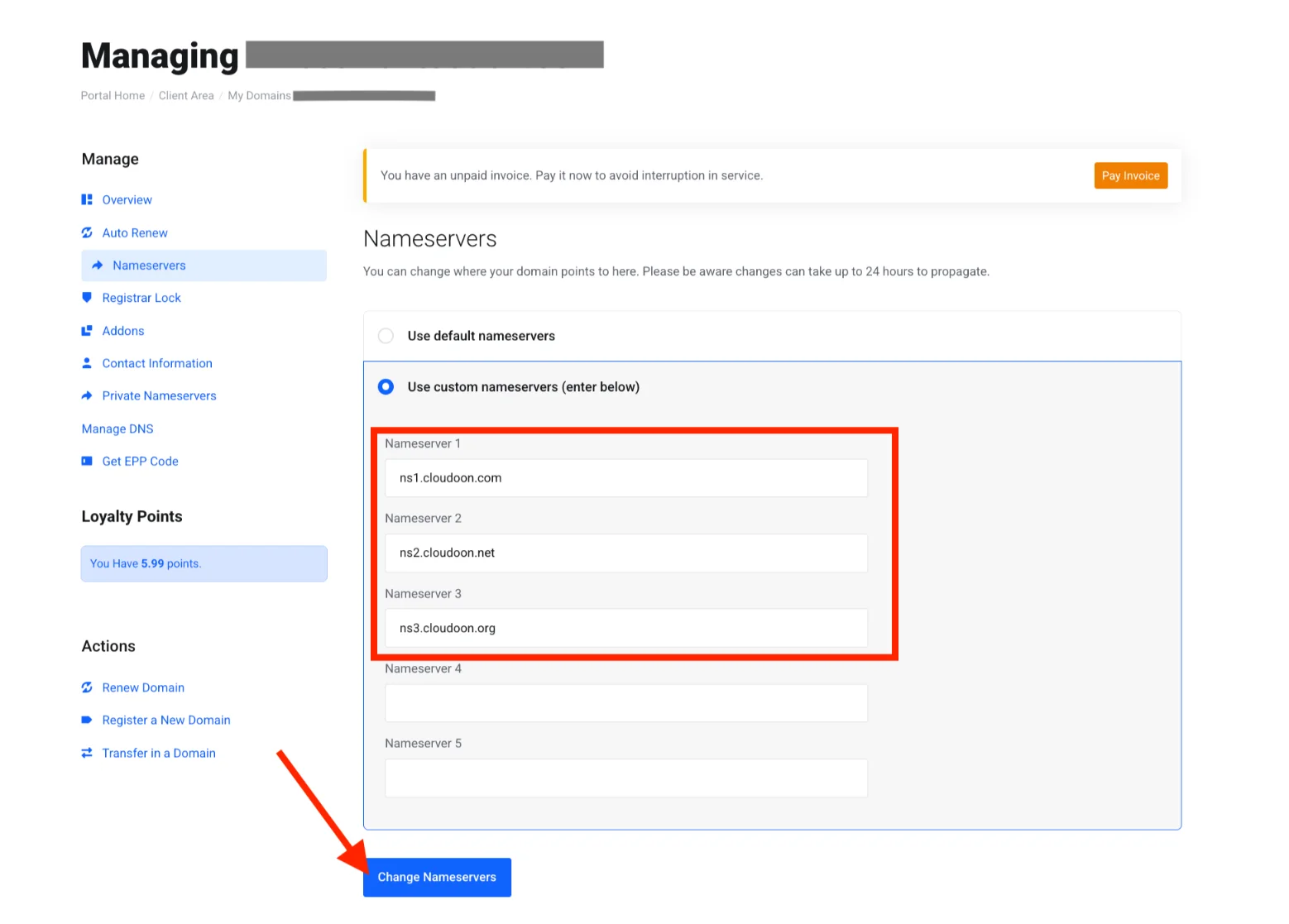
Your hosting provider will give you two or more nameserver addresses. For Truehost hosting, they typically look like:
ns1.truehost.comns2.truehost.comYou can find these in your welcome email, under Nameservers in your hosting control panel, or by asking support.
Step 2: Log Into Your Domain Registrar
If you bought the domain from Truehost, log into your Truehost client area (usually at https://truehost.com.ng/cloud//index.php?rp=/login).
If you bought the domain from another registrar (like GoDaddy, Namecheap, or Porkbun), log into that account.
Make sure you are logged in as the domain owner; sometimes you will need to verify your identity if two‑factor authentication is enabled.
Step 3: Locate Nameserver Settings
Every registrar has a slightly different interface, but you’re looking for something labeled Nameservers, DNS management, or Custom nameservers. Common paths:
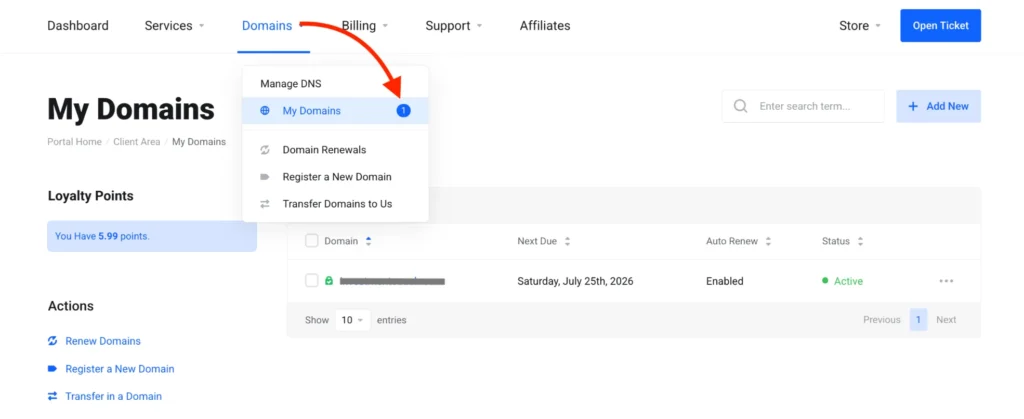
- Truehost client area: Navigate to Domains → click your domain → find Nameservers under DNS settings.
- GoDaddy: Go to My Products → click DNS next to your domain → scroll to Nameservers.
- Namecheap: Domain List → click Manage next to your domain → go to the Nameservers tab.
Once you find the section, select Custom nameservers or similar and replace the existing entries with your host’s nameservers.
Step 4: Save and Wait
Click save or update. Now the waiting begins.
Propagation, the time it takes for your new nameserver settings to spread across the internet, can take anywhere from a few minutes to 48 hours.
Usually, you will see results within 1-2 hours, but sometimes it is faster. Don’t panic if your site doesn’t load immediately.
Pro Tip: Before changing anything, take a screenshot of your old nameserver settings. If you ever move hosting or need to revert, having that original information saves a lot of headache.
Option 2: Configure by Editing DNS Records (More Control)
Some people prefer to keep DNS management at their registrar while still pointing the website to a host.
This gives you finer control, you can route different services like website, email, subdomains to different providers.
This is the method to use if, for example, you want your website hosted with Truehost but your email hosted with G Suite (Google Workspace) or Zoho.
You will manually create the records your host provides.
Common Records You Will Need
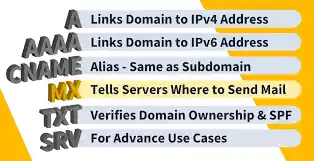
- A Record: Points your domain or a subdomain to an IPv4 address. Example: @ (root domain) → 192.0.2.1 (your server IP).
- CNAME Record: Points a subdomain to another domain name. Common use: www → yourdomain.com.
- MX Records: Controls where your email is delivered. These point to your mail server (e.g., mail.truehost.com).
- TXT Record: Used for verification (Google, Bing, etc.) and security (SPF, DKIM to prevent email spoofing).
Step-by-Step
1) Log into your domain registrar and go to the DNS management section (often called DNS Zone Editor, DNS Records, or Advanced DNS).
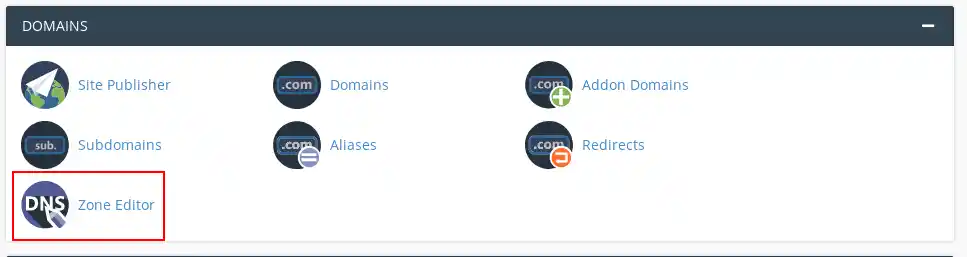
2) Edit the A record for the root domain (@) Change it to the IP address your hosting provider gave you. You can find this IP in your hosting welcome email or in your cPanel under Server Information usually labelled Shared IP Address.
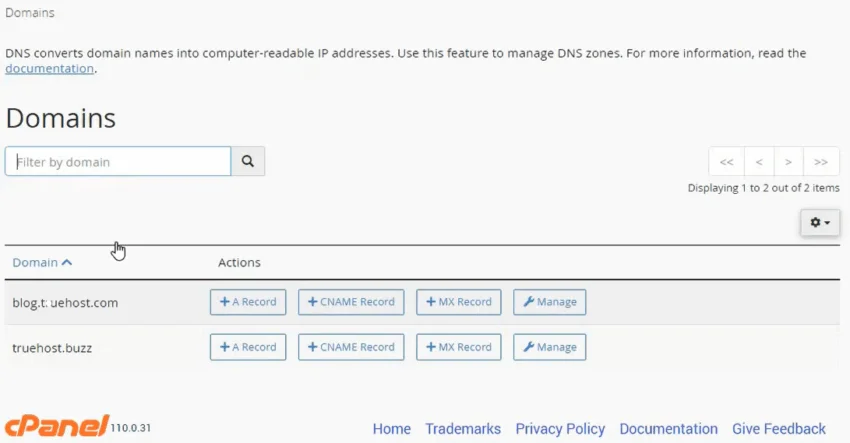
3) Add or edit the CNAME record for www. Set it to point to @ or your full domain (e.g., yourdomain.com). This ensures that both yourdomain.com and www.yourdomain.com load the same site.
4) Set MX records. If you are using your host’s email service, use the mail server details they provided. If you are using Google Workspace, you will use Google’s MX records (e.g., ASPMX.L.GOOGLE.COM). Leave existing MX records if you are not sure, incorrect MX records will break email.
5) Save all changes.
Pro Tip: If you are unsure which DNS records to edit, start with the nameserver method. It is harder to misconfigure, and you can always switch to manual DNS later once you are comfortable.
Quick Tip: Use a free tool like whatsmydns.net to check if your DNS changes have propagated worldwide. It shows you the status from dozens of global locations.
Advanced Tips for Better Domain Management
Once your basic domain configuration is working, you can take advantage of a few advanced features to make your domain work harder for you.
1) Use your domain for a professional email
Instead of using a free Gmail address, create email accounts like [email protected].
With Truehost, you can create email accounts directly in cPanel (Email section).
Or you can connect your domain to Google Workspace or Microsoft 365 for a more robust email experience.
2) Point subdomains to different services
A subdomain is a prefix like shop.yourdomain.com or blog.yourdomain.com.
You can create CNAME records to point each subdomain to a different platform.
For example, you could host your main site on Truehost, but point shop to Shopify and help to Zendesk, all under one domain.
3) Secure your domain with DNSSEC
DNSSEC adds a layer of security that prevents attackers from redirecting your domain to malicious sites.
If your registrar and hosting provider support it, enabling DNSSEC is a smart move.
It requires coordination between your registrar and DNS provider, so check with your host first.
4) Keep your WHOIS contact details updated
Your domain registration includes contact information (registrant, admin, tech).
If your email address there is outdated, you might miss renewal notices, and you could even lose ownership if you can’t verify identity.
Log into your registrar annually to ensure these details are current.
Common Mistakes and How to Fix Them
Even with the best instructions, things can go sideways.
Here are the most frequent issues new website owners encounter during domain configuration, along with practical ways to resolve them.
1) Nameservers changed, but the site still shows a “coming soon” page from the registrar.
This usually means the nameserver change hasn’t fully propagated.
Propagation can take anywhere from a few minutes to 48 hours, though most updates reflect within 1-2 hours.
Wait at least 24 hours before troubleshooting further.
If the issue persists, verify that the nameservers were entered exactly as provided, no typos, extra spaces, and missing dots.
2) Website loads correctly, but email stops working.
This often happens after changing nameservers without setting up email on the new host.
If you intend to use your host’s email service, log into your hosting control panel and create the necessary email accounts.
If you use a third‑party email service like Google Workspace or Zoho, you have two options:
- either keep DNS management at your registrar and manually point MX records to your email provider
- or add those MX records after switching nameservers.
Skipping this step is the leading cause of post‑configuration email failures.
3) DNS records edited, but the site still loads from the old host.
Double‑check that the A record for the root domain (@) was updated to the correct IP address provided by your new host.
Also examine the TTL (time to live) value on existing records, if it is set high (e.g., 24 hours), changes can take much longer to appear.
Before making future DNS changes, consider lowering the TTL a day in advance to speed up propagation.
4) A “404 Not Found” error appears after configuration.
A 404 error means the domain is reaching your hosting server, but the server cannot find the website files.
This typically happens because files were uploaded to the wrong directory (e.g., outside public_html for cPanel accounts) or because the domain was not added as an alias in the hosting control panel.
Verify that your domain is listed under “Addon Domains” or “Aliases” and that your website files reside in the correct folder.
5) Accidentally deleting or mis‑editing a critical DNS record.
Most registrars offer a reset to default or restore DNS zone option, use that to quickly revert all records to their original state.
If you took a screenshot of your settings before making changes (a recommended step), you can manually recreate the original records.
When in doubt, switching to the nameserver method temporarily can simplify recovery.
In Summary
Domain configuration doesn’t have to be intimidating.
Whether you choose to change nameservers or manually edit DNS records, the goal is the same: connect your domain to your website so the world can find you.
If you haven’t already, make sure your domain and hosting are in one place to simplify management.
Having both under the same provider often means easier support, automatic configuration, and fewer moving parts to troubleshoot.
Ready to Get Your Domain Live?
If you don’t have a domain yet, grab one from Truehost. Our domain search tool lets you find the perfect .ng, .com, or .africa name for your business.