 DomainsFind and register your ideal domain name instantly.
 Web HostingEasy-to-use hosting powered by cPanel — ideal for managing websites in Nigeria.
 Windows HostingRun .NET apps with Windows-optimized hosting
 Affiliate ProgramMake money promoting our services
 Reseller HostingMake money by reselling our hosting products under your own brand
 .COM Domains
 All DomainsExplore all supported tld domains in Nigeria
 WhoisFind out who owns any domain, as well as verify your registration details
 Dedicated ServersReimagine your site speed with your own complete server
 AI Website BuilderDesign your site with drag-and-drop tools
 Online Shop BuilderStart your online shop without code
 Support PortalFind answers or get expert help
 Contact UsReach our team via chat or email
 BlogRead our extensive guides on web hosting and more
There are 3.3 billion monthly WhatsApp users globally, and connecting OpenClaw to it lets you interact with your AI assistant right where you already chat.
You can send messages, get responses, and even have the bot participate in group conversations.
And the best part?
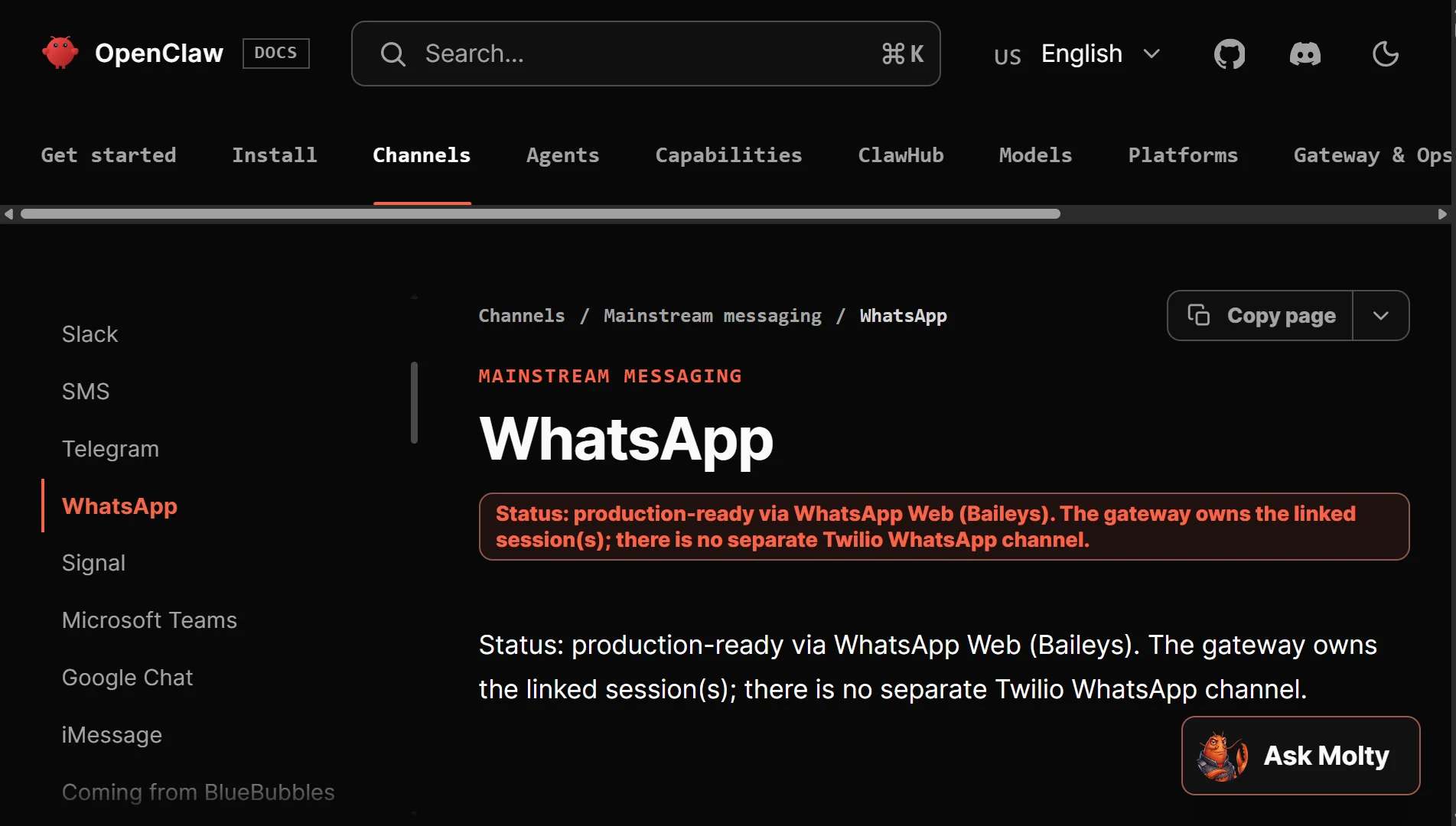
You don’t need a WhatsApp Business API account to make this work. OpenClaw connects using the Baileys library, which essentially acts as a WhatsApp Web client. This means you can use a regular WhatsApp account.
However, a few important rules before you start. Use a dedicated OpenClaw phone number. If you use your personal number, every message you send becomes input for the agent, which can get messy fast.
Also, always set channels.whatsapp.allowFrom to restrict who can talk to your bot to minimize spam and unwanted interactions.
Do this Before You Connect
Before you jump in, make sure you have these things sorted:
- OpenClaw is installed and running on your system. The WhatsApp plugin won’t work without the setup.
- A dedicated WhatsApp account just for OpenClaw to keep your personal chats separate from bot interactions.
- A phone with WhatsApp installed so you can scan the QR code. This is mandatory, the QR code appears in your terminal, and you scan it from your phone.
- An available linked device slot. WhatsApp only allows four linked devices per account. You’re about to use one of them.
Six Simple Steps to Connect OpenClaw to WhatsApp
Step 1: Install the WhatsApp Plugin (if not already installed)
If WhatsApp isn’t showing up as an option, you need to add the plugin first. Run this command in your terminal:
bash
openclaw channels add --channel whatsapp
This ensures the WhatsApp channel is available in your OpenClaw setup.
Step 2: Configure Security Settings (BEFORE Pairing)
Do this before you even think about scanning a QR code.
Open your OpenClaw configuration file at ~/.openclaw/openclaw.json. Add your phone number to the allowFrom list to restrict who can send messages to your bot.
json
{
  "channels": {
    "whatsapp": {
      "dmPolicy": "allowlist",
      "allowFrom": ["+15555550123"]
    }
  }
}
Replace +15555550123 with your actual number in E.164 format (country code + number without any leading zeros or symbols).
If you plan to use the bot in groups, you can also add group settings to control how it behaves:
json
{
  "channels": {
    "whatsapp": {
      "groups": {
        "*": { "requireMention": true }
      }
    }
  }
}
This prevents the bot from responding to every group message.
Step 3: Run the Channel Login Command
With security configured, it’s time to get the QR code. Run:
bash
openclaw channels login --channel whatsapp
Your terminal will display a QR code and this is what you’ll scan from your phone.
Step 4: Scan the QR Code
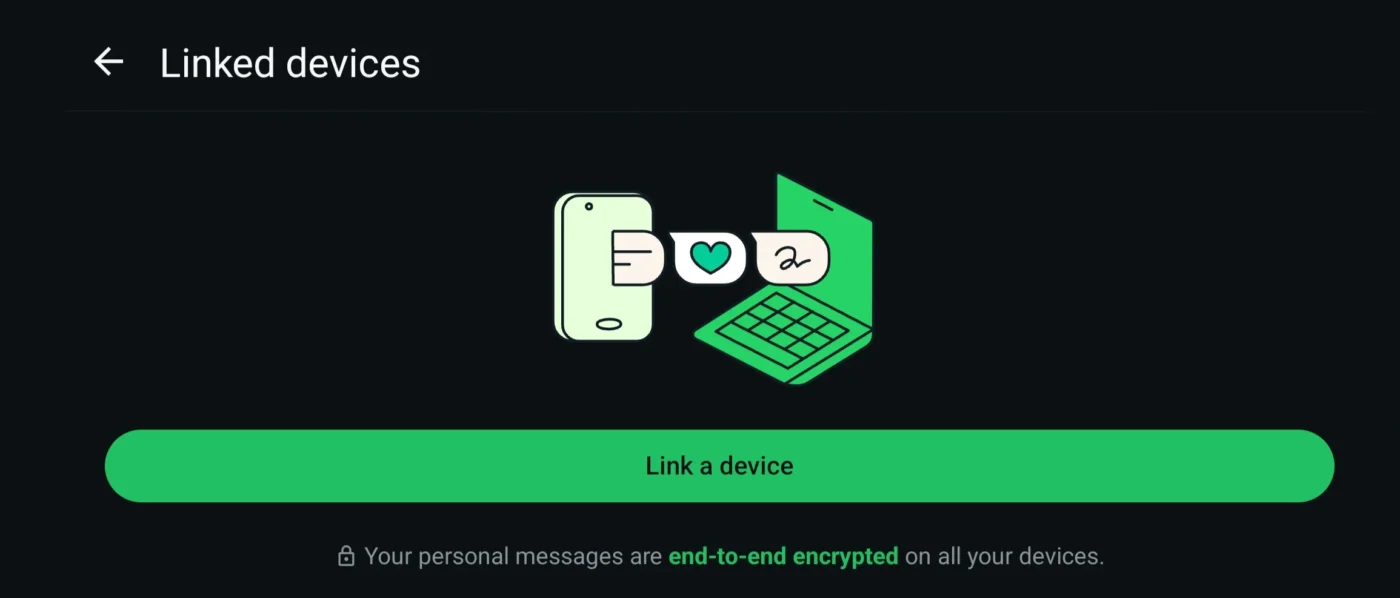
It’s easy:
- Open WhatsApp on your phone.
- Go to Settings → Linked Devices.
- Tap Link a Device.
- Scan the QR code displayed in your terminal.
Important: The QR code expires after about one hour, and WhatsApp allows a maximum of three pending QR requests at a time. If the QR disappears or times out, just run the login command again.
Step 5: Start the Gateway
After scanning, start the OpenClaw gateway to establish the connection:
bash
openclaw gateway --port 18789
The gateway runs the service that handles message routing between WhatsApp and your AI agent.
Step 6: Verify the Connection
Now you need to confirm everything is working.
Check the connection status:
bash
openclaw health
You should see WhatsApp listed as “connected”.
Then, send a test message from your allowlisted number to the WhatsApp account you linked. The bot should reply.
Troubleshooting Common Issues
Even with a perfect setup, things can sometimes go wrong. Examples of common problems and how to fix them:
OpenClaw to WhatsApp FAQs
Do I need WhatsApp Business API?
No. OpenClaw uses the Baileys library, which connects through the WhatsApp Web interface. A regular WhatsApp account works just fine.
Can I use my personal WhatsApp number?
You can, but it’s not recommended. If you use your personal number, every message you send becomes input for the agent. You’re better off using a dedicated number just for the bot.
How many devices can be linked to one WhatsApp account?
WhatsApp allows up to four linked devices per account. Connecting OpenClaw uses one of those slots.
Can the bot respond in group chats?
Yes. The bot responds when you send a message in a group where the bot is a member, you reply to one of the bot’s messages and when you mention the bot (if mention gating is enabled)
How do I confirm the connection is working?
Run openclaw health to check the status. You should see WhatsApp listed as “connected.” Then send a test message from your allowlisted number.
Get Started with OpenClaw On Truehost
Need a reliable place to run OpenClaw? We offer fast OpenClaw hosting for AI workloads and automation.
Our VPS instances are preconfigured with Ubuntu environments, Playwright browser frameworks, and Python runtimes, all tuned for headless web interaction.
You get isolated vCPU resources and guaranteed physical memory which is so essential for OpenClaw.
Also, our hypervisors automatically install prebuilt Node packages and script extensions, so you’re ready to go almost instantly.
Once deployed, you access your console via root SSH, paste your deployment keys securely, and start your automation tasks.
Choose from flexible plans that scale with your needs, and upgrade your vCPU, RAM, or storage anytime without downtime.