 Domain NamesFind and register your ideal domain name instantly.
 Web HostingEasy-to-use hosting powered by cPanel — ideal for managing websites in Nigeria.
 Windows HostingRun .NET apps with Windows-optimized hosting
 Affiliate ProgramMake money promoting our services
 Reseller HostingMake money by reselling our hosting products under your own brand
 .COM Domains
 All DomainsExplore all supported tld domains in Nigeria
 WhoisFind out who owns any domain, as well as verify your registration details
 VPS Hosting in Nigeria
 Dedicated ServersReimagine your site speed with your own complete server
 AI Website BuilderDesign your site with drag-and-drop tools
 Online Store BuilderStart your online shop without code
 Support PortalFind answers or get expert help
 Contact UsReach our team via chat or email
 BlogRead our extensive guides on web hosting and more
So you have decided to transfer a domain from DomainKing to Truehost.
That is a smart move.
Maybe you found better pricing with us, or you want to consolidate all your domains under one roof.
Perhaps you have heard about our reliable support or the extra features we offer for free.
Whatever your reason, you are in the right place.
We have personally helped hundreds of customers move their domains.
And I can tell you: the process sounds way scarier than it actually is.
In this guide, I will walk you through every single click, every email, and every waiting period.
By the end, your domain will be safely parked at Truehost, and you will wonder why you did not do this sooner.
Let us start with the basics.
Before You Start the Transfer
Before you begin, there are a few rules you need to check.
These are not our rules, they come from ICANN, the global organization that manages domain names.
If you skip these, your transfer will fail. So let us go through them one by one.
a) Your domain must be at least 60 days old.
ICANN rules prevent any domain from being transferred within the first 60 days after registration or a previous transfer.
This is to prevent domain theft. If your domain is brand new, just wait a bit. Mark your calendar for day 61.
b) Your domain must not be expired or in Redemption status.
If your domain has already expired, or if it is in the Redemption Grace Period, a 30-day window after expiry where restoration is expensive, you cannot transfer it.
You will need to renew it at DomainKing first, then wait for the renewal to settle, usually a few days, then start the transfer.
c) The administrative email address on your WHOIS record must be accessible.
This is very important. The transfer approval emails will be sent to the admin contact email listed for your domain.
If that email address is old, or if you have lost access to it, the transfer cannot complete.
Log into DomainKing and check that the admin email is correct and one you can receive messages on.
d) Your domain must be unlocked at DomainKing.
Domains have a Registrar Lock, also called Domain Lock or Client Transfer Prohibited status, that prevents unauthorized transfers.
You need to turn this lock off.
Do not worry, unlocking is temporary and safe.
We will cover exactly how to do that in the next section.
e) WHOIS privacy protection may need to be temporarily disabled.
Some registrars use WHOIS privacy services that hide your real email address.
If that masked address is the one receiving transfer approvals, you might not see the emails.
In many cases, privacy services automatically reveal your real email for transfer purposes.
But to be safe, I recommend temporarily disabling WHOIS privacy at DomainKing before you start.
You can turn it back on after the transfer is complete.
Check all these boxes? Great. Let us move to the fun part.
Step-by-Step Guide to Transfer a Domain from DomainKing to Truehost
Now we get into the actual steps. Follow these carefully, and you will have no problems.
Step 1: Unlock Your Domain at DomainKing
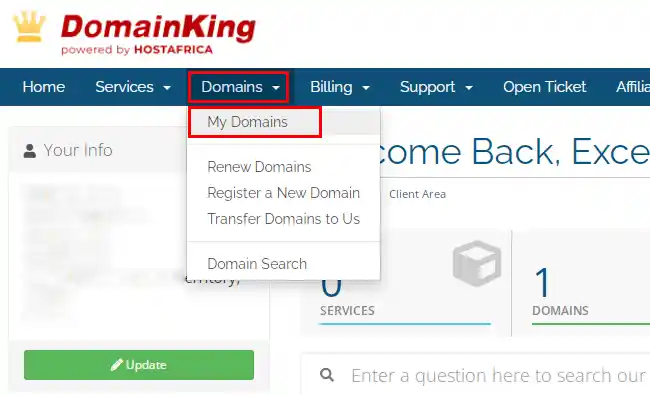
First, log into your DomainKing client area. This is the same place you go to manage your hosting and domains. Once you are in:
i) Navigate to Domains and then My Domains.
ii) Find the domain you want to transfer and click the Manage button, it usually looks like a small wrench or gear icon.
iii) In the management screen, look for a setting called Registrar Lock or Domain Lock or sometimes Client Transfer Prohibited.
iv) Change the setting to Unlocked or Disabled.
That is it. The lock is now off.
Your domain is now ready to be moved.
Do not worry about security, the lock will be automatically re-enabled after the transfer completes, and you still need an authorization code to start the transfer.
Step 2: Obtain Your EPP/Auth Code from DomainKing
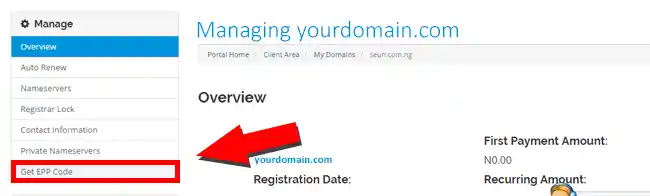
Now that your domain is unlocked, you need the EPP code, also called an authorization code or transfer key. This is like a one-time password that proves you own the domain.
i) In the same DomainKing management area, usually on the left side menu, look for an option that says Get EPP Code or Send Auth Code. Click it.
ii) DomainKing will send this code to the email address associated with your account. It typically arrives within a few minutes.
iii) Save this code somewhere safe, you will paste it into our transfer form in the next step.
The code is usually a mix of letters and numbers, something like Xy7#9mK2. It may expire after a few days, so do not wait too long.
I always tell customers: copy the code into a Notepad file or take a photo with your phone. You do not want to request it twice.
Step 3: Initiate Transfer at Truehost
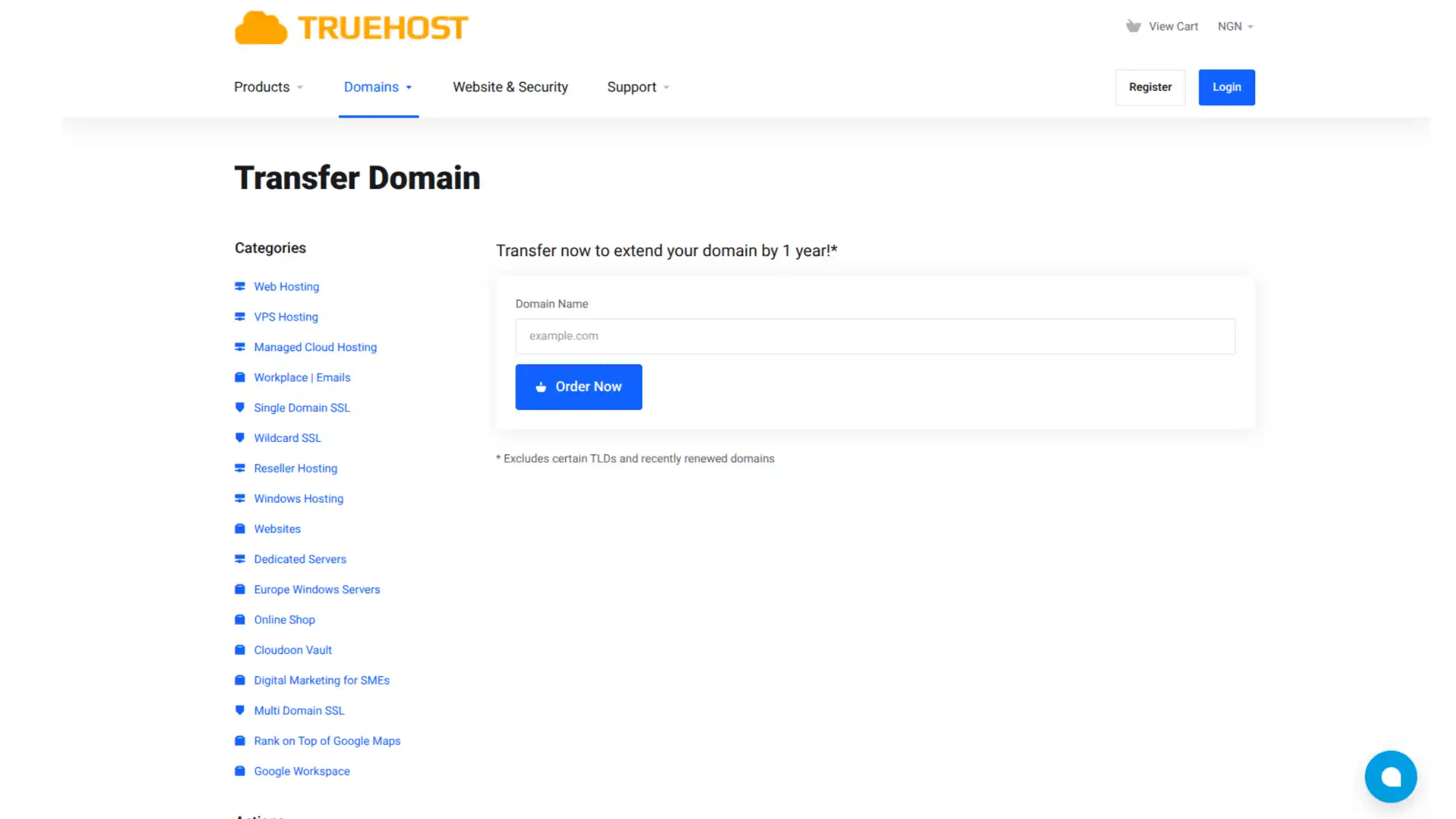
Now you come over to us. Log into your Truehost account.
If you do not have one yet, you can create one for free, it takes less than a minute. Or you can even choose the proceed with Google option
Once logged in:
i) Go to the Domain Transfer section. You can find this under the Domains menu in our store, or sometimes in the left sidebar of your client dashboard.
ii) Enter the domain name you are transferring for example, yourdomain.com.ng into the input box.
iii) Paste the EPP code you received from DomainKing into the next field.
iv) Click Add to Cart or Continue.
You will then see the transfer price.
The good news: when you pay for a transfer, you are actually paying for a one-year renewal of your domain.
So you are not losing anything. The transfer fee is the same as our regular registration fee for that extension.
Complete the checkout process. You will not be charged twice, we only bill you once the transfer is successfully initiated.
Step 4: Approve the Transfer
After you start the transfer with us, both registrars will send you emails asking for your approval.
This is a security measure to make sure no one is stealing your domain.
Check the administrative email address associated with your domain. You should receive:
- An email from DomainKing asking you to confirm that you want to transfer the domain away from them. Click the approval link in that email.
- An email from Truehost Cloud(us) asking you to confirm that you want to bring the domain to us. Click that link as well.
Sometimes DomainKing sends a second confirmation. Just approve everything.
If you do not see the emails within an hour, check your spam folder.
Still nothing? Go back to DomainKing and make sure your admin email is correct and that privacy protection is off.
I have seen people miss this step and wonder why their transfer never completes. Approve the emails as soon as they arrive.
Step 5: Wait for Transfer to Complete
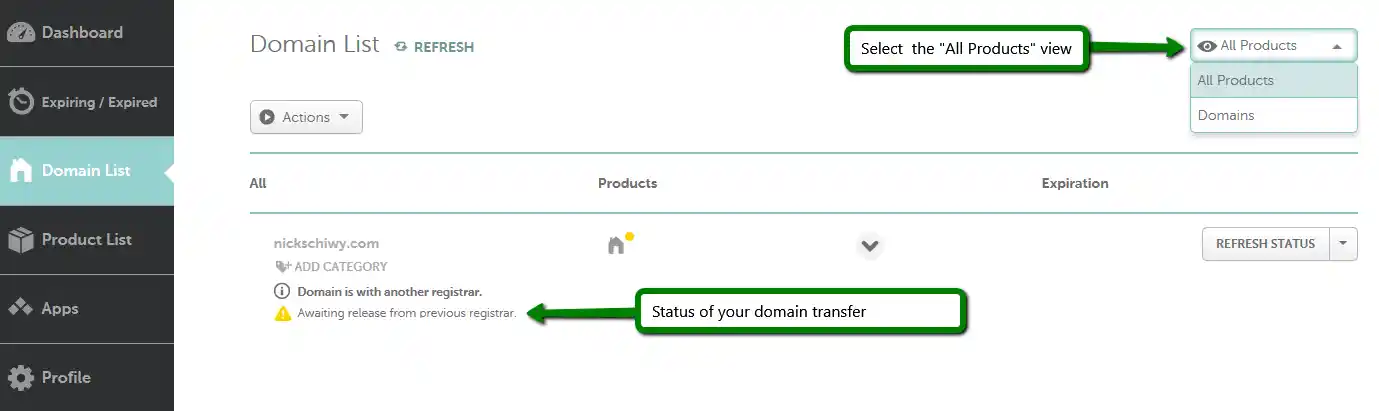
Now comes the hardest part: waiting.
Most domain transfers take 5 to 7 days to fully process.
This is not because we are slow, it is because ICANN rules give the losing registrar (DomainKing) up to five days to release the domain.
Some registrars release faster, but plan for a week.
Here is the best part: your domain’s expiration date gets extended by one year from its current date.
So if your domain was set to expire in November 2026, after the transfer it will expire in November 2027.
You are effectively getting a free year of registration as part of the transfer fee.
You can check the transfer status in your Truehost dashboard.
Once it shows Completed or Active, you are done.
Start your domain transfer here!
What to Do After the Move
Congratulations. You have successfully transferred a domain from DomainKing to Truehost. But we are not quite finished. Here is what to do next.
a) Verify that your domain appears in your Truehost dashboard.
Log in and go to Domains → My Domains.
You should see your transferred domain listed, along with its new expiration date.
b) Update your nameservers if you use Truehost hosting.
If you plan to host your website with us, you need to point your domain to our servers. You can do this in the domain management area.
Simply replace the existing nameservers with ours, we will provide them in your welcome email.
If you are hosting elsewhere, keep the nameservers as they are, the transfer does not change them.
c) DNS propagation can take anywhere from 5 minutes to 24 hours.
Do not panic if your website is not visible immediately. The internet needs time to update its records.
Grab a cup of tea and check back in an hour.
d) Check that your email and website services are working correctly.
Send a test email. Visit your website.
Everything should function exactly as it did before the transfer.
Remember: the domain transfer only changes where you pay for the domain, not where your website files or email are stored.
e) Set up auto-renewal in Truehost.
I recommend this to every customer. Go to your domain management page and enable auto-renewal.
This way, you will never accidentally lose your domain because you forgot to pay.
Our system will charge your saved payment method a few weeks before expiry, and you will get reminder emails.
Troubleshooting: Common Issues & Solutions
Even with a perfect guide, things can go wrong. Here are the most common problems I have seen, and exactly how to fix them.
a) Transfer failed – domain locked
This means DomainKing still has the registrar lock enabled.
Go back to your DomainKing control panel and double-check that the lock is set to Unlocked.
Sometimes the setting does not save correctly. Disable it again, wait five minutes, and restart the transfer with us.
b) Invalid EPP code
EPP codes can expire. They are also case-sensitive.
Copy the code exactly as it was sent to you, no extra spaces.
If it still does not work, request a fresh code from DomainKing. The new code usually arrives within minutes.
c) Domain not eligible (60-day rule)
Your domain is less than 60 days old. There is no workaround. Wait until day 61, then try again.
I know it is frustrating, but the rule exists to prevent domain hijacking.
d) Admin email not responding
The transfer approval emails are being sent to an old or inaccessible email address.
Log into DomainKing and update the WHOIS contact information.
You may need to wait 24 hours for the changes to propagate before requesting a new transfer.
e) Transfer stuck for more than 7 days
If your transfer has been pending for over a week with no movement, contact DomainKing support first.
Ask them if there is a hold on the domain. Then contact our support team at Truehost.
We can manually check the transfer status and sometimes nudge it along. Provide both teams with your domain name and the EPP code you used.
Enjoy Your Domain at Truehost
You made it. You have successfully learned how to transfer a domain from DomainKing to Truehost.
And you did it without breaking a sweat.
Let me recap why this was worth your time.
Your domain is now managed by a registrar that offers transparent pricing, free features, and real human support.
You have consolidated your digital assets in one place. And you have extended your domain’s expiration by a full year, for free.
The process is safe, standard, and supported every step of the way by our team.
Thousands of customers have moved their domains to us, and we have never lost a single domain in transit.
So what are you waiting for? Start your transfer today.
Log into your Truehost account, head to the Domain Transfer section, and follow the steps I outlined.
If you get stuck at any point, our support team is available 24/7 via live chat and email. We will hold your hand through the entire process.