 Domain NamesFind and register your ideal domain name instantly.
 Web HostingEasy-to-use hosting powered by cPanel — ideal for managing websites in Nigeria.
 Windows HostingRun .NET apps with Windows-optimized hosting
 Affiliate ProgramMake money promoting our services
 Reseller HostingMake money by reselling our hosting products under your own brand
 .COM Domains
 All DomainsExplore all supported tld domains in Nigeria
 WhoisFind out who owns any domain, as well as verify your registration details
 VPS Hosting
 Dedicated ServersReimagine your site speed with your own complete server
 AI Website BuilderDesign your site with drag-and-drop tools
 Online Store BuilderStart your online shop without code
 Support PortalFind answers or get expert help
 Contact UsReach our team via chat or email
 BlogRead our extensive guides on web hosting and more
Oh, no.
That’s usually the first thought that hits when you see it. You were just checking on your site, or maybe a customer sent a panicked message: “500 Internal Server Error.”
Nothing else. No helpful hints. Just a digital dead end. It’s frustrating, it’s stressful, and it feels urgent.
But here’s the good news: in almost every case, a 500 error is fixable, and mostly much faster than you’d think.
In this guide, I’m going to enlighten you on what a 500 error means, what’s almost certainly causing yours, and most importantly, the clear, simple steps to get your website back online.
What Is an Error 500?
When someone visits your website, their browser, like Chrome or Safari, sends a request to the server where your website lives. This server isn’t just a hard drive; it’s a computer running software that’s meant to serve your website’s files and data.
The server then tries to follow the instructions in your website’s code, PHP or Python, and database to build the page and send it back.
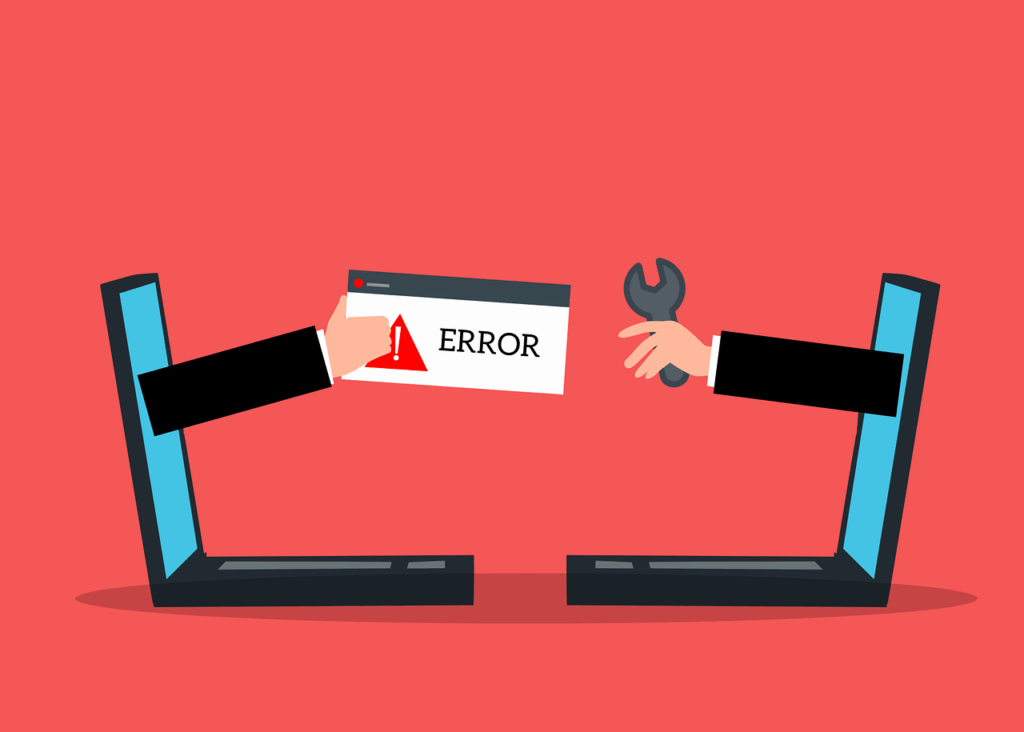
A 500 Internal Server Error is the server’s white flag.
It means: “I tried to follow the recipe to make your webpage, but I crashed and burned halfway through. I have no presentable result to give the visitor, so I’ll just hand them this generic error note instead.”
The key is the word Internal. The problem isn’t with the visitor’s internet or browser. The fault lies inside your server’s processes. Because it doesn’t specify the problem, it’s our job to play detective.
What’s Most Likely Causing Your 500 Error?
While tech evolves, the root causes of a 500 error remain consistent. Here are the usual suspects, from most common to less common:
A Corrupted or Broken .htaccess File
This is public enemy number one. This invisible file is sitting in your website’s main folder. One typo, one misplaced character on a single line, and the whole server shuts down with a 500 error.
Hitting a Memory Limit
Your website’s scripts are allowed to use a certain amount of the server’s memory (RAM). A faulty plugin, a complex theme function, or a sudden spike in traffic can try to use more than its allowance.
The server stops it dead in its tracks with a 500 error to protect itself and other websites on the same server.
Modern managed hosting sometimes handles this better, but it’s still a common issue on busier sites.
PHP Timeout or Error
Most websites run on PHP. If a piece of PHP code has a fatal error, a syntax mistake, or takes too long to execute (times out), the server throws a 500.
This is sometimes due to a recent plugin or theme update that introduced buggy code.
Database Connection Failures
Your website’s content (pages, posts, product info) lives in a database.
If the server can’t connect to it because the login details in your site’s configuration file are wrong, or the database itself has crashed, you get a 500. This can look extra scary because your whole site goes down.
File Permission Problems
Every file and folder on a server has a set of permissions, such as read, write, and execute. If these are set too strictly, the server software can’t access the files it needs.
If they’re too loose, it’s a security risk. Incorrect permissions are a classic trigger.
Third-Party Service Failures
Currently, websites talk to more external services than ever: payment gateways, AI APIs, and external databases.
If your site’s code calls one of these services and it’s down or rejects the request, it can sometimes cause a cascade failure resulting in a 500.
How to Fix the Error: A Step-by-Step Guide
Important pre-fix:
Clear your browser cache. Sometimes, your browser has cached an old, broken version of the page.
A hard refresh (Ctrl+F5 or Cmd+Shift+R) or clearing the cache can instantly resolve the problem if the actual error has already been fixed on the server.
Now, let’s get to the real work. Always start with the simplest fix and work backward.
Step 1: Check Your Server and Hosting Status
Before you tear your hair out, log into your hosting account’s dashboard. Reputable hosts, like Truehost, have a status page right in the client area.

See if there’s a notice about server maintenance, hardware issues, or a widespread outage. If the whole server is down, it’s not your fault, and you just have to wait.
Step 2: The .htaccess File
Access your website files. You do this via the File Manager in your hosting control panel, such as cPanel, or an FTP program like FileZilla.
In the main folder, often public_html or your domain name, look for the .htaccess file. It may be hidden; in File Manager, there’s usually a “Show Hidden Files” setting.
Rename it. Don’t delete it. Just rename it to something like .htaccess_backup or old. htaccess.
Now, try reloading your website. If it loads perfectly, you’ve found the culprit! The error was in that file.
You now need a fresh .htaccess file. If you use WordPress, it can generate a new, clean one for you.
Just renaming it does the trick, as the system creates a new basic one. You can then slowly re-add any custom rules you need, one by one, to find the broken one.
Step 3: Plugins and Themes
If you run a CMS like WordPress, Joomla, or Drupal, this is your next stop.
Access via a Safe Mode or Recovery Feature: Many modern hosts now include a staging or recovery tool that lets you disable plugins without accessing your live admin area.
Check your hosting dashboard for this feature; it’s a lifesaver.
The Manual Method:
If you can’t use safe mode, use your File Manager/FTP to rename your plugins folder inside wp-content to something like plugins_off. This disables all plugins at once.
Reload your site. If it works, one plugin is the issue. Change the folder name back, then disable plugins one by one in your admin panel, which should now be accessible, to find the bad one.
Step 4: Check the Error Logs
This is the most important troubleshooting step. The server logs the actual error that caused the 500 in a log file. You just need to find it.
In your hosting control panel, look for a section called “Error Log,” “Logs,” or “Metrics.”
There will be a link for your specific domain’s error log. Click it.
Look at the most recent entries at the bottom. You will see timestamps and actual error messages like “PHP Fatal error on line 55 in /home/youraccount/public_html/wp-content/plugins/bad-plugin/bad-file.php”.
This tells you exactly which file and line is causing the problem. You can now fix that specific file, or contact the plugin/theme developer with the exact error message.
At Truehost, we make these logs easy to find and read.
Step 5: File Permissions
For core files and folders, standard permissions are usually:
Folders/Directories: 755 (or 750)
Files: 644 (or 640)
Critical configuration files (like wp-config.php): 600 or 640.
You can change these in your File Manager by right-clicking a file/folder and selecting Change Permissions (CHMOD).
Step 6: Increase PHP Memory Limit
Sometimes you just need a quick boost. You can do this by creating or editing a php.ini file in your website’s root folder with the line: memory_limit = 256M.
Alternatively, many hosts let you change the PHP memory limit directly from their dashboard under “PHP Settings” or “Select PHP Version.”
Note that this is a band-aid; you still need to find the script that’s using too much memory.
Preventing Future 500 Errors
- Backup Before Any Update: Always take a full backup (files and database) before updating your website’s software, plugins, or theme.
- Use a Staging Site: Test all changes first on a staging site if your host provides one. It’s a safe, separate copy of your live site where you can experiment without causing errors for the public.
- Maintain Your Server Environment: Ensure your hosting provider uses updated, stable server software, such as PHP. A modern, properly configured server has far fewer generic failures.
- Enable Uptime Monitoring: Set up a simple monitoring service to alert you the moment your site goes down, so you can react immediately.
Wrapping it Up
A 500 error can feel like a brick wall, but as you’ve seen, it’s usually just a simple problem in disguise.
Start with the easy checks: clear your cache, rename your .htaccess file, and check your error logs. Those three steps will solve the vast majority of these frustrating errors.
The real trick is setting up your website to avoid it next time. That’s where having the right foundation makes all the difference.
For many, the process we just walked through is smoother when your hosting provider is built to support it.
At Truehost, we design our servers and control panels with this kind of troubleshooting in mind.
Our dashboards give you clear, one-click access to error logs, staging sites, PHP settings, and automated backups; the exact tools you need to quickly diagnose and resolve a 500 error, and keep your site running smoothly.