 Domain NamesFind and register your ideal domain name instantly.
 Web HostingEasy-to-use hosting powered by cPanel — ideal for managing websites in Nigeria.
 Windows HostingRun .NET apps with Windows-optimized hosting
 Affiliate ProgramMake money promoting our services
 Reseller HostingMake money by reselling our hosting products under your own brand
 .COM Domains
 All DomainsExplore all supported tld domains in Nigeria
 WhoisFind out who owns any domain, as well as verify your registration details
 VPS Hosting in Nigeria
 Dedicated ServersReimagine your site speed with your own complete server
 AI Website BuilderDesign your site with drag-and-drop tools
 Online Store BuilderStart your online shop without code
 SSLs
SSLs Support PortalFind answers or get expert help
 Contact UsReach our team via chat or email
 BlogRead our extensive guides on web hosting and more
There is a moment every Nigerian freelancer or small business owner eventually faces, a potential client asks for your contact, and you share a Gmail address.
Nothing wrong with that, but [email protected] carries a different weight entirely. It signals credibility before you say a word.
The fear holding most people back is not the setup, it is the data.
Years of client conversations, receipts, and project history sitting in Gmail.
Losing that is not an option. That is why forwarding alone is not enough. Forwarding handles new emails.
A proper migration moves everything, your full archive, across to your new account, intact.
This guide covers how to transfer emails from Gmail to business email without losing your emails.
Before you begin, gather the following items. Having everything ready in advance will make the process smooth and prevent frustrating interruptions.
- Your Own Domain. You cannot have a professional email address without owning a domain name. You can register a domain through a Nigerian registrar such as Truehost.
- A Business Email Hosting Plan. A domain alone does not give you email. You need a hosting plan that provides email service.
- Your Gmail Account Login Credentials. You need full access to the Gmail account you are migrating from. Make sure you know your password and can log in without any issues.
- IMAP Access Enabled. IMAP (Internet Message Access Protocol) is the technology that allows email clients to access messages stored on a mail server. You must enable IMAP in your Gmail settings before any migration tool can read your emails.
- A Plan for Your Mailbox Size. Gmail accounts can grow very large over the years. If your mailbox contains many gigabytes of data, be aware of transfer limits.
Choosing the Right Migration Method

Before diving into the step‑by‑step instructions, take a moment to consider which of the three approaches best fits your needs.
The table below compares the options so you can make an informed decision before you transfer emails from Gmail.
| Method | Best For | Pros | Cons |
| The Admin Guide (cPanel Webmail) | Business owners moving a small team’s email. | Centralised control, no extra software, keeps folder structure. | Can be slow, may require manual folder management. |
| The Desktop Method (Outlook/Thunderbird) | A single person moving a very large mailbox. | Reliable for big transfers, creates an offline backup, preserves timestamps. | Uses your local bandwidth and storage. |
| The Automatic Tool (Third‑party) | Non‑technical users who want the easiest path. | Very fast, preserves labels and metadata, handles everything in the cloud. | Usually involves a fee for large data volumes. |
If you are migrating a team of five or more people, the webmail method gives you central control from your cPanel dashboard.
If you have a single large mailbox with many gigabytes of data, the desktop method using Outlook provides reliability and creates an offline backup.
And if you want the most hands‑off experience possible, paying a small fee to let a cloud service handle everything, the automatic tool is your best choice.
Step 1: Prepare Your Gmail Account
Prior to any migration, Gmail needs to be configured to allow external access to your emails. Follow these two critical steps carefully.
Log into your Gmail account in a web browser. Click the gear icon in the top right corner, then select See all settings.
Navigate to the Forwarding and POP/IMAP tab. In the IMAP Access section, select Enable IMAP.
Click Save Changes at the bottom of the page.
- Generate an App Password.
If you have two‑factor authentication enabled on your Google account,and you should, because it protects you from unauthorised access, you cannot use your regular Gmail password to connect external applications.
Instead, Google requires an app password. Here is how to create one:
- Go to your Google Account security page:
myaccount.google.com/security. - Under Signing in to Google, select App passwords. If you do not see this option, two‑factor authentication may not be fully enabled.
- At the bottom, click Select app and choose Mail.
- Click Select device and choose the device you are using e.g., Windows Computer.
- Click Generate.
- Google will display a 16‑character password. Copy this password and store it somewhere safe, you will need it when you configure the migration.
Now your Gmail account is ready to be accessed by your new business email system.
Step 2: Set Up Your Truehost Business Email on cPanel
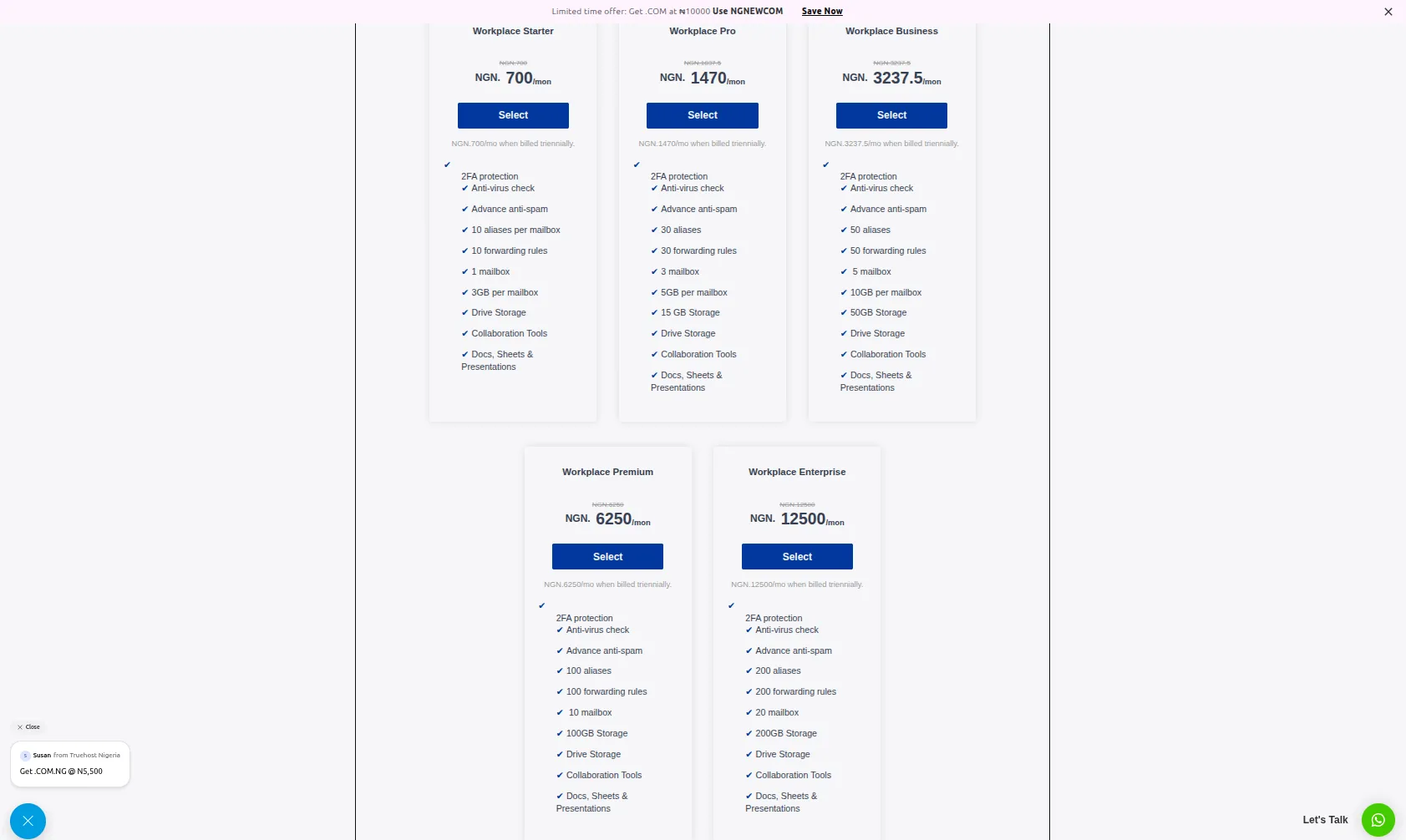
With Gmail prepared, the next step is to create and access your professional email address through Truehost’s cPanel.
Truehost’s cPanel hosting plans allow you to create professional email addresses linked to your domain directly from the Email Accounts section.
- Accessing Your cPanel.
To access your cPanel, open your browser and type yourdomain.com/cpanel.
You will be taken to the cPanel login page, where you need to enter your cPanel username and password.
These login details are different from your email address and email password.
So make sure you are using the cPanel credentials you received after purchasing your hosting account.
- Create Your Email Account.
Once logged into cPanel, scroll down to the Email section and click the Email Accounts icon.
Click the Create button, then fill in the account details: choose your domain from the dropdown menu, enter the desired username, and set a strong password.
Click Create to finalise the account.
The email address you just created e.g., [email protected] is now ready to receive messages.
- Access Your Webmail.
With your email account created, you can access it through webmail from any browser.
Go to yourdomain.com/webmail and log in using your full email address and the password you set.
Alternatively, you can log into cPanel, navigate to Email Accounts, find your email address, and click the Check Email button.
This opens the Roundcube webmail interface, which we will use for migration.
Step 3: Perform the Migration (Pick One Method)
This is the core of the process.
Choose the method that best fits your situation from the comparison table above and follow its instructions.
Method 1: The Admin Guide (Migrate via cPanel Webmail / Roundcube)
Best for business owners who want a quick, no‑extra‑software migration.
a) Log into Roundcube Webmail. Go to yourdomain.com/webmail and log in using your new business email address and password.
b) Add your Gmail account as an external mailbox. In Roundcube, go to Settings → Accounts → Add Mail Account.
c) Fill in the following server settings:
Email: Your full Gmail address
IMAP Server: imap.gmail.com
Port: 993Encryption:
SSL/TLSUsername: Your full Gmail address
Password: The 16‑character app password you generated in Step 1
d) Click Save. Roundcube will now connect to your Gmail account.
e) Start the migration. Once both accounts (Gmail and your new business email) appear in Roundcube, you can drag and drop folders from the Gmail account into your business email inbox. Alternatively, use the import/export function to move entire folders at once.
f) Repeat this process for every folder you want to migrate. Be it Inbox, Sent Items, Drafts, and any custom labels you created in Gmail.
This method keeps everything inside your cPanel environment and requires no additional software.
For larger mailboxes, it is advisable to migrate during off‑hours as the process may take several hours.
Method 2: The Desktop Method (Using Outlook or Thunderbird)
Best for individuals migrating a single, large mailbox.
Option A: Using Microsoft Outlook
Open the Outlook desktop app. If you do not have Outlook installed, you can download Thunderbird for free.
i) First, add your new Truehost business email account.
Go to File → Add Account and enter your professional email address.
Outlook will attempt to auto‑configure the account. If manual setup is required, use the following settings:
Incoming mail server (IMAP): mail.yourdomain.com /
Port: 993 (SSL/TLS)
Outgoing mail server (SMTP): mail.yourdomain.com /
Port: 465 (SSL/TLS) or 587 (STARTTLS)
Username: Your full email address e.g., [email protected]
Password: The password you set in cPanel
ii) Next, add your old Gmail account.
Again go to File → Add Account, enter your Gmail address, and when prompted for a password, use the 16‑character app password you generated earlier.
iii) Once both accounts appear in the left sidebar of Outlook, you can begin copying your emails.
Select the Gmail account to expand all your folders.
Drag the Inbox folder and drop it onto the corresponding folder in your new business account.
Outlook will copy every email, preserving the original timestamps and read/unread status.
iv) Repeat this process for every folder you want to migrate. Sent Items, Drafts, Archive, and any custom folders or labels.
Option B: Using Mozilla Thunderbird (Free Alternative)
i) Download and install Thunderbird from mozilla.org. It is completely free.
ii) Go to File → New → Existing Mail Account.
iii) Enter your name, your business email address, and the password you set in cPanel.
Thunderbird will automatically fetch the correct server settings. Verify that the settings match: IMAP server mail.yourdomain.com, port 993, SSL/TLS.
iv) Repeat the process to add your Gmail account, using the app password.
v) Once both accounts are listed, drag and drop folders from Gmail to your Truehost business account.
This method creates a physical copy of your emails on your computer before uploading them to your new mailbox.
This means you have an offline backup in case anything goes wrong during the transfer.
Method 3: The Automatic Tool (Using a Third‑Party Cloud Service)
Best for a hands‑off, professional approach.
i) Sign up for a secure email migration tool such as VaultMe, MigrationWiz, or CloudM.
Using the tool’s web dashboard, authorise access to your Gmail account as the source. You will need your Gmail address and the 16‑character app password.
ii) Authorise access to your Truehost business email account as the destination. For IMAP‑based cPanel email, provide the following server settings:
IMAP Server: mail.yourdomain.com
Port: 993
Encryption: SSL/TLS
Username: Your full business email address
Password: The password you set in cPanel
iii) Configure what you want to migrate like emails, contacts, and calendars. Most tools also preserve Gmail labels by converting them into folders.
iv) Click Start Migration. The tool will transfer everything directly between the two servers in the cloud, without using your local internet bandwidth. You can close your browser and check back later to see the progress.
Automatic tools are the fastest option and are especially useful if you have multiple gigabytes of data or if you want a set‑it‑and‑forget experience.
Most charge a small one‑time fee based on the volume of data being migrated.
No matter which method you choose, the goal is the same: to successfully transfer emails from Gmail to your new professional address completely and accurately.
Take your time, follow the steps carefully, and do not rush.
Step 4: The Final Switch (DNS Cutover)
Once your historical emails have been copied to your new business mailbox, you need to redirect future incoming emails away from Gmail and toward your new address.
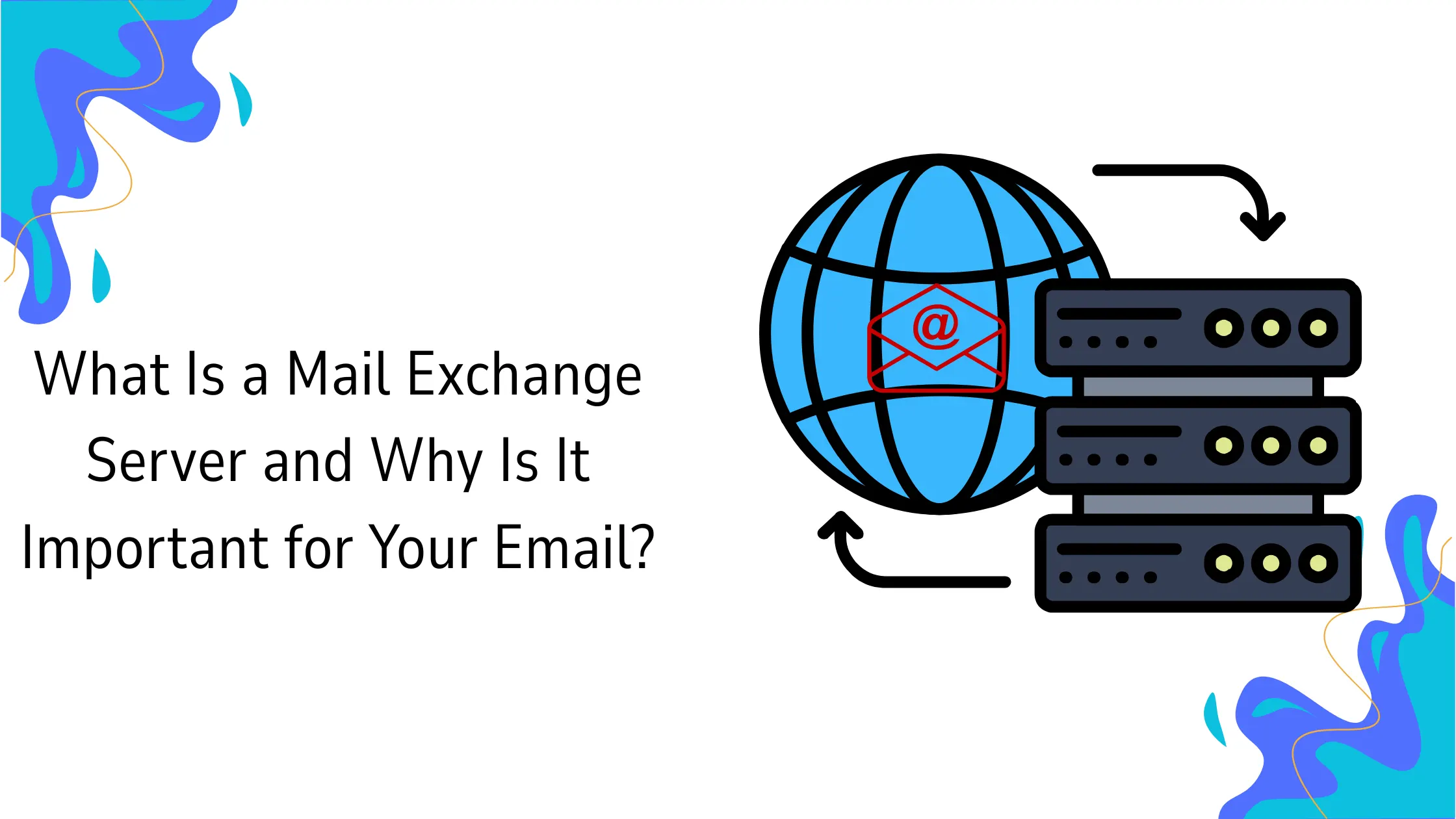
This is done by changing your domain’s MX (Mail Exchange) records.
What is a Cutover? MX records tell the internet which server should receive email for your domain.
Right now, your domain’s MX records probably point to Google’s servers.
After you change them to point to your Truehost cPanel server, any new email sent to your domain will arrive in your new business mailbox.
Plan Your Timing.
Do this during a low‑traffic window such as an evening or weekend.
DNS changes can take anywhere from a few minutes to 48 hours to fully spread across all internet providers in Nigeria.
During this propagation period, some emails may go to Gmail while others go to your new mailbox.
How to Do It for Truehost.
- Log into your Truehost client area or cPanel. If your domain is managed through Truehost, you can update DNS records directly.
- Navigate to the MX records section. Delete any existing MX records (likely pointing to
ASPMX.L.GOOGLE.COM). - Then, add the new MX record provided by your cPanel hosting.
- For standard cPanel email, the incoming mail server is
mail.yourdomain.com. The specific MX record value will be something likemail.yourdomain.comwith priority 0. - Save your changes.
After saving, the cutover is complete. Emails will gradually begin arriving at your new professional address.
Set Up Your Professional Email Address
Moving from a free Gmail address to a professional business email is one of the smartest investments you can make in your brand’s credibility.
Yet the fear of losing years of important emails holds too many business owners back from making the switch.
As you have seen in this guide, that fear is entirely unnecessary when you follow a systematic, step‑by‑step approach.
Ready to set up your professional email address? Truehost provides affordable email hosting designed specifically for the Nigerian market.
You can register your custom domain and create professional email accounts in minutes, all from a single dashboard.
With Truehost, you get unlimited email accounts, robust security features, and local support, everything you need to transfer emails from Gmail and start building the professional brand your business deserves.
Visit Truehost today and take your business communication to the next level.