 Domain NamesFind and register your ideal domain name instantly.
 Web HostingEasy-to-use hosting powered by cPanel — ideal for managing websites in Nigeria.
 Windows HostingRun .NET apps with Windows-optimized hosting
 Affiliate ProgramMake money promoting our services
 Reseller HostingMake money by reselling our hosting products under your own brand
 .COM Domains
 All DomainsExplore all supported tld domains in Nigeria
 WhoisFind out who owns any domain, as well as verify your registration details
 VPS Hosting
 Dedicated ServersReimagine your site speed with your own complete server
 AI Website BuilderDesign your site with drag-and-drop tools
 Online Store BuilderStart your online shop without code
 Support PortalFind answers or get expert help
 Contact UsReach our team via chat or email
 BlogRead our extensive guides on web hosting and more
Quick answer: Using OpenClaw to create a family assistant comes down to three moves. Get it deployed.
Hook it up to an AI model and your family’s chat apps. Then set up automations for the tasks your household deals with daily.
That’s it. No massive learning curve.
What you’ll walk away with: an assistant that’s always on. It keeps track of everyone’s schedule.
It sends reminders. It keeps the shopping list updated. And it takes routine tasks off your plate.
Before you start, have ready:
- An API key from your AI provider (Claude, OpenAI, or Gemini)
- A messaging account set aside just for the assistant
- Optionally, a shared Google account for the family
Got those three things? Good. Let’s build it.
1) Get OpenClaw Deployed
You have two roads here. One is fast and hands-off. The other gives you full control, at the cost of your evenings.
Route 1: Managed Hosting via Truehost (Recommended)
The case for managed hosting:
- Deploy in one click
- Environment comes preconfigured
- SSL handled automatically
- Uptime you don’t have to babysit
You skip the Docker setup. You skip the server patching. You just log in and start configuring your assistant.
Picking your plan (NGN pricing):
| Plan | Price/Month | vCPU | RAM | NVMe Storage | Bandwidth |
|---|---|---|---|---|---|
| OpenClaw Starter | ₦14,000 | 1 | 2 GB | 50 GB | 4 TB |
| OpenClaw Pro | ₦28,000 | 2 | 4 GB | 100 GB | 6 TB |
| OpenClaw Business | ₦63,000 | 4 | 8 GB | 200 GB | 8 TB |
Every tier includes preconfigured OpenClaw, a ready-made AI workspace, one-click updates, automated install, dedicated support, and a free setup fee.
Our take: Truehost OpenClaw Hosting is the shortcut that skips the Docker and VPS configuration headache.
Starter suits a typical single-household setup. Pro gives you room to grow if you’re layering in more integrations down the line, like meal planning or multiple family agents.
If your household already runs other tools with us, an N8n workflow for chores, or a WordPress site for a family blog, adding OpenClaw hosting to the same account keeps everything in one dashboard.
Route 2: Running It Yourself (Self-Hosted)
Situations where self-hosting is worth the effort:
- You already run a home server or VPS you’re comfortable managing
- You want every piece of family data staying on hardware you physically control
- You enjoy tinkering and see this as a weekend project
What extra setup this involves:
- Installing Docker or Node.js dependencies yourself
- Configuring your own reverse proxy and SSL certificate
- Opening and securing the right ports on your router or firewall
The maintenance you’re signing up for long-term:
- Applying OpenClaw updates manually
- Renewing your own SSL certificates
- Troubleshooting outages without dedicated support on call
Self-hosting works. But it asks for ongoing attention most busy households don’t have spare.
2) Log Into Your OpenClaw Dashboard
Getting In
- Load your assigned instance URL
- Authenticate with your Gateway Token
- Confirm the gateway shows as online
New devices require pairing approval before they can connect to the Gateway. Approve the pairing request from an already-connected device or session before proceeding. This one step trips up a lot of first-time setups, so don’t skip it.
Treat your Gateway Token the way you’d treat a house key. Anyone holding it can talk to your assistant.
Setting Up Your AI Provider
OpenClaw connects to any of the major model providers:
- Claude
- OpenAI
- Gemini
Add your API key in the dashboard, pick your default model, and save.
Test the connection before moving on. Send one simple message. If you get a reply, you’re set.
3) Link Your Family’s Chat Apps
This is where using OpenClaw to create a family assistant starts to feel real. Once it’s on WhatsApp or Telegram, everyone in the house can just talk to it.
- WhatsApp: pair the assistant, scan the QR code, send a test message. This is the one to prioritize for a Nigerian household. It’s where most family coordination already happens.
- Telegram: connect via a bot token, then confirm with a test message.
- Discord: useful if your teens already live in a family server.
- Signal or iMessage (if you use them): follow the same pair-and-test pattern.
Start with one channel. Get it working well. Then add the rest.
Locking Down Who Can Message It
Three settings are important here:
- allowFrom: the list of phone numbers or usernames allowed to message the assistant directly
- requireMention: in group chats, the assistant only replies when someone tags it by name
- Keeping access to family members only: don’t leave this open to ‘anyone who has the number’
A typical config looks like this:
channels: {
  whatsapp: {
    allowFrom: ["+234XXXXXXXXX"],
    groups: {
      "*": { requireMention: true }
    }
  }
}
That single block stops the assistant from replying to every message in a busy family group chat. It only speaks up when tagged, or when the sender is on your allowlist.
4) Shape Your Assistant’s Personality and Household Rules
Writing the System Prompt
- Spell out its role in the household. Is it a scheduler? A shopping list keeper? Both?
- Decide its tone. Warm and casual works better for a family assistant than a stiff, corporate voice.
- Set the boundaries it shouldn’t cross. No unsolicited opinions on parenting. No forwarding private messages between family members.
Keep this prompt short and specific. A vague prompt gives you a vague assistant.
Setting Up Identity Files
OpenClaw stores your assistant‘s personality and memory as plain text files inside its workspace, not in some hidden database. The core set is:
- IDENTITY.md: the assistant’s name and general vibe
- SOUL.md: its personality, tone, and behavioral boundaries
- AGENTS.md: the operating rules it follows every session
- USER.md: who you are, and how it should address you
- HEARTBEAT.md: an optional, short checklist it checks regularly
Because these are just files, you can edit them with any text editor. You can back them up to a private git repository.
If you ever move to a bigger Truehost plan, you copy the folder across, and your assistant keeps its memory intact.
Building Out Family Profiles
- Parents: full access, can adjust settings, can approve new devices
- Kids: limited access, age-appropriate boundaries, no ability to change household rules
- Rules that apply household-wide: quiet hours, no forwarding of school or medical information, one shared calendar for everyone
Write these into USER.md and AGENTS.md so the assistant applies them consistently, not just when you happen to remind it.
5) Set Permissions and Guardrails
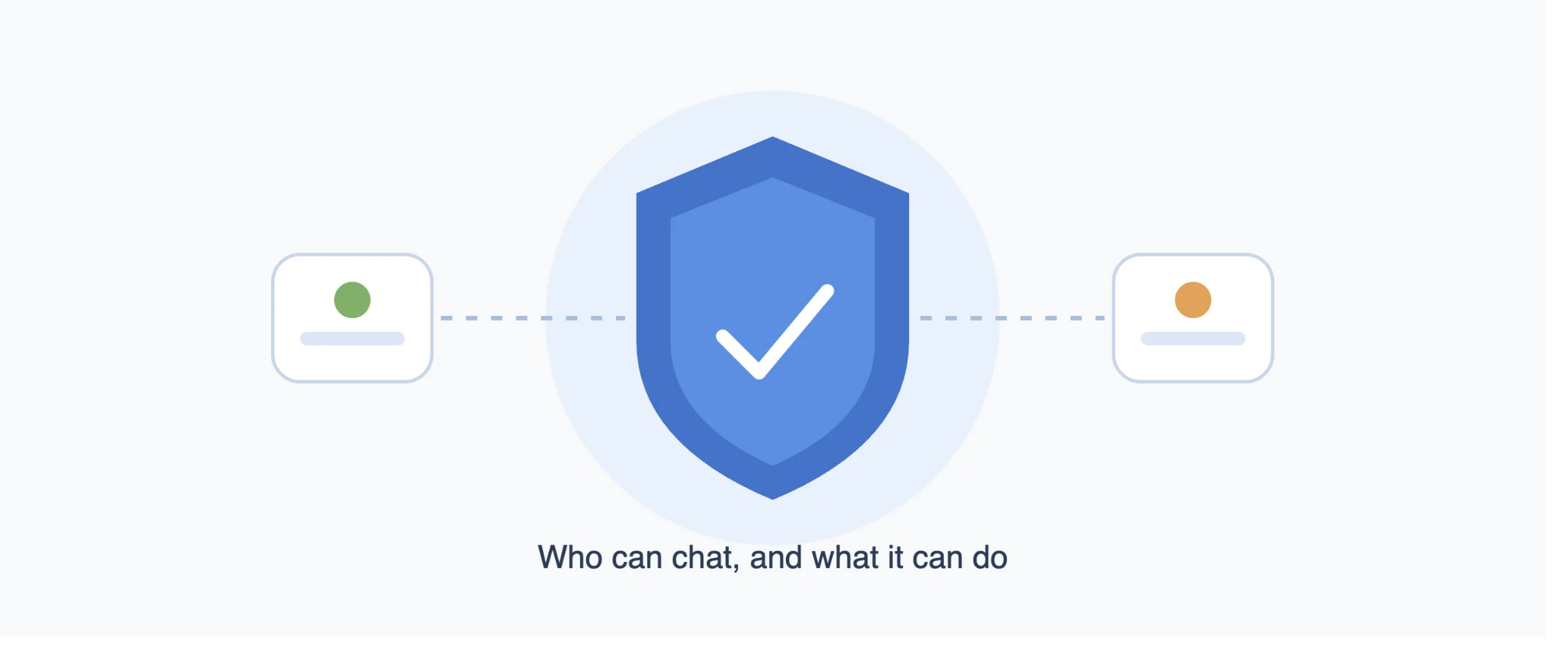
Deciding What It’s Allowed to Do
There’s an important difference between who can talk to it and what it’s allowed to act on.
- allowFrom / requireMention control who can message it at all
- denyCommands controls what actions it’s blocked from taking, even for approved senders
A cautious starting list for a family setup:
gateway: {
  nodes: {
    denyCommands: [
      "camera.snap",
      "camera.clip",
      "screen.record",
      "calendar.add",
      "contacts.add",
      "reminders.add"
    ]
  }
}
This blocks camera access, screen recording, and auto-creating calendar events or reminders until you deliberately turn each one back on.
Why this is important once kids’ data is involved: a chat-access allowlist only decides who can send a message.
It says nothing about whether the assistant can snap a photo, pull contacts, or silently add entries to a shared calendar.
With children in the household, action-level limits matter as much as who’s allowed to chat with it.
Applying Changes via Gateway Restart
- Which edits need a restart: most gateway-level and channel config changes do. Workspace file edits (SOUL.md, USER.md) usually don’t.
- The restart process: restart the gateway from your dashboard, or via the CLI if you’re self-hosting.
- Confirming it took: send a test message and check that the new rule applies as expected.
6) Set Up Your First Automations
Start small. Add one automation, confirm it works for a week, then add the next.
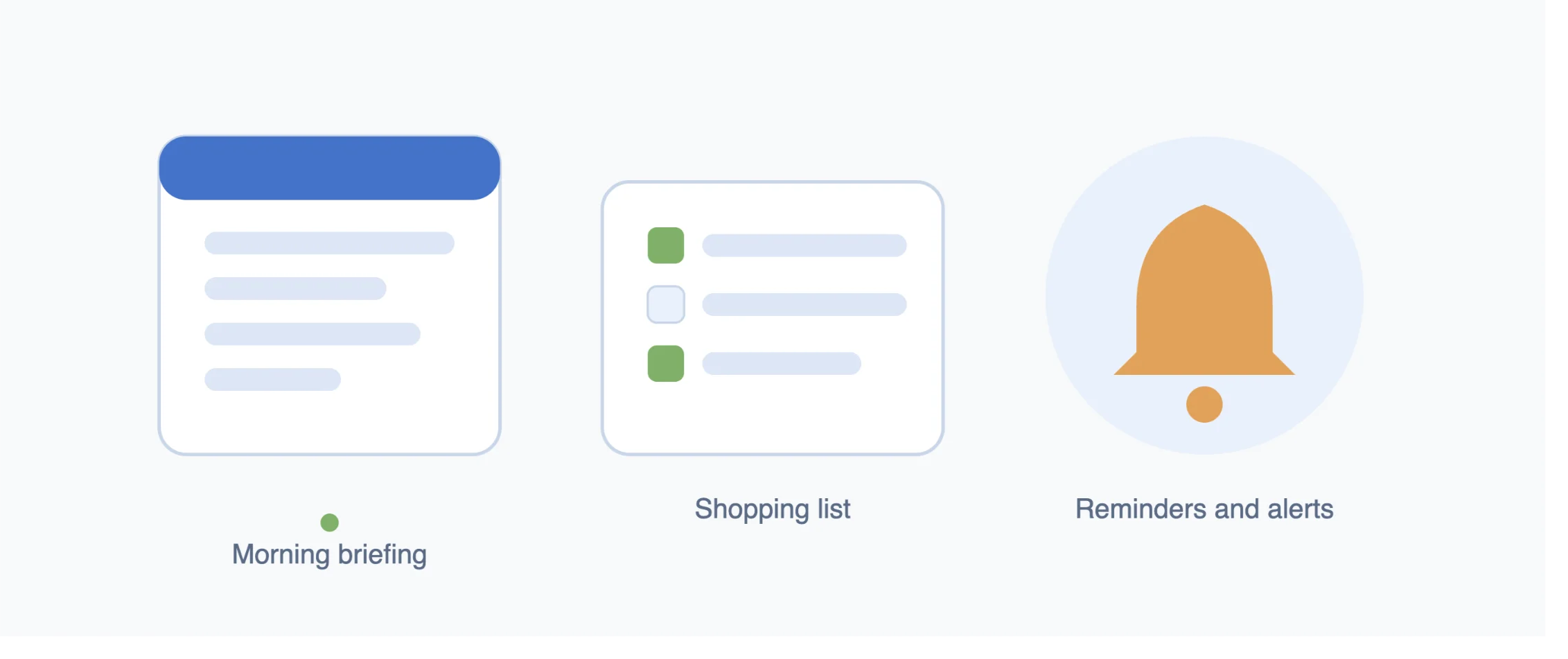
- Morning Briefing: what’s on the calendar, reminders for the day, anything important coming up.
- Shopping List: add items straight from chat, sorted by category.
- Meal Planning: recipe suggestions that generate a shopping list to match.
- Calendar Handling: picks up appointments from chat and sets reminders automatically.
These four cover most of what a busy Nigerian household needs day to day. Everything else, you can layer on later.
7) Lock Everything Down
Restricting Access
- Keep it to a dedicated messaging account, not your personal WhatsApp
- Use a dedicated email address for the assistant’s accounts
- Limit who’s approved to use it to people who need it
Guarding Your Credentials
- Store API keys in your provider‘s dashboard or a password manager, never in a shared chat
- Treat your Gateway Token like a password. If you suspect it’s been exposed, rotate it immediately, or on a routine 90-day schedule.
Regular Health Checks
- Run
openclaw doctorperiodically. It audits your workspace for configuration errors and flags anything that’s drifted out of date. - Re-verify your integrations any time you make changes to channels, providers, or permissions.
Troubleshooting Common Issues
- Gateway not connecting: check your token and confirm the gateway process is running.
- Errors from your AI provider: verify your API key hasn’t expired and that you have available quota.
- Messaging app won’t pair: re-scan the QR code, or regenerate the bot token and try again.
- Calendar not syncing: confirm calendar permissions weren’t blocked by your denyCommands list.
- Assistant gone silent: check that requireMention isn’t blocking replies in a group chat you’re testing in.
Using OpenClaw to Create a Family Assistant FAQs
What is the best hardware for OpenClaw?
For a typical family setup, you don’t need much. A plan with 1–2 vCPUs and 2–4 GB RAM, like our OpenClaw Starter or Pro tiers, comfortably runs a household assistant handling chat, reminders, and a shopping list.
Can the assistant read messages in Pidgin or local languages?
It depends on the AI model behind it. Claude, OpenAI, and Gemini all handle Nigerian Pidgin and other widely used local languages reasonably well, though quality varies by phrasing and context. Test it with your family’s usual way of talking before relying on it fully.
Is switching AI models later an option?
Yes. OpenClaw isn’t locked to one provider. You can switch between Claude, OpenAI, and Gemini in your config without rebuilding your whole setup.
Can I set spending limits so API usage doesn’t run up unexpected costs?
Yes. Set usage limits directly in your AI provider’s dashboard (Anthropic, OpenAI, or Google). This caps your spend regardless of how much your family chats with the assistant.
How much does it cost to run OpenClaw for a family every month, all in?
Hosting starts at ₦14,000/month with our OpenClaw Starter plan. On top of that, budget for your AI provider’s API usage, which scales with how often your family messages the assistant. A light-use household typically stays well within a modest monthly API budget.
Can I pay for Truehost OpenClaw Hosting in naira?
Yes. Truehost OpenClaw Hosting is priced and billed directly in NGN, with no need to source foreign currency.
Build Your Family Assistant With Truehost OpenClaw Hosting
You’ve now got the full picture of using OpenClaw to create a family assistant: deployed, connected to your family’s chat apps, and running its first automations.
From here, keep it simple. Add one new automation at a time. Watch how your family uses it, then adjust the rules and permissions to match.
If you haven’t deployed yet, we make it easy. Truehost OpenClaw Hosting gives you an always-ready, preconfigured environment starting at ₦14,000/month, live within minutes.