 Domain NamesFind and register your ideal domain name instantly.
 Web HostingEasy-to-use hosting powered by cPanel — ideal for managing websites in Nigeria.
 Windows HostingRun .NET apps with Windows-optimized hosting
 Affiliate ProgramMake money promoting our services
 Reseller HostingMake money by reselling our hosting products under your own brand
 .COM Domains
 All DomainsExplore all supported tld domains in Nigeria
 WhoisFind out who owns any domain, as well as verify your registration details
 VPS Hosting in Nigeria
 Dedicated ServersReimagine your site speed with your own complete server
 AI Website BuilderDesign your site with drag-and-drop tools
 Online Store BuilderStart your online shop without code
 SSLs
SSLs Support PortalFind answers or get expert help
 Contact UsReach our team via chat or email
 BlogRead our extensive guides on web hosting and more
Last updated on July 31st, 2026 at 10:40 am
One of the biggest strengths of OpenClaw is that you can teach it to handle tasks your way instead of repeating the same instructions every time you start a conversation.
That is what a custom skill is designed to do.
A skill tells your AI agent what to do, when, and how, so you get consistent output every time. It works through a single SKILL.md file that turns your agent’s improvisation into a repeatable system you control.
Here is the clearest way to understand how skills relate to tools: the tools (exec, web fetch, file read) are the hands. The skill is the brain. Tools do the physical work. The skill decides which tool runs, when it runs, and in what order.
One thing to sort out early, though, is that skills do not grant permissions.
If your VPS tool policy blocks a command, the skill will load without any error message and then silently fail at execution. It is a quiet failure, which makes it easy to misdiagnose.
For that reason, your server configuration is just as important as the instructions inside the skill itself.
Normally, OpenClaw skills come as pre-built, bundled capabilities that ship with the application for things like basic web search, shell execution, or file management.
A custom OpenClaw skill is different. You create it yourself to support your own APIs, internal processes, automation workflows, or any other task that is unique to your environment.
So, let’s walk through how to create one in detail.
Creating a Custom OpenClaw Skill
Building a custom OpenClaw skill is simple and direct once you know the pieces involved.
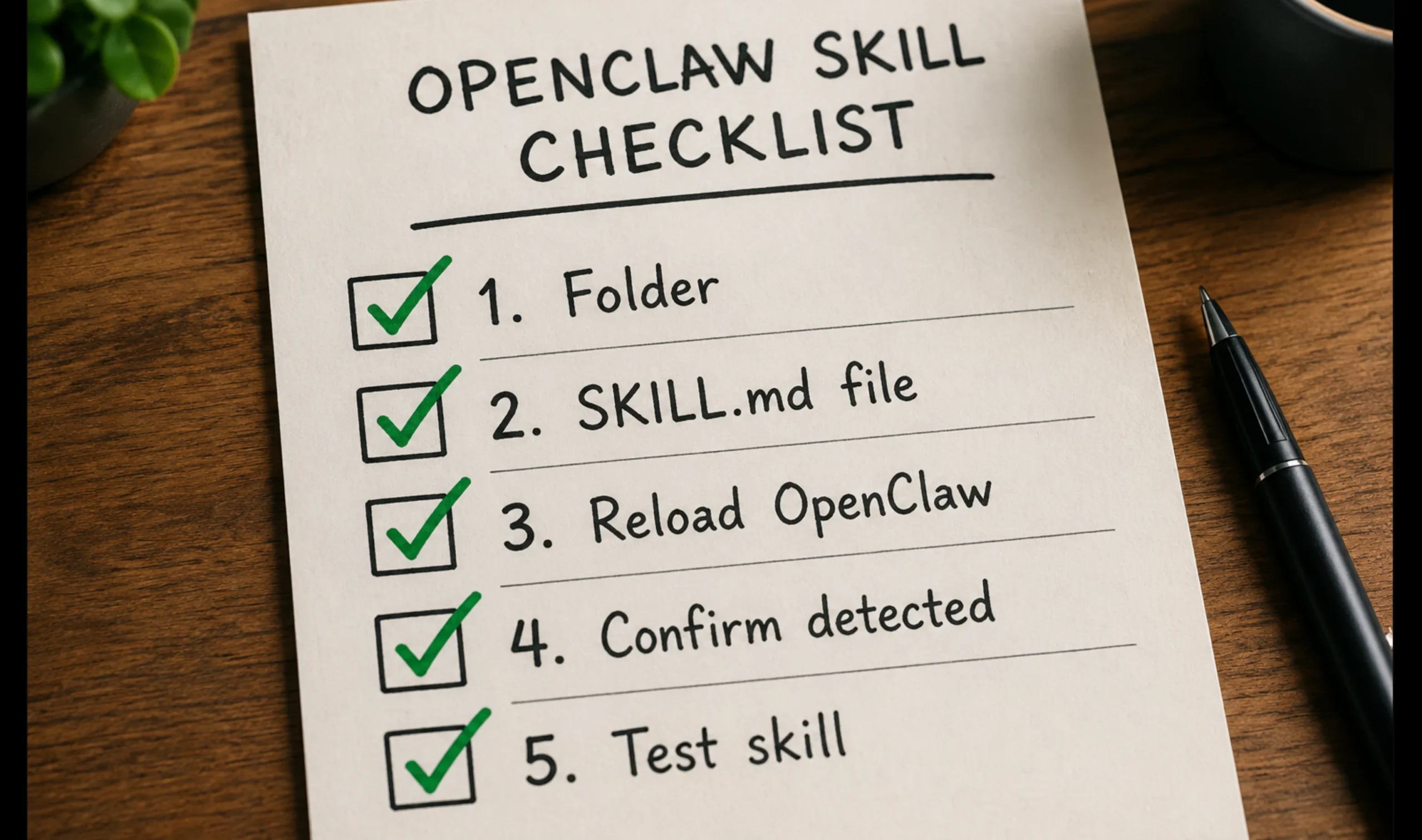
The process starts with creating the correct folder, followed by writing a SKILL.md file that tells the agent how to handle a specific task. After that, you simply reload OpenClaw, confirm the skill has been detected, and test it with a real request.
The steps below follow the same workflow used for production deployments and will help you create skills that are easy to maintain and reliable enough for everyday use.
1) Create the Skill Directory
Before writing any files, create the folder where OpenClaw expects to find your custom skills. This is one of the most common reasons a new skill never loads. If the folder is in the wrong location, OpenClaw simply will not scan it.
The exact workspace path is:
~/.openclaw/workspace/skills/your-skill-name/To create it, add mkdir -p before the path:
mkdir -p ~/.openclaw/workspace/skills/your-skill-name/The mkdir -p option creates the entire directory structure if it does not already exist, saving you from creating each folder individually.
You can also organize skills into subfolders without affecting how OpenClaw discovers them. For example:
mkdir -p ~/.openclaw/workspace/skills/subfolder/your-skill-name/This is useful once you begin collecting skills for different projects or departments.
A few important points are worth keeping in mind before moving on:
- The skill itself is identified by the
namefield inside theSKILL.mdfrontmatter, not by the folder name. Even so, keeping the folder name and skill name the same makes your workspace much easier to manage. - Skills stored in your workspace take priority over bundled OpenClaw skills if they share the same name. This allows you to replace or customize built-in behavior without modifying the original installation.
- After creating your directory, you can verify that OpenClaw is detecting available skills by running:
openclaw skills listIf your new directory is ready, the next step is creating the SKILL.md file that defines how your agent should behave.
2) Write Your SKILL.md File
Inside your new folder, create a file called SKILL.md. Every custom skill is defined in this file.
The file has two main parts. The first is the YAML frontmatter, which contains metadata about the skill. The second is the body, which contains the instructions the agent follows whenever the skill is used.
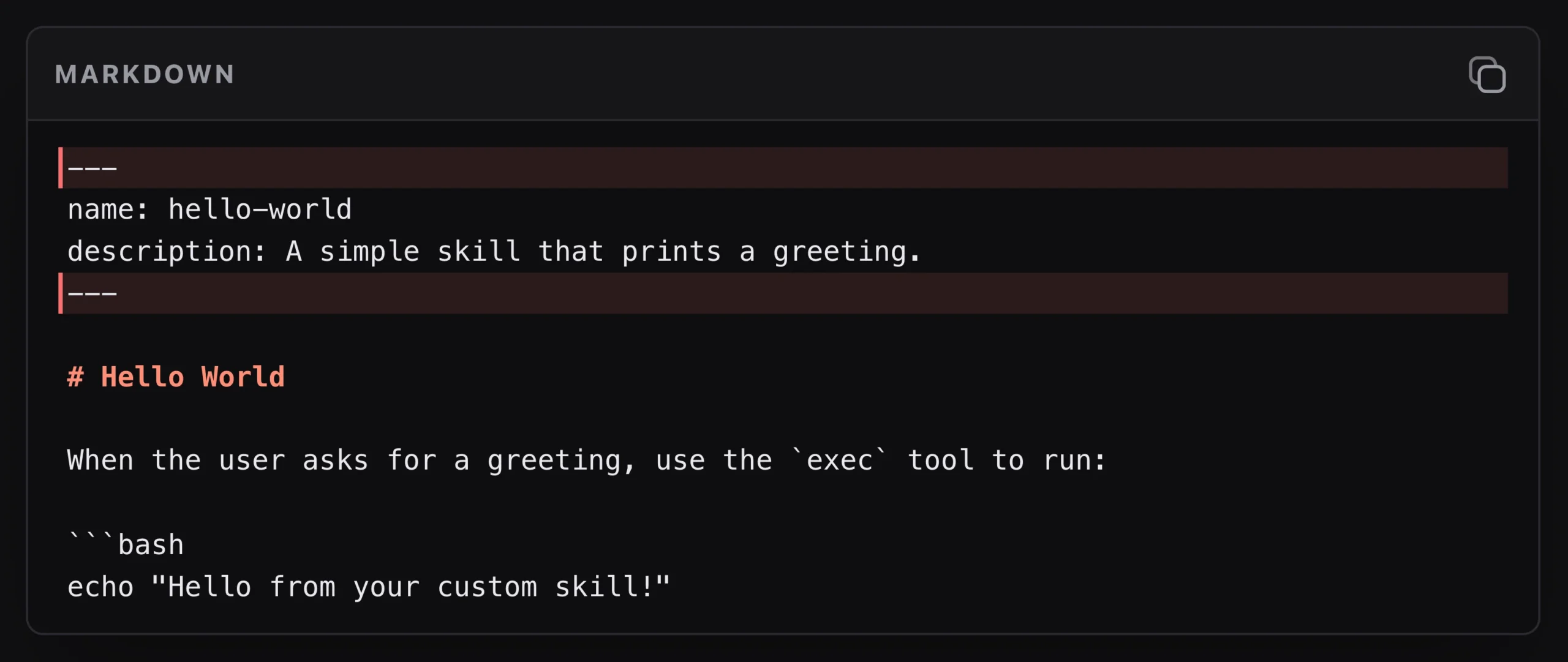
The Frontmatter (What OpenClaw Reads First)
The frontmatter appears at the very top of the file, enclosed between two sets of three dashes (---). This section tells OpenClaw what the skill is called (name) and when it should be used (description).
Each field serves a specific purpose:
nameshould use lowercase letters and hyphens only. Choose a name that clearly reflects the task the skill performs and closely matches what users are likely to ask for.descriptionshould be a single sentence of fewer than 160 characters. Write it the way a user would naturally phrase that request because OpenClaw compares user prompts against this description when deciding if to load the skill.
Vague names like my-tool or helper cause the agent to ignore the skill entirely. A description like “Checks disk usage and reports storage information” will match real requests. “Monitoring tool” will not.
The Body (What the Agent Follows)
Below the frontmatter comes the body of the skill. This is where you describe how the agent should complete the task.
The most reliable skills are written like an operational runbook instead of a job description. Every instruction should tell the agent what to do, in what order, and what the final result should look like.
A well-structured skill body typically includes the following sections:
- What it does: A single sentence explaining when the skill should be used.
- Inputs needed: The files, paths, IDs, credentials, or other information required before the workflow begins.
- Workflow: Numbered steps that guide the agent through the task in a predictable order.
- Output format: Instructions describing how the final result should be presented.
- Guardrails: Rules the agent must always follow, such as avoiding fabricated information or skipping unnecessary actions.
- Failure handling: Clear instructions for what the agent should do if a command fails or required data is unavailable.
This is a simple example:
---
name: disk-check
description: Checks disk usage and reports storage information in a clear summary.
---

# Disk Check

## What it does
Checks available disk space and identifies the largest storage consumers.

## Inputs needed
- Permission to execute shell commands

## Workflow
1. Run the appropriate disk usage command.
2. Summarize the available and used storage.
3. Highlight directories consuming the most space.

## Output format
Return a concise markdown report with recommendations if storage is running low.

## Guardrails
- Never delete files automatically.
- Never guess storage values if a command fails.

## Failure handling
- Report the error returned by the command.
- Suggest possible troubleshooting steps before stopping.
This structure gives the agent clear instructions from start to finish. It also produces consistent results because every execution follows the same workflow.
Optional Frontmatter That Changes Behaviour
OpenClaw also supports optional frontmatter fields that control how and when a skill becomes available.
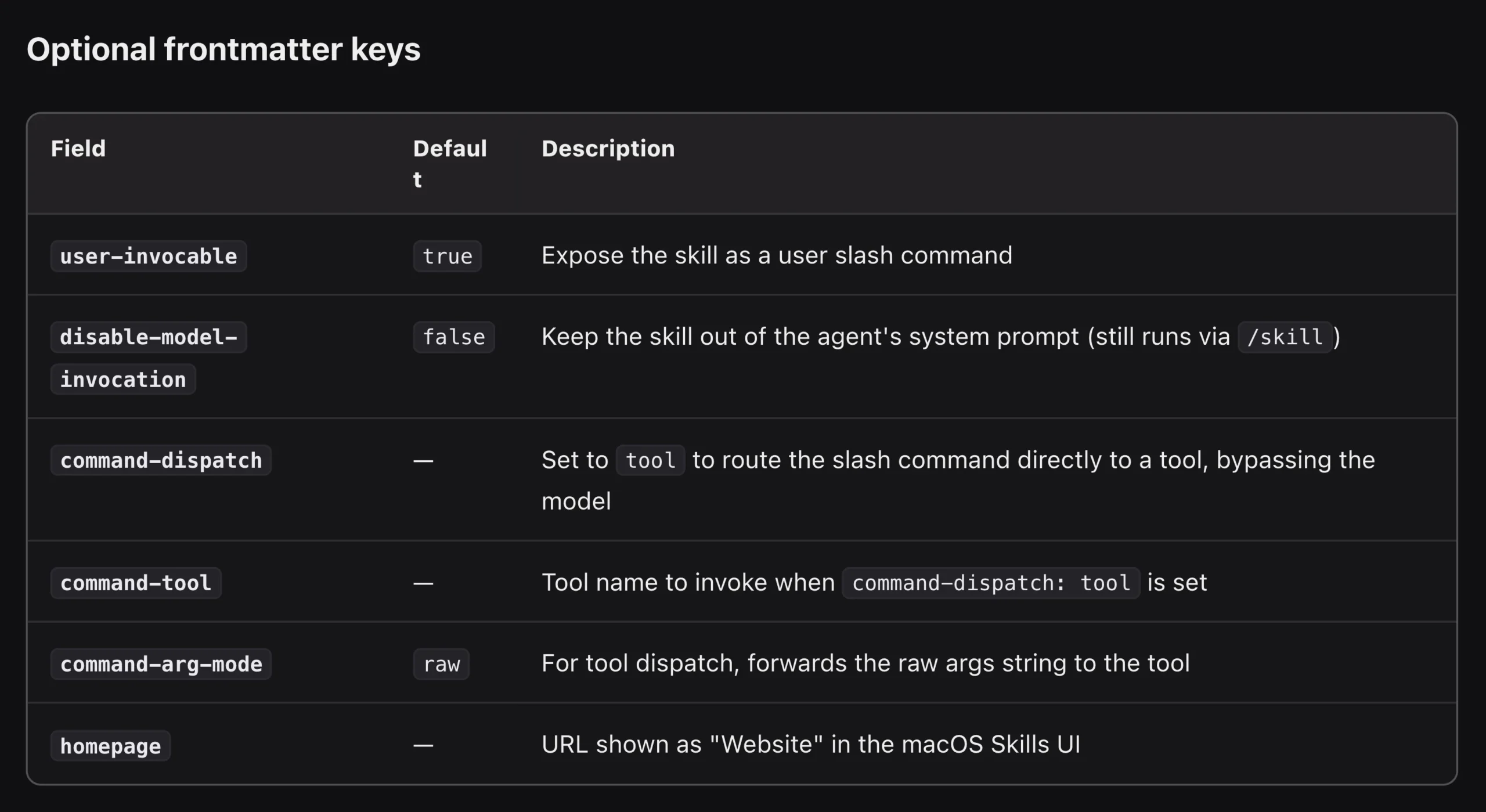
Setting:
user-invocable: trueAllows you to run the skill directly as a slash command. Instead of waiting for the agent to match the description automatically, you can invoke it specifically using its name.
Another useful option is:
disable-model-invocation: trueThis prevents the skill from being added to the agent’s automatic context. It is particularly useful for skills that perform sensitive operations, modify system settings, or execute potentially destructive commands.
The skill remains available but only runs when you explicitly call it.
You can also use “metadata gating” to limit when a skill is loaded. For example, you may want a skill to load only on Linux servers with curl on PATH.
A metadata example looks like this:
metadata:
  {"openclaw":
     {
       "requires":{"bins":["curl"],"os":["linux"]}
     }
  }
With these requirements in place, OpenClaw checks the operating system and required binaries before loading the skill. If the conditions are not met, the skill is skipped without affecting any of your other skills.
3) Load the Skill and Confirm It Works
Creating the folder and writing a SKILL.md file are only part of the process.
Your new skill is not available until OpenClaw reloads its skill registry. Once it reloads, you should also confirm that the skill is eligible to run before testing it.
1. Reload OpenClaw
If you are running the OpenClaw gateway, restart it so it can detect the new skill.
To reload, run:
openclaw gateway restartOr type /new inside an active chat session to start a fresh context.
2. Verify the skill loaded
After reloading, confirm that your skill is available by listing all eligible skills:
openclaw skills list --eligibleIf your custom skill appears in the output, OpenClaw has successfully loaded it, and it is ready to use.
If it does not appear, there is no point testing it yet. A missing skill usually means there is an issue with the folder location, the filename, the frontmatter, or one of the loading requirements. The next section covers these common problems in detail.
3. Test the skill
Once you have confirmed the skill is loaded, test it with a prompt that closely matches the description you wrote in the frontmatter.
For example, if your skill checks disk usage, you can run:
openclaw agent --message "check my disk usage"Or open a chat and ask the agent directly. To invoke it directly by name, use:
/skill disk-check4. Refine and test again
The first version of a skill rarely produces perfect results. If the output is missing information, follows the wrong order, or formats the response differently than you expected, the solution is usually found inside the skill body rather than the agent itself.
Review your instructions and look for places where they could be more specific. Clarify workflow steps, tighten your guardrails, or define the output format more clearly.
After making changes, reload OpenClaw and test the skill again using the same prompt.
This cycle of write, reload, test, and refine is the fastest way to build reliable skills. Each revision removes ambiguity, making it easier for your agent to produce consistent results every time the skill runs.
The Five Mistakes That Kill a Custom OpenClaw Skill Before It Loads
These errors do not always throw a visible message. Your skill simply will not work, and you will not know why unless you know what to look for.
1. Wrong folder location. The skill folder exists, but not inside ~/.openclaw/workspace/skills/. OpenClaw never scans it. Move the folder to the correct path and restart.
2. Wrong file name. The file is named skill.md or Skill.MD instead of SKILL.md. OpenClaw ignores it completely. Rename it specifically.
3. Vague description. The skill loads but never triggers because no user prompt matches a description like helper or my tool. Rewrite the description to reflect how a real user would phrase that request.
4. Conflicting instructions in the body. One part of your skill tells the agent to keep responses brief, and another tells it to cover all angles in detail. The agent does not resolve that conflict. It picks randomly, and output becomes unpredictable.
Read through your skill body and make sure every instruction points in the same direction.
5. A skill that tries to do too much. One skill, one job. That is what makes a custom skill trustworthy enough to run in production. If you need your agent to write blog posts, reply to customer emails, and generate social captions, build three separate skills.
Combining them means the agent is always choosing between competing directions, and the output reflects that.
Where Your Skill Lives Is as Important as What It Says
Three things make a custom OpenClaw skill work: the right folder, a SKILL.md with a clear description, and a body written like a runbook.
But a custom OpenClaw skill is only as reliable as the server it runs on.
Skills that trigger exec commands, call APIs, or run automation workflows need a VPS that is always on, always fast, and already configured for OpenClaw. If the environment is slow or not set up correctly, your skill will fail at execution, even when the instructions are perfect.
That is why Truehost OpenClaw VPS Hosting is built specifically for this.
Our OpenClaw plans come with Ubuntu pre-configured, Python runtime ready, and the OpenClaw engine already installed, so you skip manual setup entirely and go straight to building your first skill.
- Our plans are billed in Nigerian Naira, with no dollar conversion fees
- You get dedicated resources for when your skill runs a heavy workflow
- Plus full root SSH access so you can organize your skills directory the way you want it
If you are serious about running custom skills in production, get your OpenClaw VPS from Truehost and start in under a minute.
Go create the folder, write the file, reload, and test. Then build the next one.