 Domain NamesFind and register your ideal domain name instantly.
 Web HostingEasy-to-use hosting powered by cPanel — ideal for managing websites in Nigeria.
 Windows HostingRun .NET apps with Windows-optimized hosting
 Affiliate ProgramMake money promoting our services
 Reseller HostingMake money by reselling our hosting products under your own brand
 .COM Domains
 All DomainsExplore all supported tld domains in Nigeria
 WhoisFind out who owns any domain, as well as verify your registration details
 VPS Hosting in Nigeria
 Dedicated ServersReimagine your site speed with your own complete server
 AI Website BuilderDesign your site with drag-and-drop tools
 Online Store BuilderStart your online shop without code
 Support PortalFind answers or get expert help
 Contact UsReach our team via chat or email
 BlogRead our extensive guides on web hosting and more
Website problems rarely announce themselves with a clear explanation.
Instead, they show up as broken features, missing content, or vague error codes that leave you guessing where to start.
The difference between hours of frustration and a quick fix is knowing how to diagnose systematically.
This guide walks you through exactly that: a step‑by‑step diagnostic process for when your site is visible website yet not working.
Let us get right into it!
a) Client‑Side Checks (Your Browser)
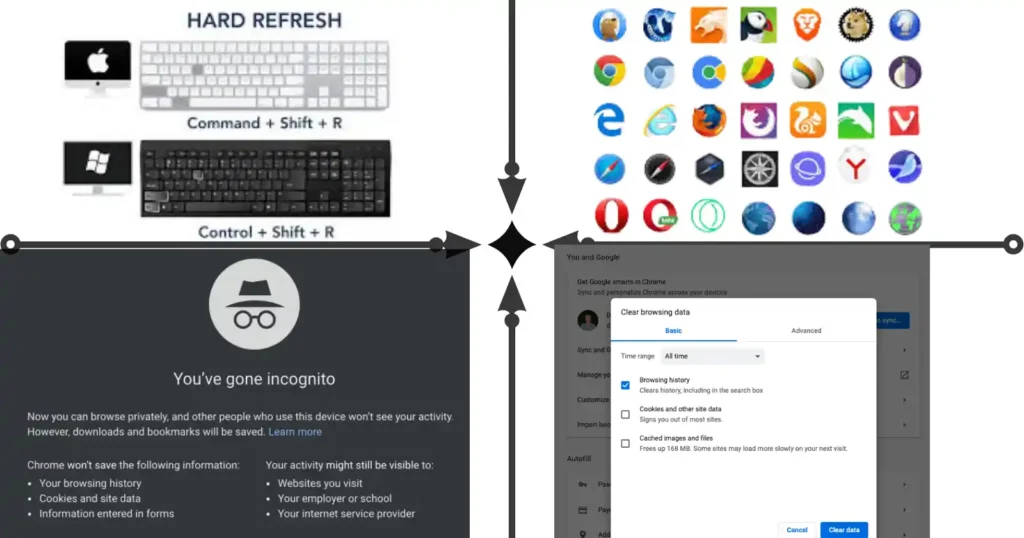
Before you assume the problem is with your hosting or domain, check if the issue is on your end.
These are the quickest fixes and often the most overlooked.
1) Force Refresh the Page
Sometimes your browser loads an outdated version from its cache.
A force refresh tells it to get a fresh copy from the server instead of using what is stored locally.
- Windows:
CTRL + SHIFT + F5 - Mac/Apple:
COMMAND + SHIFT + R - Linux:
SHIFT + F5
Try this first. You’d be surprised how often a stale cache is the only culprit.
2) Test in an Incognito/Private Window
Browser extensions like ad blockers, password managers, privacy tools, can block scripts, images, or tracking codes that your site relies on.
Incognito mode disables most extensions by default.
- Chrome:
CTRL + SHIFT + N(Windows);COMMAND + SHIFT + N(Mac) - Firefox:
CTRL + SHIFT + P(Windows);COMMAND + SHIFT + P(Mac)
If the site works perfectly in incognito, the culprit is likely a browser extension or cached data.
Try disabling extensions one by one to find the troublemaker.
3) Try a Different Browser
If the site works in Firefox but not in Chrome, the issue is browser‑specific.
Test across Chrome, Firefox, and Edge to isolate.
Internet Explorer is no longer supported and will cause display issues with modern websites, if you are still using it, switch to a modern browser immediately.
4) Clear Browser Cache and Cookies
Corrupted cache files or outdated cookies can break site functionality, especially after an update.
Clear them from your browser settings, focusing on the time range relevant to when the problem started (e.g., last hour or last 24 hours).
5) Check Other Devices
Test the site on your phone, or ask a colleague to visit from a different computer and network.
If it works elsewhere, the issue is local to your device. That narrows your troubleshooting to one machine instead of the whole server.
6) Flush DNS Cache
Your computer stores DNS lookups to speed up browsing.
A stale entry can point to an old server IP, making the site load incorrectly or not at all.
- Windows: Open Command Prompt as administrator and run
ipconfig /flushdns - Mac: Open Terminal and run
sudo dscacheutil -flushcache
After flushing, restart your browser and try again.
b) Domain and DNS Diagnostics
If the site doesn’t work for anyone, across browsers, devices, and networks, the problem may be with your domain configuration or DNS propagation.
1) Check Domain Expiration
If your domain registration has expired, the site may stop resolving or redirect to a parking page.
Log into your registrar account, where you bought the domain, and confirm the expiration date.
Truehost customers can check this in their client area under Domains.
2) Verify Nameserver Settings
If you recently moved hosting or updated nameservers, propagation can take 24–48 hours.
During this time, the site may load for some visitors but not others.
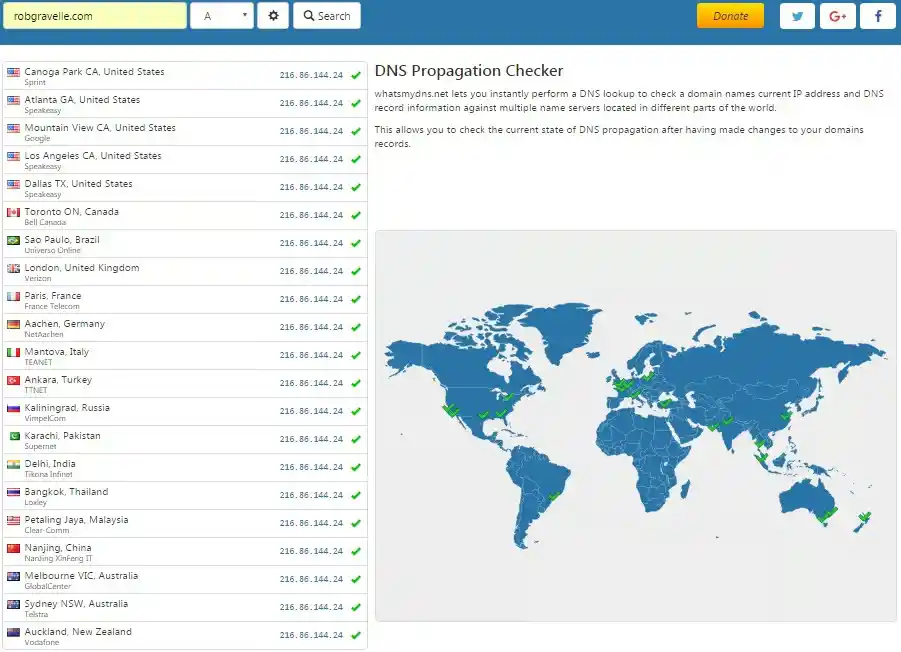
Use free tools like whatsmydns.net to see if your nameservers have propagated globally.
If you see different IP addresses in different locations, propagation is still in progress.
3) Test with Ping
The ping command tests whether your domain resolves to an IP address and whether the server responds.
- Windows: Open Command Prompt and run
ping yourdomain.com - Mac/Linux: Open Terminal and run
ping yourdomain.com
If ping fails e.g., Request timed out, the domain may not be resolving correctly.
If ping succeeds but the site still doesn’t load, the issue is likely with the web server itself, move to server‑side checks.
4) Check for SSL Certificate Issues
If your site loads but shows a Not Secure warning, the SSL certificate may be missing, expired, or misconfigured.
This often happens when:
- The certificate expired recently (most common)
- The site was moved to a new server without transferring the SSL
- Mixed content exists (secure and insecure elements on the same page)
Many hosts, including Truehost, provide free SSL certificates.
Check your hosting control panel to ensure SSL is active and correctly assigned to your domain.
c) Server‑Side Checks (Hosting Infrastructure)
If client‑side and DNS checks are clean, the issue likely lies with your hosting or server configuration.
1) Verify Hosting Account Status
If your hosting package has expired, been suspended for non‑payment, or requires manual renewal, the website may stop displaying.
Log into your hosting control panel and check account status.
There you can see their active packages and due dates in the client area.
2) Check the Correct Directory
If you recently launched your website or moved it to a new hosting package, ensure your website files are uploaded to the correct directory.
For most cPanel accounts, this is the public_html folder.
If your files are in a subfolder e.g., /new-site, your domain might still be pointing to the wrong place.
3) Confirm Web Server Is Running
If the physical server is powered on but the web server software (Apache, Nginx, LiteSpeed, etc.) isn’t running, the site won’t load.
In cPanel, look for Service Status or contact your host to confirm all services are operational.
Most hosts, including Truehost, monitor this automatically, but occasional glitches happen.
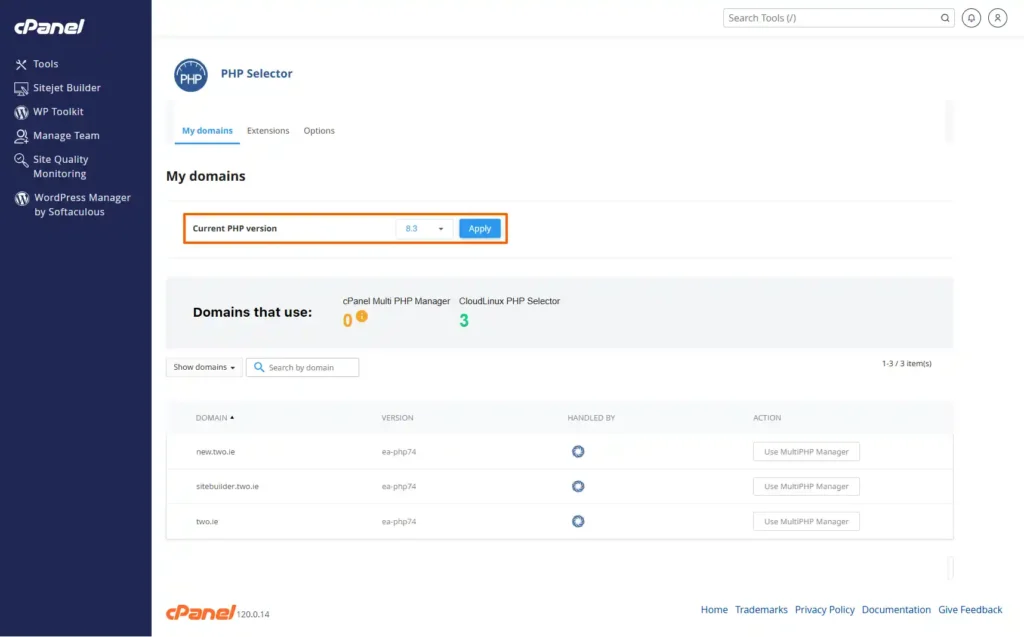
4) Check PHP Version Compatibility
If you recently updated plugins, themes, or your CMS, they may require a newer PHP version.
Log into cPanel and check the PHP version assigned to your domain.
Outdated PHP (e.g., 7.2 or lower) is a common cause of white screens and script errors.
Most modern sites need PHP 8.0 or higher.
5) Review WordPress Site Health
For WordPress sites, go to Tools → Site Health in your admin dashboard. The Status tab flags critical issues like:
- Outdated PHP version
- Missing HTTPS (SSL not working)
- Failed scheduled events (cron jobs)
- REST API or loopback errors
Each issue includes an explanation and a “Fix” button where possible.
6) Enable Debug Mode
For WordPress, enable WP_DEBUG to see specific error messages. Add these lines to your wp-config.php file before the stop editing comment:
define('WP_DEBUG', true);
define('WP_DEBUG_LOG', true);
define('WP_DEBUG_DISPLAY', false);
Errors will be logged to /wp-content/debug.log.
Review this file to identify plugin conflicts, theme errors, or code issues.
Once fixed, turn debug mode off to avoid exposing errors to visitors.
7) Check Service Status Page
If you suspect broader infrastructure issues e.g., data centre outage, check your hosting provider’s status page.
Many hosts maintain a public status page for ongoing incidents.
Stuck on server checks? If your hosting setup is the problem, you need a reliable foundation. Look at Truehost plans here and get hosting that rarely breaks.
d) Identify HTTP Error Codes
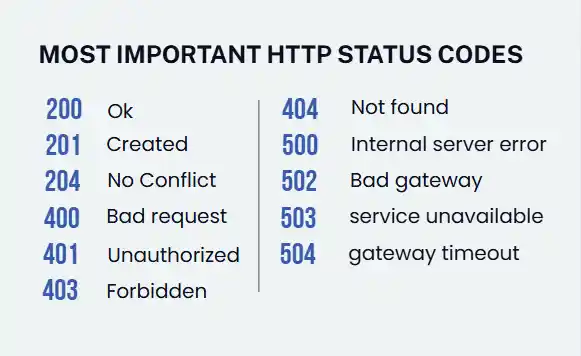
When a website loads but displays an error message instead of your content, the HTTP status code tells you exactly what’s happening on the server side.
Use your browser’s Developer Tools (F12 → Network tab) to see these codes when you reload the page.
- 200 – OK
The request succeeded. No problem here, the page loaded fine.
- 301 – Moved Permanently
The resource has moved to a new URL.
Search engines use this to update indexes, but you won’t see this directly in your browser, it redirects automatically.
Only a concern if you are testing redirect chains.
- 304 – Not Modified
The file hasn’t changed since the last request, so your browser uses the cached version.
This is normal and efficient, not an error.
- 403 – Forbidden
The server understands your request but refuses to allow access. Common causes:
- Missing default index file (index.php or index.html)
- Incorrect file permissions (folders should be 755, files 644)
- Security plugin blocking your IP address
- Firewall rules on the server
- 404 – Not Found
The page you are trying to visit cannot be found. Common causes:
- Typo in the URL (check the address bar)
- Page was deleted or moved without a redirect
- Broken .htaccess file in WordPress (should contain the default WordPress rewrite rules)
- DNS A record pointing to the wrong server
- 500 – Internal Server Error
Something went wrong on the server, but it can’t specify the exact problem.
This is the most frustrating error because it’s vague. Most common cause: plugin conflicts.
Try temporarily deactivating all plugins via FTP if you can’t access admin. If the site loads, reactivate one by one to identify the culprit.
Also check recent changes to wp-config.php or .htaccess.
- 502 – Bad Gateway
One server received an invalid response from another server it was communicating with. Often caused by:
- A plugin or script taking too long to execute (timeout)
- Heavy traffic overwhelming the server (resource limits)
- PHP timeout limits being too low
- 503 – Service Unavailable
The server is temporarily unable to handle the request, usually due to:
- Server overload (too many simultaneous visitors)
- Scheduled maintenance (your host may have notified you)
- Resource‑intensive processes (e.g., a cron job or backup running)
503 errors often resolve on their own. Wait a few minutes and refresh.
e) Check Broken Elements and Resources
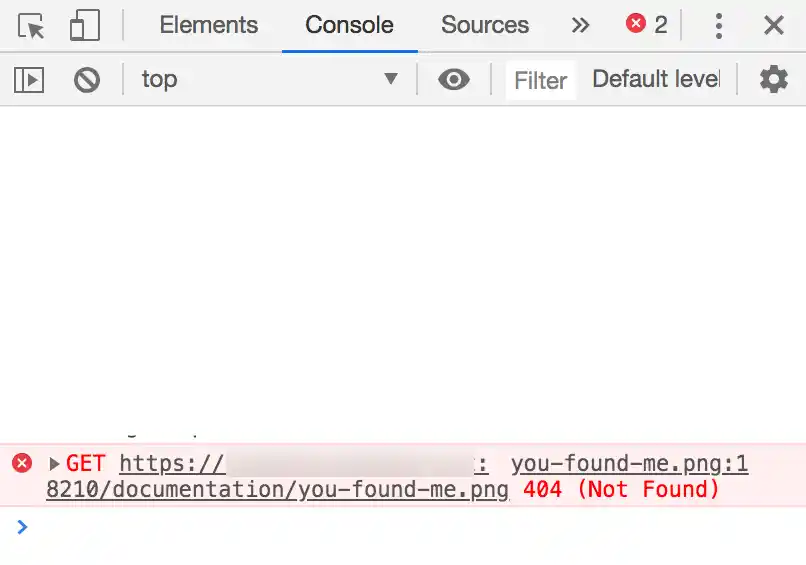
Sometimes the overall page loads, but specific elements are broken, images missing, CSS not applied, buttons dead.
Use browser Developer Tools to diagnose.
1) Open Network Tool
- Firefox:
Tools → Web Developer → Network (CTRL + SHIFT + E) - Chrome/Edge:
F12 → Network tab
2) Reload the page and look for:
- Red entries (failed requests)
- 404 status codes for images, CSS, or JavaScript files
This quickly identifies if an image is missing, a script is blocked by a firewall, or a resource is loading from the wrong URL e.g., an old domain.
f) Check Console for JavaScript Errors
Open the Console tab (F12 → Console).
JavaScript errors won’t break the page completely, but they will break interactive features like forms, buttons, sliders, and popups.
The console usually tells you exactly which file and line number contains the error, copy that and search for solutions.
g) Check for Mixed Content
If your site uses HTTPS but loads resources like images, scripts, stylesheets over HTTP, modern browsers may block them for security.
Look for console warnings about mixed content.
The fix is updating resource URLs to use HTTPS or relative paths e.g., //example.com/image.jpg. Plugins like Really Simple SSL can automate this.
h) Use Monitoring Tools for Ongoing Diagnosis
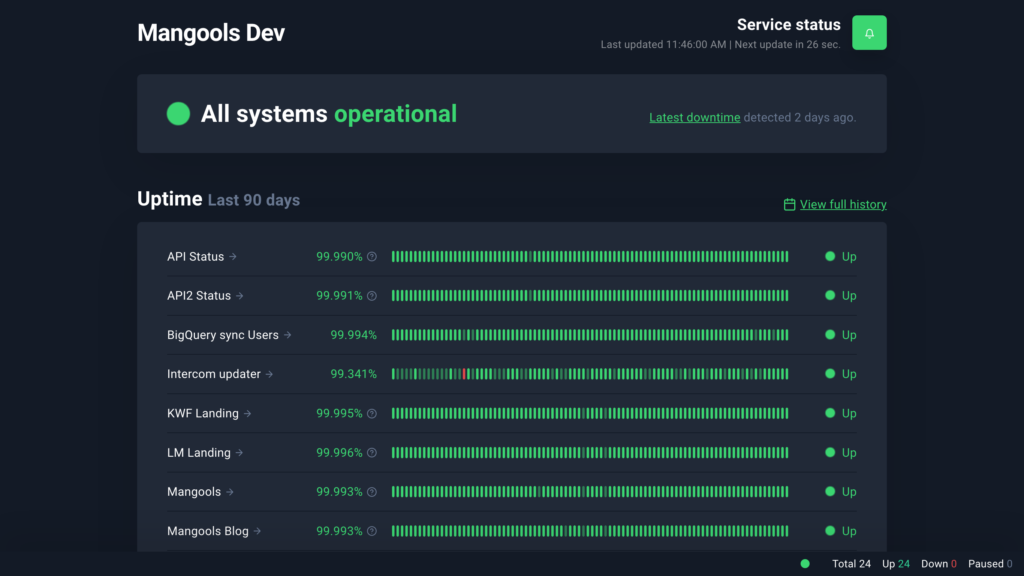
For problems that come and go (intermittent downtime), or for preventing future issues, external monitoring tools are essential.
1) Uptime Monitoring
Tools like UptimeRobot, Pingdom, or Better Stack ping your site from global locations every few minutes and alert you via email or SMS when it goes down.
Free tiers cover basic monitoring (e.g., 50 pings per minute).
Set this up once, and you’ll know about problems before your visitors do.
2) Performance Testing
Google PageSpeed Insights: Scores your site and gives specific optimization recommendations.
- GTmetrix: Detailed waterfall charts showing exactly what loads slowly and why.
- WebPageTest.org: Advanced testing from multiple geographic locations with filmstrip views.
Run these tests when your site is healthy, then again after any major change. You will spot regressions immediately.
3) WordPress Site Health (Built‑in)
Already mentioned, but worth repeating: WordPress’s built‑in Site Health tool (Tools → Site Health) runs periodic background checks and flags:
- Scheduled events that failed to run (e.g., cron jobs)
- REST API availability (important for the block editor)
- Loopback request failures (can indicate network or plugin issues)
Check this tab monthly, it often catches problems before they become visible.
In the End
A website that is visible but not working can be deeply frustrating.
But most problems follow a pattern.
Start with the simplest fixes like force refresh, incognito mode, clearing cache.
If those don’t work, move to domain diagnostics, then server checks, then use HTTP error codes to pinpoint the issue.
In most cases, you will find the problem is a typo, a plugin conflict, or a configuration setting that takes minutes to fix once identified.
If you have worked through this entire checklist and still can’t identify the problem, contact your hosting provider. Provide them with:
The specific error message or HTTP status code
- When the problem started
- What changes were made recently updates, new plugins, DNS edits
- Whether the issue affects all visitors or just some (your location vs. others)
And if you are tired of chasing hosting‑related errors altogether, consider moving to Truehost. Explore our hosting plans.