 Domain NamesFind and register your ideal domain name instantly.
 Web HostingEasy-to-use hosting powered by cPanel — ideal for managing websites in Nigeria.
 Windows HostingRun .NET apps with Windows-optimized hosting
 Affiliate ProgramMake money promoting our services
 Reseller HostingMake money by reselling our hosting products under your own brand
 .COM Domains
 All DomainsExplore all supported tld domains in Nigeria
 WhoisFind out who owns any domain, as well as verify your registration details
 VPS Hosting in Nigeria
 Dedicated ServersReimagine your site speed with your own complete server
 AI Website BuilderDesign your site with drag-and-drop tools
 Online Store BuilderStart your online shop without code
 Support PortalFind answers or get expert help
 Contact UsReach our team via chat or email
 BlogRead our extensive guides on web hosting and more
Your website deserves more than just a place to live. It deserves a home that’s fast, reliable, and fully under your control.
If you’ve ever struggled with slow loading times, unexpected downtime, or the limits of shared hosting, a VPS (Virtual Private Server) is the solution that changes everything.
Unlike shared hosting, where your resources are split with dozens, or even hundreds, of other websites, a VPS gives you dedicated resources, letting your site run smoothly, handle more traffic, and perform at its peak.
And the best part? You get all this power without the high cost of a full dedicated server.
With a VPS, you gain full control over your hosting environment. You can install the software you need, configure settings to fit your website perfectly, and scale up as your traffic grows. This means faster load times, better security, and freedom to make your site exactly how you want it, without compromise.
In this guide, we’ll walk you through everything you need to know to host your website on a VPS, step by step. From choosing the right plan, setting up your server, uploading your files, to securing your site with SSL. By the end, you won’t just have a website, you’ll have a website that performs like it truly belongs to you.
What is a VPS and Why You Should Use It
A VPS, or Virtual Private Server, is like having your own slice of a powerful server, dedicated just to your website, without the cost of a full physical server.
Unlike shared hosting, where your site competes with dozens of others for speed and resources, a VPS gives you your own space, so your website can run smoothly, handle more visitors, and grow without limits.
Here’s why hosting on a VPS is a game-changer:
1) Full Control Over Your Website
With VPS hosting, you’re the boss. You can install the software you need, tweak settings to your preference, and even experiment with advanced features.
No more relying on restrictions or waiting for support to make changes; your website runs the way you want it to.
2) Faster Performance
Since your VPS gives you dedicated resources like CPU, RAM, and storage, your website isn’t slowed down by other sites. Visitors get faster load times, smoother browsing, and a better overall experience.
This matters especially if you run an e-commerce store or a blog where speed can make or break engagement.
3) Easy Scalability
As your website grows, more traffic, bigger files, more users, a VPS grows with you. You can easily upgrade your resources without downtime or migrating to a new server. This flexibility ensures that your website can handle growth without any hiccups.
4) Stronger Security
With a VPS, you’re more isolated than on shared hosting. Fewer neighbors mean fewer risks.
You can implement custom security settings, firewalls, and regular backups to protect your data, giving you peace of mind that your website is safe.
Steps to Host Your Website on a VPS
Now, let’s get our hands dirty. Follow these steps carefully, and you will have your site up in no time.
Step 1: Pick the Right VPS Plan
The first step to hosting your website on a VPS is picking a plan that fits your needs. This is where a little planning goes a long way; choosing the wrong plan can leave you paying for resources you don’t need, or worse, running into performance issues down the line.
When evaluating VPS plans, here’s what to look for:
- SSD Storage for Speed: Traditional hard drives are slow. SSDs make your website load faster, which improves user experience and helps your SEO.
- Enough RAM: Memory is crucial for smooth performance. For a small website or blog, at least 2GB of RAM is recommended, but bigger sites or e-commerce stores may need 4GB or more.
- Adequate Bandwidth: Bandwidth determines how much traffic your site can handle. Ensure your plan can support your expected number of visitors without slowing down.
- Operating System Options: Linux distributions like Ubuntu or CentOS are popular for their stability, performance, and compatibility with most web applications.
- Data Center Location: A VPS with servers near your target audience reduces latency, meaning your website loads faster for visitors.
At Truehost, our VPS plans are designed to give you both power and flexibility without breaking the bank.
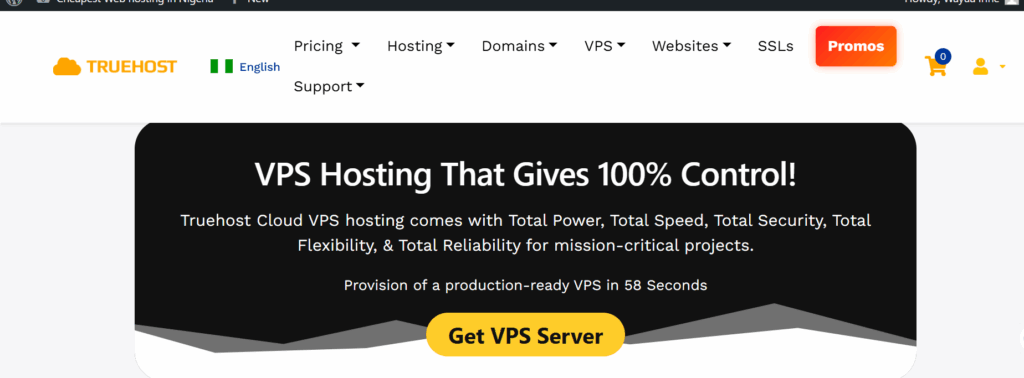
Some of the key features include:
- 1–4 CPU cores to handle your website’s processing needs
- 2–8 GB RAM to ensure smooth performance
- 50–200 GB SSD storage for fast load times and ample space
- 1–25 TB bandwidth to handle everything from casual visits to high traffic surges
- Root access and multiple OS options so you can customize your server environment
From a simple WordPress blog to a portfolio site or a busy online store, there’s a VPS plan designed to fit your needs.
Start with a plan that meets your current requirements and gives room for growth. You can always upgrade later as your traffic and resource needs increase.
Step 2: Set Up Your VPS
Once you’ve purchased your VPS, the next step is setting it up so your website can run smoothly.
Your hosting provider will send you login credentials, usually an IP address, a username, and a password. These are your keys to accessing and managing your VPS.
- Connect to Your VPS
To start, you need to connect to your VPS. If you’re using Windows, a tool like PuTTY makes this easy. On Mac or Linux, you can use the built-in terminal. This connection lets you interact with your server directly, almost like sitting in front of it.
- Update Your VPS
Before installing anything, it’s important to update your server. Updating ensures that your VPS has the latest security patches and software improvements. This step is crucial because it protects your website from vulnerabilities and keeps it running efficiently. Think of it as giving your server a fresh tune-up before you start adding all your website components.
Once your VPS is connected and updated, it’s ready for the next steps: installing a web server, uploading your website files, and configuring everything for smooth operation.
Step 3: Install a Web Server
To make your website accessible online, your VPS needs a web server. This is the software that delivers your website to visitors’ browsers.
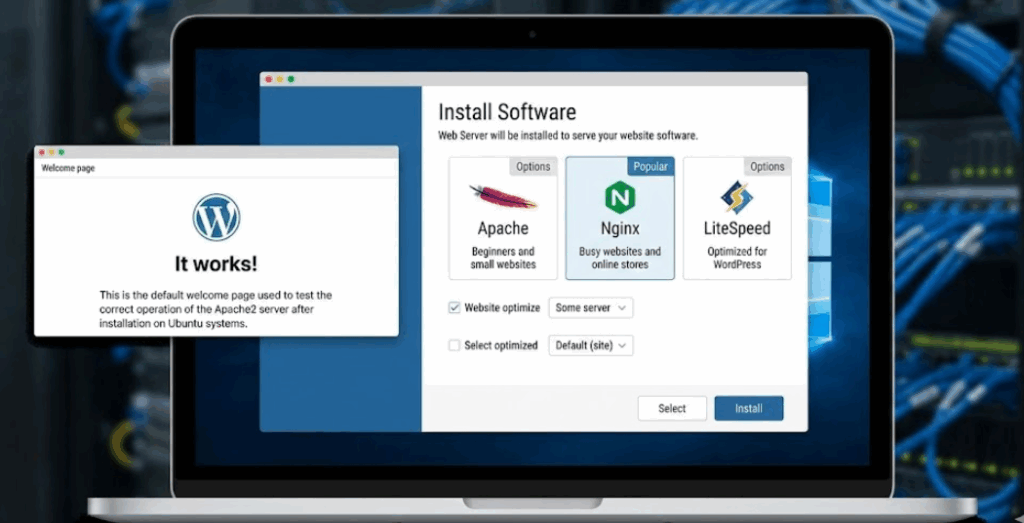
Popular web servers include:
| Web Server | Pros | Best For |
| Apache | Easy to use, lots of documentation | Beginners, small websites |
| Nginx | Fast, handles more traffic | Busy websites or online stores |
| LiteSpeed | Very fast, optimized for WordPress | WordPress sites |
Once your web server is installed, you’ll be able to access your VPS IP in a browser and see a default welcome page, which confirms everything is working.
Step 4: Set Up a Database (Optional)
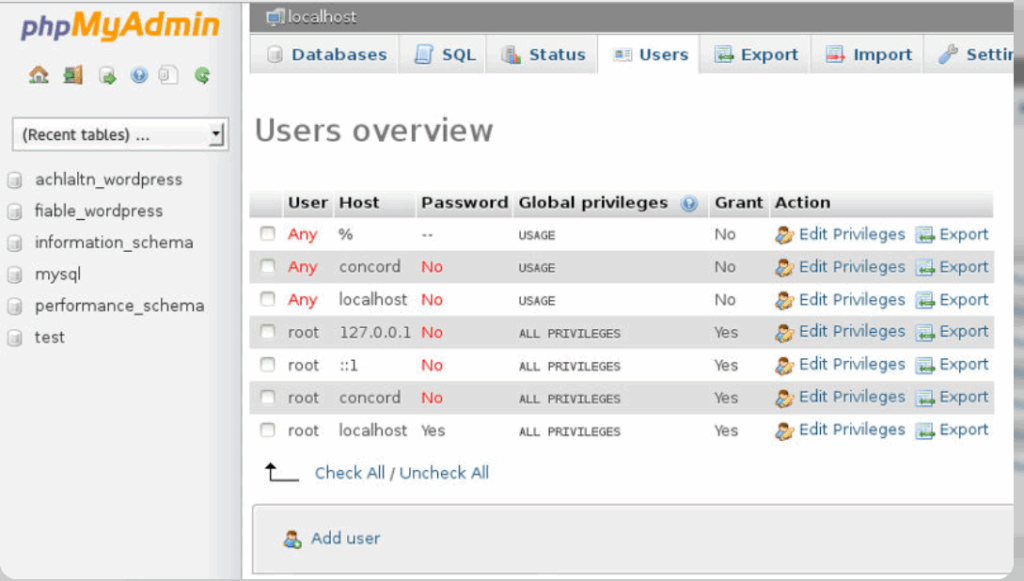
If your website uses a CMS like WordPress, Joomla, or Drupal, you’ll need a database to store content, user data, and settings. Most VPS providers make it easy to set up a database during the server setup process.
Even if you’re new to databases, don’t worry, many hosting dashboards provide simple forms to create a database and a user account in a few clicks.
Step 5: Upload Your Website Files
With your VPS ready and your web server in place, it’s time to bring your website to life by uploading your files. This step is where your website actually moves from your computer to the internet, so visitors can start seeing your content.
There are two main ways to do this, depending on your setup and comfort level:
1) SFTP (Recommended for Beginners)
SFTP, or Secure File Transfer Protocol, is the easiest and safest way to move your files. Tools like FileZilla make this process as simple as drag-and-drop. You just log in with your VPS credentials, connect to your server, and upload your website files to the right folder.
This method is perfect if you’re managing a single website or just starting out because it’s visual, you can see your files, and organize them exactly how you want.
2) Git (Great for Developers or Teams)
If your website is stored in a Git repository, you can pull it directly to your VPS. This approach is ideal for developers or teams that frequently update their websites because it keeps everything in sync.
You can deploy changes instantly without manually uploading each file, which saves time and reduces errors.
File Permissions Matter
Once your files are uploaded, it’s important to make sure they have the correct permissions. Proper permissions ensure that your website loads correctly for visitors and keeps it secure from unauthorized access.
Think of it as locking the doors and windows of your website so only the right people can make changes.
By taking your time on this step and organizing your files carefully, you’re setting your website up for smooth performance and fewer headaches down the line.
Step 6: Configure Your Domain
At this point, your website files are on the VPS, but visitors still can’t access your site using a proper domain name. This step connects your domain to your VPS so people can find you online easily.
First, you’ll need to point your domain to your VPS IP address. This is done by updating the A record in your domain’s DNS settings. Once updated, your domain knows exactly where your website lives. Keep in mind that DNS changes can take some time to fully apply, usually anywhere from a few minutes to several hours.
Next, your web server needs to be told which domain it should respond to. This ensures that when someone types your domain name into their browser, the server knows which website to display. Once configured correctly, visiting your domain should show your website instead of a default server page.
Step 7: Secure Your VPS with SSL
Security is essential. An SSL certificate encrypts the data exchanged between your website and your visitors, protecting sensitive information like passwords, contact forms, and payment details. It also builds trust, since visitors see the secure padlock icon in their browser.
Adding SSL also improves your SEO. Search engines favor secure websites, and modern browsers may even warn users before opening non-secure pages.
The good news? You don’t need to pay for SSL. Free SSL certificates are widely available and easy to set up on a VPS. Once installed, your website will automatically load using https, ensuring a safer browsing experience for everyone.

After securing your site with SSL, your VPS setup is no longer just functional; it’s professional, trustworthy, and ready for real traffic.
Step 8: Optimize Your VPS
Once your website is live, a few simple optimizations can keep it running fast and smoothly.
- Enable caching to reduce load times. WordPress plugins or built-in server caching work well.
- Monitor your resources using your VPS dashboard to ensure your site isn’t using too much memory or CPU.
- Secure your server with a firewall to block unwanted access and protect your data.
- Back up your website regularly so you can restore it quickly if something goes wrong.
Small improvements like these make a big difference in performance and reliability.
Step 9: Troubleshoot Common Issues
Even with a solid setup, small issues can pop up. Here are a few common ones and what they usually mean:
| Issue | What to Check |
| 502 error | Your web server or PHP service may need a restart |
| Website not loading | DNS changes may still be updating |
| Permission errors | File ownership or access rights may be incorrect |
| Database errors | Login details may be incorrect or missing |
Most of these problems are quick to fix once you know where to look.
Step 10: Maintain Your VPS
A VPS gives you more control, but it also needs regular care. Simple maintenance keeps your website secure and performing well.
- Keep your server software updated.
- Check logs occasionally to catch errors early.
- Monitor uptime and performance trends.
- Back up your files and databases on a regular schedule.
With consistent maintenance, your VPS will stay fast, stable, and ready to handle growth.
Conclusion
Hosting your website on a VPS may sound technical at first, but as you’ve seen, it’s simply about gaining more control, better speed, and room to grow. Once your VPS is set up, you’re no longer limited by shared resources or performance issues; you’re running your website on your own terms.
Whether you’re building a personal blog, managing a business website, or running an online store, a VPS gives you the flexibility to scale, secure your data, and deliver a smoother experience to your visitors. It’s an upgrade that pays off in reliability, professionalism, and peace of mind.
At Truehost, we understand that moving to VPS hosting can feel like a big step. That’s why our VPS plans are designed to be powerful, affordable, and easy to manage, so you can focus on growing your website, not fighting server issues.