 Domain NamesFind and register your ideal domain name instantly.
 Web HostingEasy-to-use hosting powered by cPanel — ideal for managing websites in Nigeria.
 Windows HostingRun .NET apps with Windows-optimized hosting
 Affiliate ProgramMake money promoting our services
 Reseller HostingMake money by reselling our hosting products under your own brand
 .COM Domains
 All DomainsExplore all supported tld domains in Nigeria
 WhoisFind out who owns any domain, as well as verify your registration details
 VPS Hosting in Nigeria
 Dedicated ServersReimagine your site speed with your own complete server
 AI Website BuilderDesign your site with drag-and-drop tools
 Online Store BuilderStart your online shop without code
 Support PortalFind answers or get expert help
 Contact UsReach our team via chat or email
 BlogRead our extensive guides on web hosting and more
When you log into your website control panel for the first time, it might feel like you just stepped into the cockpit of an airplane.
Buttons everywhere, strange acronyms, menus you’re scared to touch because what if something breaks?
Well, that’s not new, and many of us get intimidated at first.
However, that dashboard staring back at you is the behind-the-scenes command center of your website, and while it looks complex, it’s actually designed to make your life easier, I promise.
Once you understand what’s what, you’ll realize you don’t need to be a developer or “tech person” to manage your site confidently.
Since I have been there and now on the other end of it, I created this guide to get you oriented so you can stop guessing, start clicking with purpose, and finally feel in control of your website.
So, let me show you around.
What Is a Website Control Panel?
A website control panel is simply the place where you manage everything behind the scenes of your website, without having to touch a single line of code.
It’s a web-based dashboard that lets you manage files, emails, security, and apps using clear buttons and menus.
Behind the scenes, your website lives on a server that normally talks in complex instructions. The control panel acts as the translator.
You click what you want to do, and it quietly handles the technical heavy lifting for you.
It’s just similar to the way you don’t need to know how the engine works to drive a car. You just need clear buttons and settings that make sense.
What You Can Do with a Website Control Panel
A good website control panel handles complicated server commands for you so that you only click, choose, and manage your site visually.
Here’s what that looks like in real life:
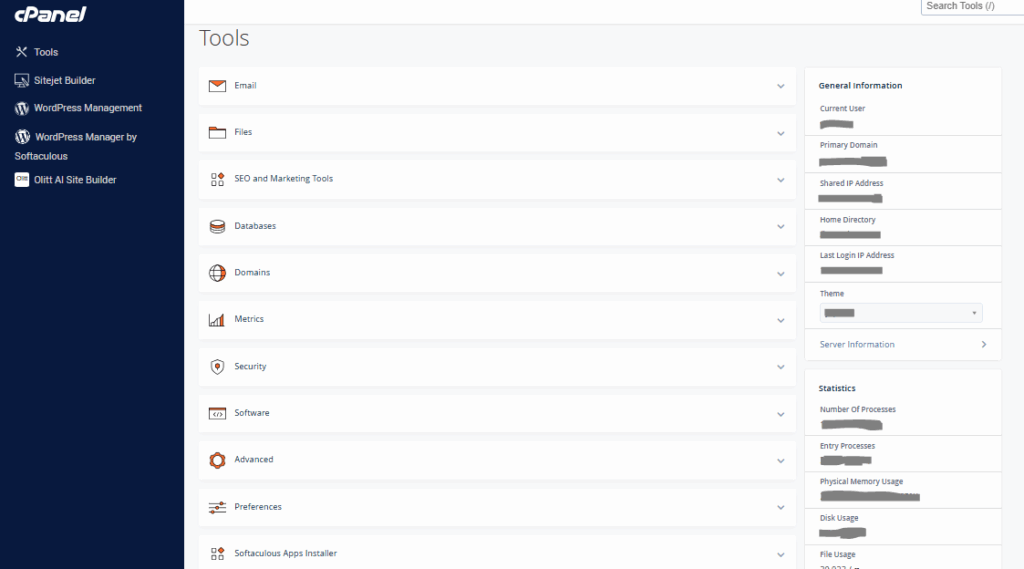
1. Manage Your Files with Ease
Upload, edit, or replace files using the built-in File Manager.
Want to update your homepage image or upload a new product photo? You can do it in seconds, without taking your site offline.
2. Set Up Domains and DNS Visually
Connect your .com.ng domain, add subdomains, or adjust DNS records using visual tools that help prevent those frustrating “site not found” errors, especially common with unreliable ISPs.
3. Create and manage professional email addresses
Set up branded emails like [email protected], configure forwarding, and filter spam from one place.
On our Pro and Unlimited plans, you get unlimited email accounts to support growing teams and businesses.
4. Handle Databases Without Technical Stress
Running WordPress or a custom app? You can create MySQL databases in just a few clicks.
5. Secure and Back Up Your Website
Install SSL certificates with one click to protect your site from phishing and security threats.
Automated daily backups also ensure that power outages or mistakes don’t erase your progress.
6. Install Apps in Minutes
With our one-click installer, you can launch WordPress, Joomla, or Drupal faster.
How a Website Control Panel Works Behind the Scenes
To use a website control panel, you log in through your browser using the credentials email to you, choose what you want to do, and the panel sends secure instructions to the server on your behalf.
And because Truehost runs optimized local servers in Lagos, your site loads faster and avoids the delays that come with international hosting.
A website control panel is your site’s co-pilot. It saves you hours every week, reduces stress, and gives you real control over your online presence.
Common Types of Website Control Panels
There’s a whole lot of control panels out there, but you don’t need to know them all.
Here are the main ones which are commonly used:
1. cPanel
This is our default choice on shared hosting.
cPanel is beginner-friendly, mobile-ready, and packed with tools for emails, backups, apps, and analytics.
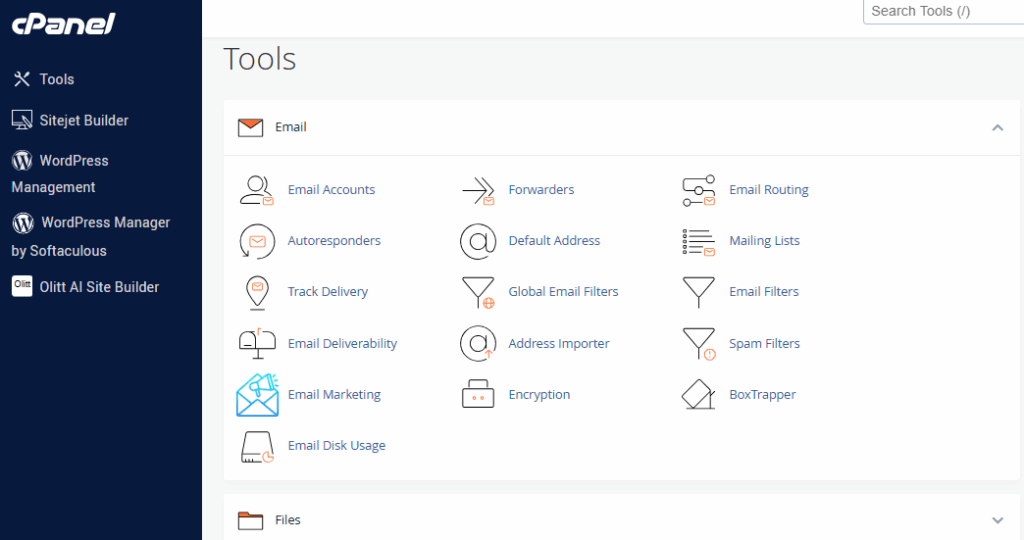
It’s great for blogs and small businesses. It can feel busy at first, but it “just works” once you get the hang of it.
2. Plesk
This one is flexible for both Windows and Linux servers.
It’s ideal for VPS setups or businesses needing developer tools, custom apps, or international payment integration.
3. DirectAdmin
DirectAdmin is lightweight and fast.
It focuses on essentials like DNS, backups, and email, without the extra bloat. Perfect for solo bloggers or small sites on a budget.
4. CyberPanel (Open-source)
CyberPanel is free and powerful and optimized for speed with OpenLiteSpeed.
It’s great for tech-savvy users who enjoy tweaking and customizing, especially for Nigeria’s 4G networks.
5. Webmin
It’s a free, open-source control panel aimed at advanced users.
It gives full access to server settings through a web interface, making it flexible for custom Linux setups.
It’s best if you want complete control, but it’s not beginner-friendly.
What are the Benefits of Using a Website Control Panel?
A website control panel gives you convenience and control of your online space without stress.
Here’s why it’s considered a handy tool:
a) Easy Management Without Coding
Upload files, manage emails, install apps, and tweak settings, all only with clicks, and not commands. No need to be a tech expert.
b) Time-Saving Automation
Schedule backups, updates, and security scans automatically. That’s hours saved each week, so you can focus on growing your blog, store, or business.
c) Secure Your Site Effortlessly
Install SSL certificates with one click, manage firewalls, and monitor security. You don’t have to worry about hackers while handling daily business.
d) Simplified Email and Domains
Create professional email addresses, set up forwarding, and manage multiple domains, all in one place. No more juggling separate services.
c) One-Click App Installs
Launch WordPress, Joomla, or Drupal in minutes. Perfect if you want a website ready to go without technical headaches.
d) Accessible Anywhere
Log in from your phone, tablet, or laptop. Manage your website even when you’re on the move, in Lagos traffic, or outside the office.
e) Scalable for Growth
As your site grows, the control panel grows with you. Add domains, databases, or apps without switching platforms.
f) Efficiency and central control
Everything’s in one place: domains, emails, backups, and apps. On our Unlimited plan, you can manage it all without bouncing between multiple tools.
A website control panel turns a complicated server into a friendly, easy-to-use workspace.
How to Set Up and Use Our cPanel on Truehost
Getting started with your website control panel shouldn’t feel like decoding ancient scrolls. It’s this simple:
1. Sign Up for Hosting
Head to Truehost and pick a plan:
- Starter (₦1,275/mo, triennial) – Perfect for solo projects or small blogs.
- Unlimited (₦9,300/mo) – Ideal for growing businesses with multiple sites.
Pay via Flutterwave or bank transfer, all in naira. Once confirmed, we activate instantly.
2. Access Your Dashboard
Log into your Truehost account, and click “cPanel” under your domain. Use the provided URL (like yoursite.com:2083) and credentials.
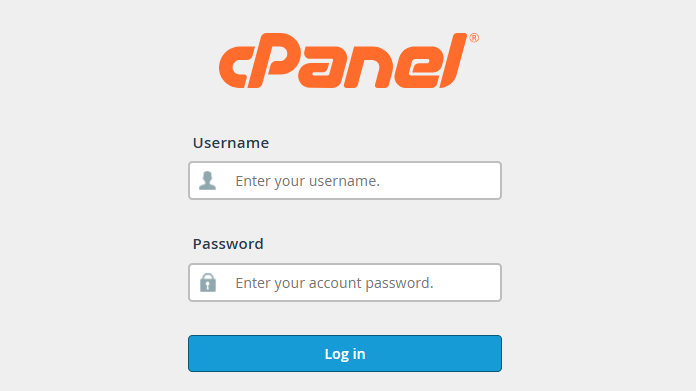
Pro tip: Bookmark your cPanel and enable two-factor authentication for extra security.
3. Initial Setup
Inside cPanel:
- Update your contact info under Preferences.
- Install free SSL via Security > SSL/TLS, and choose AutoSSL for hands-off renewal.
- Add your .com.ng domain under Domains (free on annual+ plans).
4. Core Tasks
- Upload Files: Go to Files > File Manager, navigate to public_html, and drag-and-drop your files.
- Email Setup: Head to Email > Email Accounts to create unlimited emails and passwords.
- Databases: Use Databases > MySQL Databases to name your database, add users, and link it to your site.
5. Install Apps and Secure Your Site
- Apps: Click Software > Softaculous Apps Installer, search for WordPress (or Joomla/Drupal), click install, and you’re live.
- Backups: Use Files > Backup Wizard for automated backups.
- Monitoring: Check Metrics > Errors to catch bandwidth issues early.
6. Troubleshooting
If you hit a snag, like login issues or ISP glitches, our 24/7 chat has your back.
7. Explore Advanced Features
Once comfortable, experiment with PHP selectors, performance tweaks, or custom cron jobs.
Wrapping It Up: Take Control Today
You now have the blueprint of a website control panel, and you should be able to navigate easier.
It basically puts the power of your website in your hands, and Truehost makes it all possible.
So, don’t wait for the next outage. Explore our cPanel hosting at Truehost and watch your vision go live in no time.
Now, what’s your first task in your new control panel? Uploading files, setting up emails, or installing WordPress?