 Domain NamesFind and register your ideal domain name instantly.
 Web HostingEasy-to-use hosting powered by cPanel — ideal for managing websites in Nigeria.
 Windows HostingRun .NET apps with Windows-optimized hosting
 Affiliate ProgramMake money promoting our services
 Reseller HostingMake money by reselling our hosting products under your own brand
 .COM Domains
 All DomainsExplore all supported tld domains in Nigeria
 WhoisFind out who owns any domain, as well as verify your registration details
 VPS Hosting in Nigeria
 Dedicated ServersReimagine your site speed with your own complete server
 AI Website BuilderDesign your site with drag-and-drop tools
 Online Store BuilderStart your online shop without code
 Support PortalFind answers or get expert help
 Contact UsReach our team via chat or email
 BlogRead our extensive guides on web hosting and more
A broken website can hurt more than just your traffic. It can affect your reputation, your sales, and the confidence your audience has in you.
Mistakes happen. Files get deleted, plugin updates fail, or someone finds a way to hack your site. One minute, everything is running smoothly, the next, your website is down, and suddenly, your business feels like it’s at a standstill. Even a few hours offline can be stressful, especially for small businesses and creators who rely on their website every day.
The good news is, getting your website back doesn’t have to be complicated or overwhelming. With the right approach, you can restore your site quickly and safely without losing your content or starting from scratch.
In this guide, we’ll take you through the website restore process step by step. By the end, you’ll feel confident managing backups and restores, keeping your website secure, and ensuring your online presence stays strong.
What Is Website Restore?
A website restore is all about getting your site back to how it was before something went wrong. Whether it’s a broken plugin, an accidental deletion, or a server error, restoring your website helps you return to a stable, working version.
When you restore a website, you’re usually bringing back:
- Website files – all the core files that make your site run
- Database content – your posts, pages, comments, and settings
- Themes and plugins – so your design and functionality remain intact
- Email setups – if your emails are managed on the same server
The most important part? Having a backup ready. Without it, restoring your site can become complicated and time-consuming. A good backup is like an insurance policy for your website; it makes recovery fast, simple, and stress-free.
Why You Need to Restore Your Website
Sometimes, things go wrong with your website, and that’s where a website restore comes in. Here are five key reasons why restoring your site is crucial:
1) Recover from Accidental Errors
Mistakes happen. Maybe you deleted a file, updated a plugin incorrectly, or changed settings that broke your site. A website restore allows you to undo these errors quickly, so your site runs smoothly again without losing important content.
2) Protect Against Hacking and Malware
Hackers target websites all the time. If your site gets infected with malware or your files are compromised, restoring from a clean backup removes malicious code and prevents further damage. It’s your fastest way to recover from cyberattacks.
3) Fix Update Issues
Sometimes updates, whether for your CMS, themes, or plugins, don’t go as planned. A failed update can cause broken layouts, missing content, or errors. Restoring your website to a previous state ensures your site works exactly like it did before the update.
4) Minimize Downtime
Every minute your website is down, you risk losing visitors, leads, or sales. Restoring your site from a backup is faster than building it from scratch, helping you get back online quickly and maintain your audience’s trust.
5) Safeguard Your Data
Your website isn’t just a digital presence; it contains valuable content, customer info, and settings. Regular restores protect your data from loss, ensuring that even if something goes wrong, your business continuity isn’t affected.
Website restores act as a safety net; they catch your site whenever it slips, keeping your online business secure and running.
A Step-by-Step Guide
Step 1) Choose the Right Backup to Restore
Before you start restoring, you need to pick the right backup. Not all backups are the same, and choosing the wrong one can make things more complicated.
- Check the date: Pick the most recent backup from before your site started having problems. This ensures you don’t lose any recent updates you want to keep.
- Check what’s included: Make sure your backup has all website files and the database. Some backups only include files or only the database.
- Decide the restore scope: Do you want to restore the entire website or just certain parts like files or the database?
| Backup Type | What It Includes | When to Use |
| Full Backup | All files + database + emails | Complete site restore |
| Partial Backup | Selected files or database only | Fix specific issues or recover certain content |
| Incremental Backup | Changes since last backup | Frequent updates without restoring everything |

Step 2) Access Your Hosting Control Panel
To restore your website, you’ll need to log in to your hosting control panel, usually cPanel or Plesk.
- Log in to your hosting account.
- Find Backup or Backup Manager.
- Select the restore option.
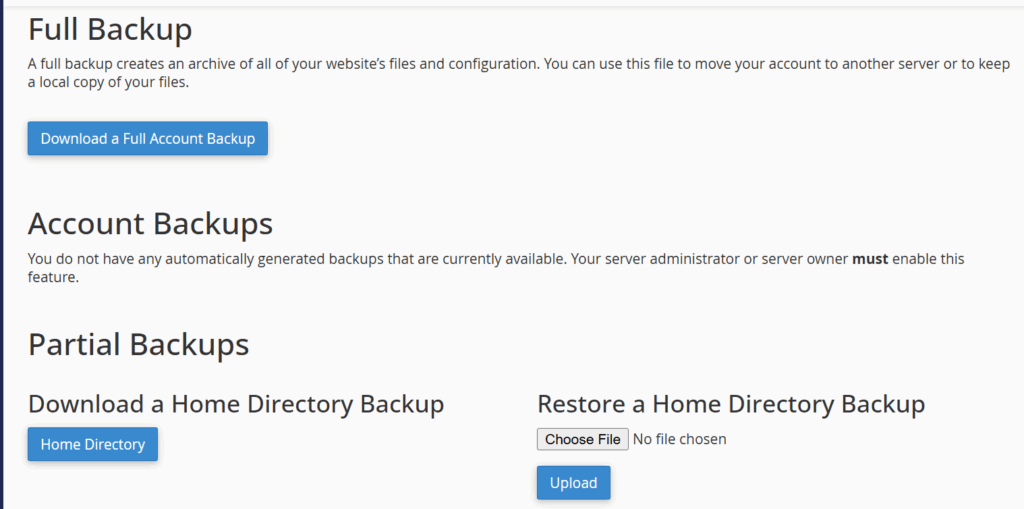
Step 3) Restore Your Website Files
Once you have your backup ready, it’s time to restore your website files.
- Locate your file backup, usually a .zip file.
- Choose Restore or Upload in your control panel.
- Wait for the process to finish, patience is key!
Step 4) Restore Your Database
Your database holds all your content, pages, posts, comments, and website settings. Restoring it is essential for your site to function correctly.
- Open phpMyAdmin in cPanel.
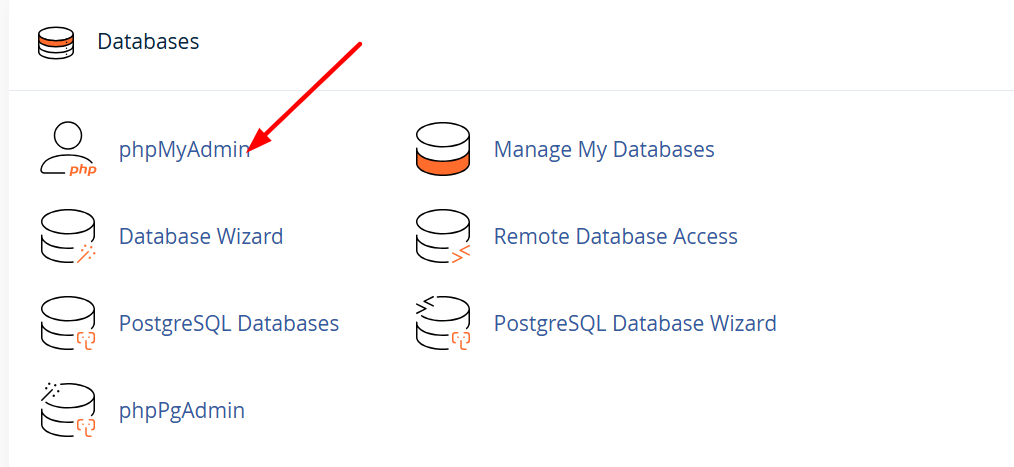
- Select your website’s database.
- Click Import and upload your .sql backup file.
- Confirm the import and wait for it to finish.
If your database is large, it may need to be split into smaller files.
Step 5) Check Your Website
After restoring files and the database, it’s time to verify that everything works.
- Open your website in a browser.
- Test important pages, forms, and links.
- Check that all plugins and themes are functioning.
If you notice missing content or errors, you might need to re-restore or manually fix specific files.
Step 6) Restore Emails (Optional)
If your emails are hosted through your website, you may need to restore them too.
- In cPanel, go to Email Accounts.
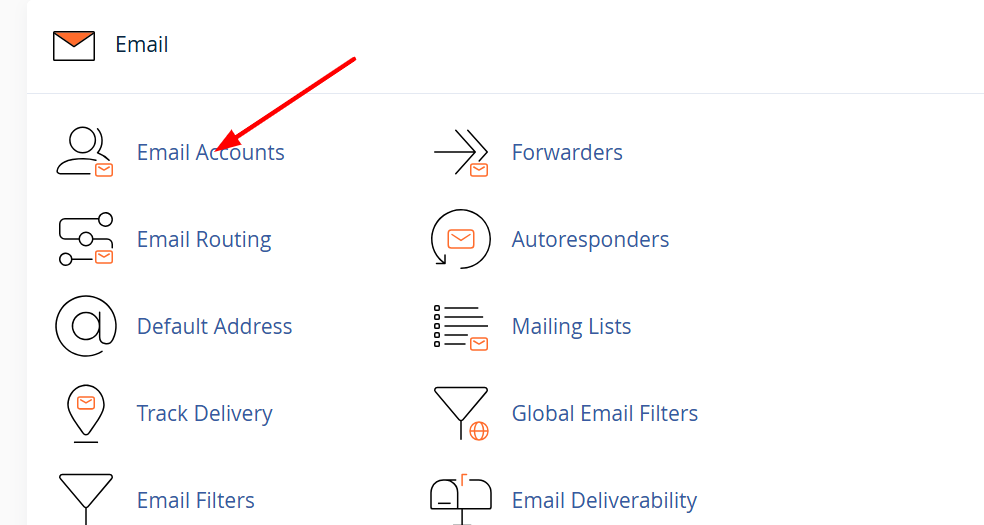
- Look for backup options, often under Email Backup.
- Restore the desired mailbox or all emails.
Note: Some email providers automatically back up messages, but it’s always best to double-check to avoid losing important emails.
Step 7) Test Website Functionality
Restoring a website is only part of the job. Testing ensures everything works as expected:
- Test forms, payment gateways, and contact pages.
- Confirm that login credentials still work.
- Look for broken links or missing images.
A small error left unchecked now can turn into a bigger problem later. Testing now saves you time and headaches.
Step 8) Update Your Backup Plan
Once your website is restored and fully functional, it’s time to improve your backup strategy:
- Schedule automatic backups, daily or weekly.
- Store backups in multiple locations, cloud storage, and local copies.
- Periodically test your backups to make sure they’re working correctly.
Remember: A strong backup plan protects your website and gives you peace of mind.
Common Website Restore Issues and How to Fix Them
Even if you follow every step carefully, sometimes things don’t go perfectly. Here are a few common problems you might encounter and how to fix them:
- White screen after restore
This usually happens because your database isn’t properly connected. Check the database connection settings in your wp-config.php file and make sure the database name, username, and password are correct.
- Broken images
If images don’t appear, it could be due to incorrect file paths. You can re-upload the images or update the links in your content to fix this.
- Plugin errors
Sometimes plugins conflict with each other or with your theme after a restore. Deactivate any conflicting plugins and then restore them one by one to find the culprit.
- Slow site
A large database restore can make your website slow. After restoring, run a database optimization to speed things up and ensure smooth performance.
Tips for a Smooth Website Restore
Restoring a website goes more smoothly when you follow a few smart practices:
- Always back up before making changes
Even small updates can cause issues. Having a recent backup ensures you can undo mistakes quickly without losing valuable content. - Use your hosting provider’s restore tools
Many hosts offer one-click restore options. These tools are faster, safer, and reduce the chance of errors compared to manual restores. - Keep a staging site
A staging site is a copy of your website where you can test updates, plugins, or themes before applying them to your live site. This helps prevent downtime or broken pages. - Document your restore process
Write down the steps you follow during each restore. This makes future restores easier and ensures your team can handle issues efficiently.
Conclusion
Restoring your website doesn’t have to be stressful. At Truehost, we know your site is your livelihood. That’s why our support team is available 24/7 to guide you if you get stuck, and our managed backup services handle the “remembering” part for you.
With daily automated backups, one-click restores, and high-speed NVMe storage, your site stays safe, fast, and always recoverable. You can focus on growing your brand while we make sure your data is secure and ready whenever you need it.
Explore Truehost Web Hosting Plans today and keep your website protected with ease.