 Domain NamesFind and register your ideal domain name instantly.
 Web HostingEasy-to-use hosting powered by cPanel — ideal for managing websites in Nigeria.
 Windows HostingRun .NET apps with Windows-optimized hosting
 Affiliate ProgramMake money promoting our services
 Reseller HostingMake money by reselling our hosting products under your own brand
 .COM Domains
 All DomainsExplore all supported tld domains in Nigeria
 WhoisFind out who owns any domain, as well as verify your registration details
 VPS Hosting
 Dedicated ServersReimagine your site speed with your own complete server
 AI Website BuilderDesign your site with drag-and-drop tools
 Online Store BuilderStart your online shop without code
 Support PortalFind answers or get expert help
 Contact UsReach our team via chat or email
 BlogRead our extensive guides on web hosting and more
Google Analytics 4 (GA4) is the answer for tracking growth, but let’s not sugarcoat it, the setup process has confused thousands of website owners since the switch from Universal Analytics.
If you have been putting it off because you are afraid of breaking your site, or because you looked at the new interface and felt your brain start to melt, I get it.
I’ve been there.
But here is the thing, flying blind without analytics is like owning a physical store with no windows.
You don’t know who is walking in, what they are looking at, or if they are leaving because they found what they needed or because the door was stuck.
Today, by the time you finish reading this and following along, you will have a working Google Analytics installation that shows real-time visitor data.
You will also know how to track the stuff that actually matters to your business, like purchases or form submissions.
Now, open a new tab, and get this done.
Step 1: Create Your Google Analytics Account
Alright, first things first. We need to build the house before we can install the security cameras.
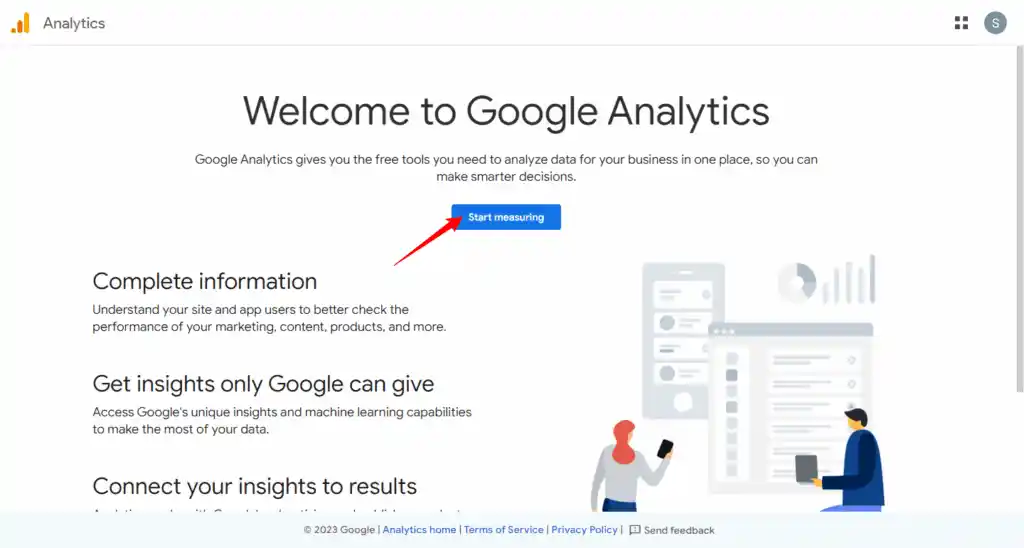
Open up a fresh browser tab and head over to analytics.google.com.
Now, if you are already signed into your Google account (like Gmail or Drive), you will land on the Analytics homepage.
It might look a bit intimidating, but don’t worry, we are just getting started.
Once you are there, look for the big button that says Start measuring.
Go ahead and click it. This is the trigger that tells Google that you are ready to start collecting data about your website.
A form will pop up asking for your account details.
This is the administrative level.
- Account name:
Use your business name or your own name. If you run a business called Truehost, put that.
If this is for a personal blog, just put My Business Analytics or even your name.
This helps you keep things organized if you manage multiple websites later.
- Data sharing settings:
You will see a bunch of checkboxes here about sharing data with Google.
If you are privacy-conscious, you can uncheck these.
If you are just starting out and want to help Google improve its products and get slightly better data, leave them on. It’s entirely up to you.
Once you have filled that out, click Next.
Step 2: Create Your GA4 Property
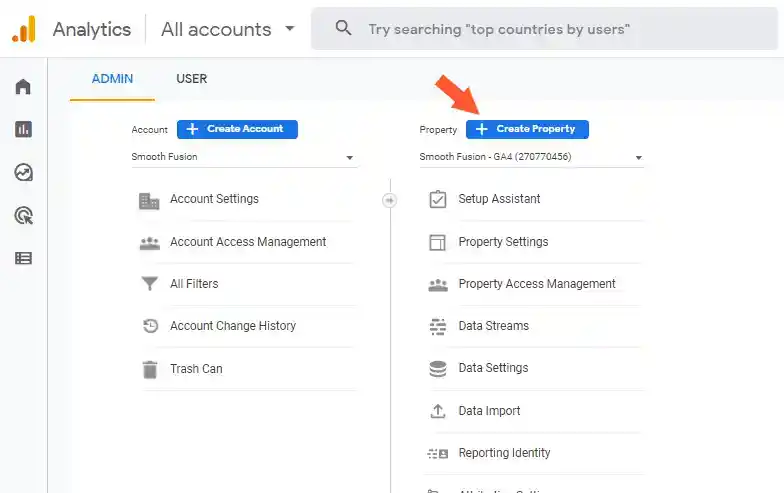
In Google Analytics lingo, a property is essentially where your website’s data lives.
You can have one account with multiple properties.
For example, one for your blog and one for your e-commerce store.
For now, we are creating the container for your main site.
You will see a screen asking you to enter a Property name.
Keep it simple. Use your website name. If your site is Truehost Blog, just type that. It helps you identify it later.
Next, you will need to select your time zone and currency.
- Time zone: This is more important than it sounds. You want your reports to align with your day. If you are in Nigeria, set it to Africa/Lagos. If you set it to New York, your today’s data might start counting at 5 AM your time, which gets confusing.
- Currency: Set this to Nigerian Naira (NGN) if you are running a business locally, or your preferred currency if you sell globally.
Click Next.
Now Google is going to ask you a few questions about your business. Don’t overthink these.
They are mostly used to pre-configure some of your reports and suggest features.
- Select your industry category e.g., E-commerce, Publishing, Real Estate.
- Choose your business size.
- Pick your objectives. Here is a pro tip: make sure you select at least Examine user behavior. This unlocks a set of helpful default reports that make the dashboard much more useful right out of the gate.
Click Create.
You will be shown the Google Analytics Terms of Service.
Read them then click Accept.
Congratulations, you now officially have a GA4 property!
But right now, it is just an empty bucket. We need to tell it where to get the data from.
Step 3: Add a Data Stream (Get Your Measurement ID)
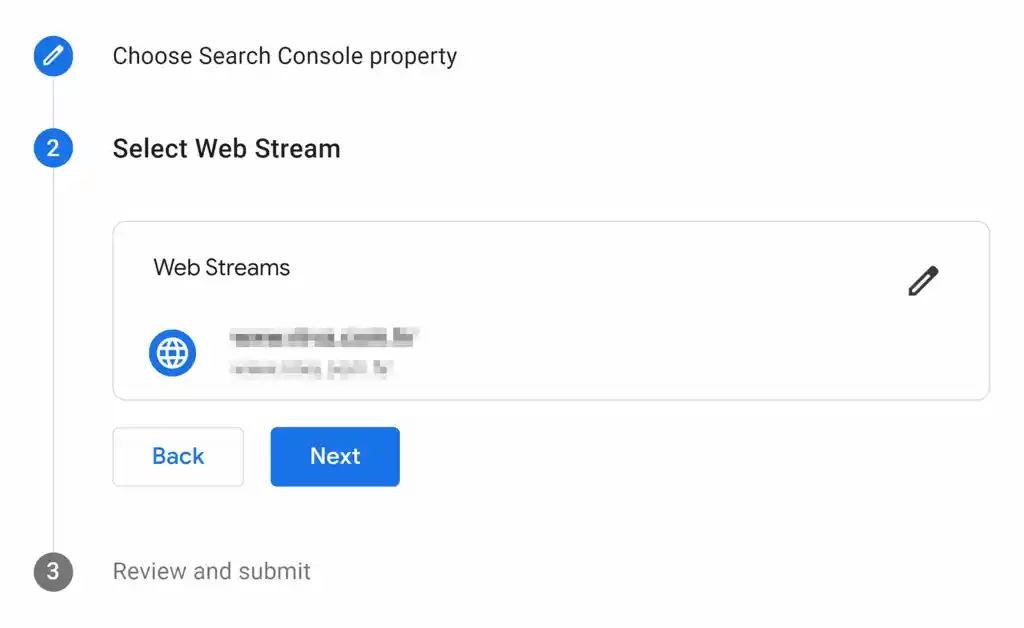
If your GA4 property is the bucket, the Data Stream is the hose.
It tells GA4 exactly where to pull data from. In our case, we are pulling data from a website, so we need a Web data stream.
You should land on a screen that says Data streams.
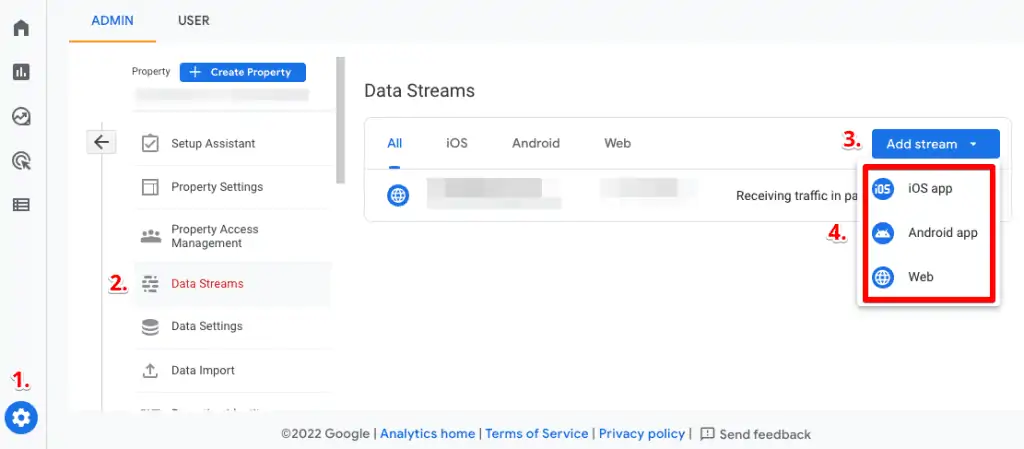
If you don’t, navigate to Admin (the gear icon in the bottom left corner) and look for Data Stream under the Property column.
Click Web.
A modal window will pop up. This is where we plug in the specifics of your site.
- Website URL: Enter your full domain. Make sure you include the
https://part. It should look likehttps://yourdomain.com. If you have a subdomain, likeblog.yourdomain.com, enter that. - Stream name: Give it a descriptive name. If you only have one website, Truehost Website or Main Site is fine. If you have a test site and a live site, name it Live Site so you don’t accidentally track the wrong thing.
Now, look at the section labeled Enhanced Measurement.
I want you to leave this enabled. Do not turn it off.
This is one of the best features of GA4. It automatically tracks page views, scrolls (how far people scroll down), outbound clicks (clicks to other websites), site search, video engagement, and file downloads.
Back in the day, you needed a developer to set up half of this stuff.
Now, it is just a checkbox.
Keep it on, it gives you valuable data without any extra work on your end.
Click Create stream.
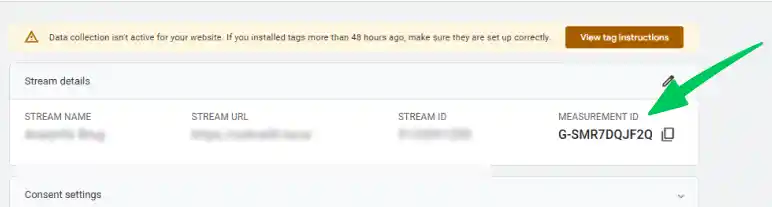
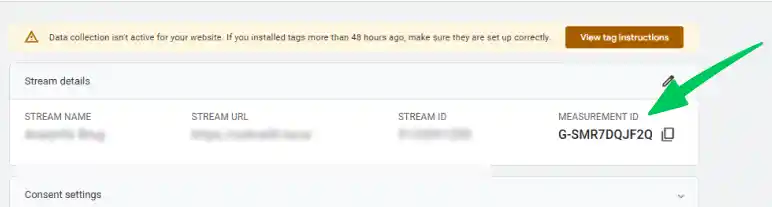
After a moment, you will be taken to a new screen that shows your stream details. Look for the Measurement ID at the top right. It starts with a “G-” (e.g., G-XXXXXXXXXX).
Copy that ID. Paste it into a Notepad or a sticky note on your desktop.
You are going to need it in the next step to connect your website. This is the key that unlocks the door.
Step 4: Install GA4 on Your Website
Okay, this is the part where most people get nervous.
You have the code, the Measurement ID, but where does it go?
The good news is, depending on how your website was built, you have options. Pick the one that matches your setup.
Option A: WordPress with Site Kit Plugin (Easiest)
If your website runs on WordPress, which powers over 40% of the web, this is the method I recommend.
It is the easiest way to ensure everything is connected correctly without touching a single line of code.
1) In your WordPress dashboard, go to Plugins and click Add New.
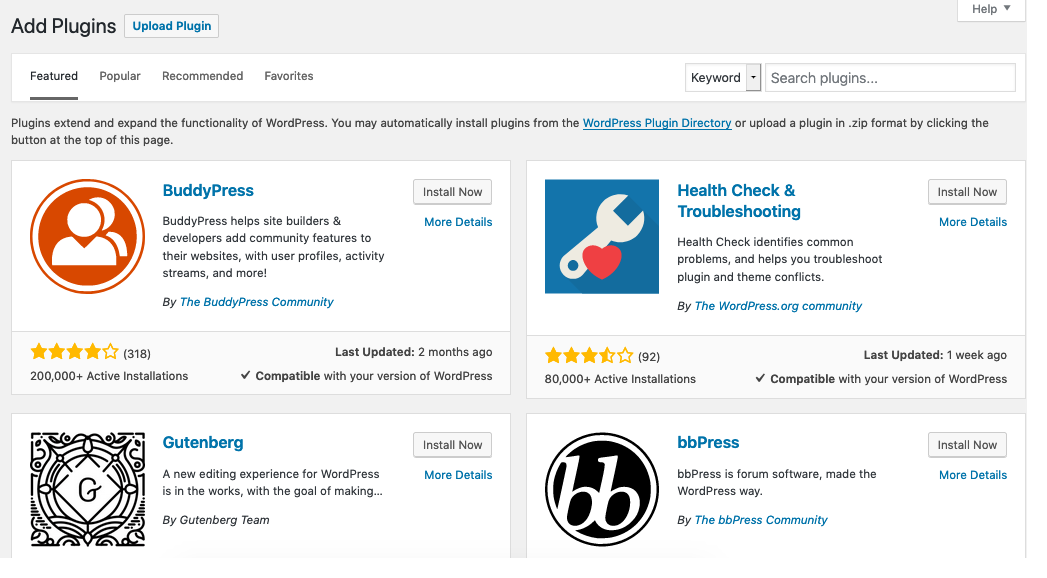
2) Search for Site Kit by Google. Install it and activate it.
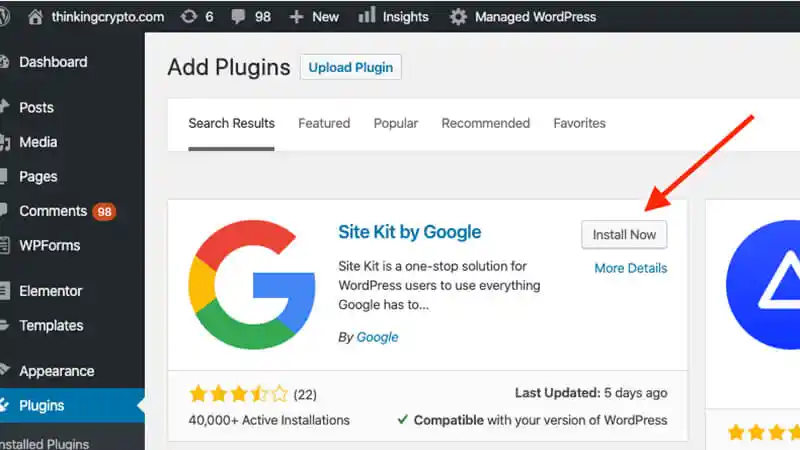
3) Once activated, click Start Setup.
4) It will ask you to log in to your Google account. Use the same account you just used to create the GA4 property.
5) Site Kit will automatically detect your GA4 property. It will ask you to confirm permissions. Click through the prompts.
6) That’s it. Site Kit automatically adds the GA4 code using your Google login, no copying, pasting, or worrying about messing up your theme files.
Option B: Manual Installation (For Custom-Coded Sites)
If you have a custom-built HTML site, or you are using a CMS that isn’t WordPress, you might need to do this manually.
1) Back in your GA4 property, go to Admin → Data Streams → Select your stream.
2) Click Configure tag settings (it’s near the bottom).
3) Click Installation instructions.
4) Choose Install manually. You will see a block of JavaScript code. It looks scary, but it is just a snippet.
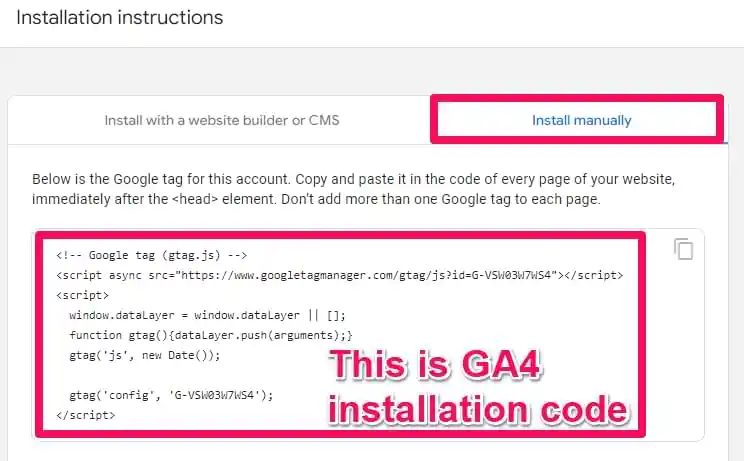
5) Copy the entire code snippet. You need to paste this code into the <head> section of every page on your website.
If you have a developer, send it to them. If you do it yourself, you will need to paste it just before the closing </head> tag in your HTML files.
Option C: Google Tag Manager (For Advanced Users)
If you already use Google Tag Manager (GTM) to manage other tracking scripts like Facebook Pixel or TikTok ads, you will want to add GA4 through there to keep everything in one place.
1) Log in to your GTM account and open the container for your website.
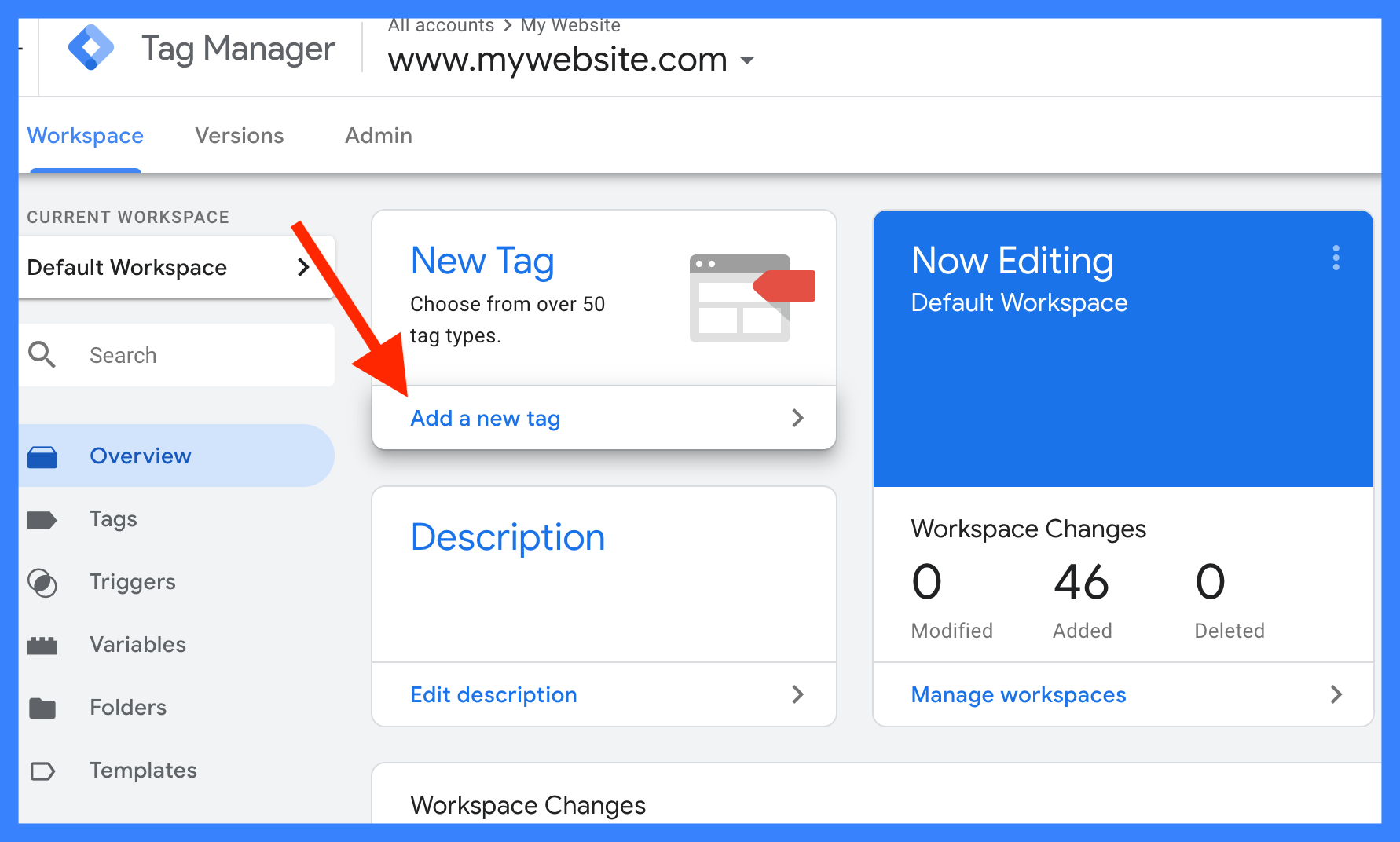
2) Go to Tags and click New.
3) Click Tag Configuration → Choose Google Tag.
4) Paste your Measurement ID (the G- ID we saved earlier) into the field.
5) Click Triggering → Choose Initialization – All Pages. This ensures the tag fires as early as possible so you don’t miss any visitors.
6) Save the tag. Then, click Submit and Publish your container.
Step 5: Verify Your Installation
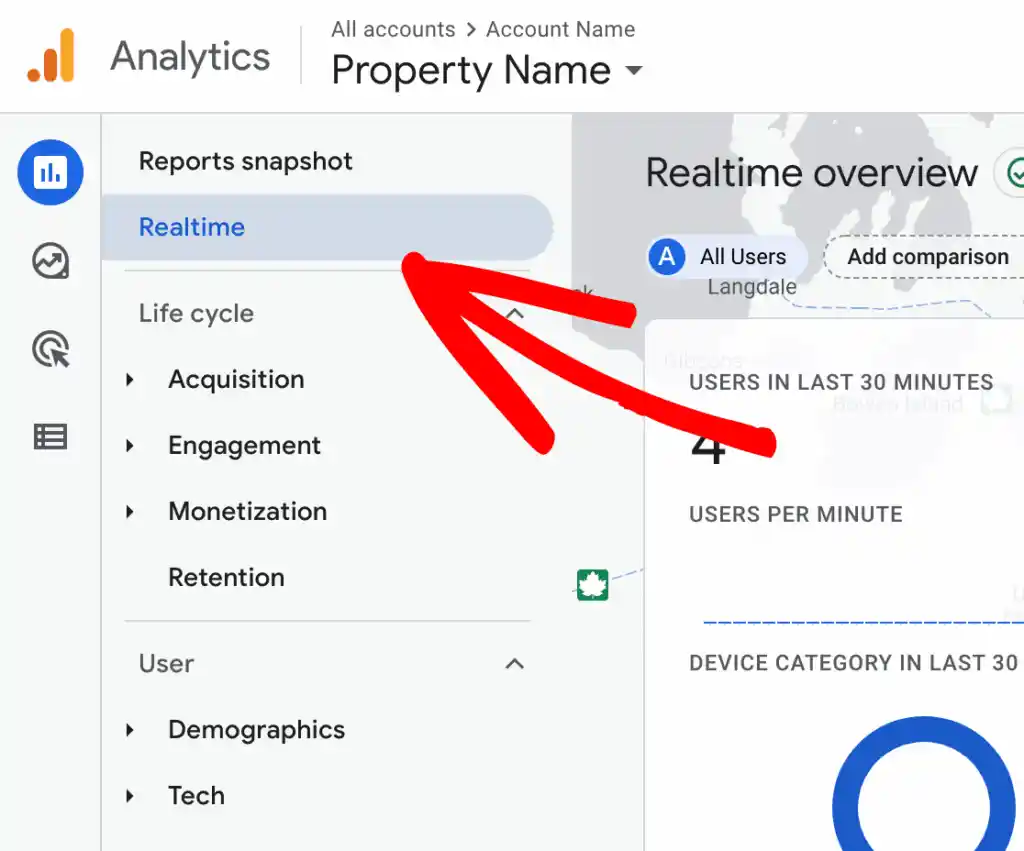
Now it is time for the moment of truth.
But here’s the key: GA4 has two types of reports.
The Realtime report shows activity instantly, it is perfect for testing.
The standard reports (Acquisition, Engagement, etc.) need 24-48 hours to collect enough data to be meaningful.
So don’t worry if those are empty right now; we are just checking the Realtime report to confirm the installation.
Let us confirm it is alive.
1) Go back to your GA4 interface.
2). On the left-hand menu, click Reports (the home icon).
3) Look for a section called Realtime (it is usually the top option).
This report is exactly what it sounds like. It shows you what is happening on your site right now.
Open your website in another browser tab. Click around. Go to a few pages.
Now, go back to the GA4 Realtime report. Within 30 seconds sometimes it’s instant, you should see a card appear that shows 1 user and the page they are viewing.
What If You Don’t See Activity?
Don’t panic. It is usually a simple fix.
- Ad blockers: If you have an ad blocker enabled in your browser, it might be blocking GA4. Try opening an incognito/private window with extensions disabled to test.
- Cookie banners: If you have a cookie consent banner on your site and you clicked Decline, GA4 is legally blocked from firing. Try clicking Accept to test the setup.
- GTM not published: If you used Google Tag Manager, double-check that you actually clicked Submit and Publish. It is easy to forget that final step.
- Wait: Sometimes, especially on heavy caching plugins, it can take 30 minutes for the tag to appear. Give it a few minutes and refresh the Realtime report.
Step 6: Set Up Key Events
Tracking traffic is cool, but what we really care about is action.
Did someone buy something? Did they sign up for the newsletter? Did they contact you?
In GA4, these are called Key Events, they used to be called Conversions. Let us set them up.
Mark an Existing Event as a Key Event:
GA4 automatically tracks a lot of basic interactions. You just need to tell it which ones are important.
1) Go to Admin (the gear icon).
2) Under Property, click Events.
3) You will see a list of events like page_view, session_start, first_visit, and if you are lucky, purchase or generate_lead.
4) Find the event you want to track (e.g., form_submit or purchase).
5) Click the star icon (⋆) next to it. When it turns orange, that event is now a Key Event.
Create a Custom Key Event:
Sometimes you need to track something specific that isn’t automatic, like a click on a specific Subscribe button.
1) In the Events screen, click Create event (top right).
2) Click Create.
3) Give your event a name (e.g., newsletter_signup).
4) Define the conditions. For example, you might set it to fire when event_name equals click AND button_text equals Subscribe.
5) In the creation process, you will see a toggle that says Mark as key event. Make sure this is toggled ON.
Note: GA4 automatically marks purchase as a key event. You cannot unmark it, which is fine because that’s usually the most important one anyway!
What You Can Now Track
Now that you are set up, you might be wondering, Where do I look now?
GA4 organizes data into three main categories to make it easier to understand your customer’s journey.
You will find these under Reports → Lifecycle.
- Acquisition: This is the Where did they come from? report. It shows you if your visitors arrived from Direct (typing your URL), Organic Search (Google search), Referral: another website linked to you, Social, or Email. If you spent money on ads, you will see how that traffic performed here.
- Engagement: This is the What did they do? report. It shows you page views, scrolls, time spent on site, and which pages are most popular. If people are bouncing off your homepage immediately, this report will tell you.
- Monetisation: This is the Did we make money? report. It shows revenue, purchases, ecommerce data, and user lifetime value. If you run a shop, you will be living in this tab.
In Conclusion
You now have a working Google Analytics 4 installation. The hard part is done. You have placed the sensor; now the data starts flowing.
Now, close this tab and go live your life. Don’t obsess over the dashboard today. Check back in 24 to 48 hours.
That is when your reports will start populating with meaningful data about your audience, their behavior, and where they come from.
If you are reading this and realizing you don’t even have a website yet, well, you are putting the cart before the horse a little bit, but I love the enthusiasm!
Having analytics ready from day one is a massive advantage.
If you don’t have a site yet, Truehost makes it easy to get started.
With our AI Website Builder, you can create a professional, fast, and beautiful site in minutes, no coding required.
Once your site is live, you can come right back to this guide, follow the steps, and start understanding your audience from the very first visitor.