 Domain NamesFind and register your ideal domain name instantly.
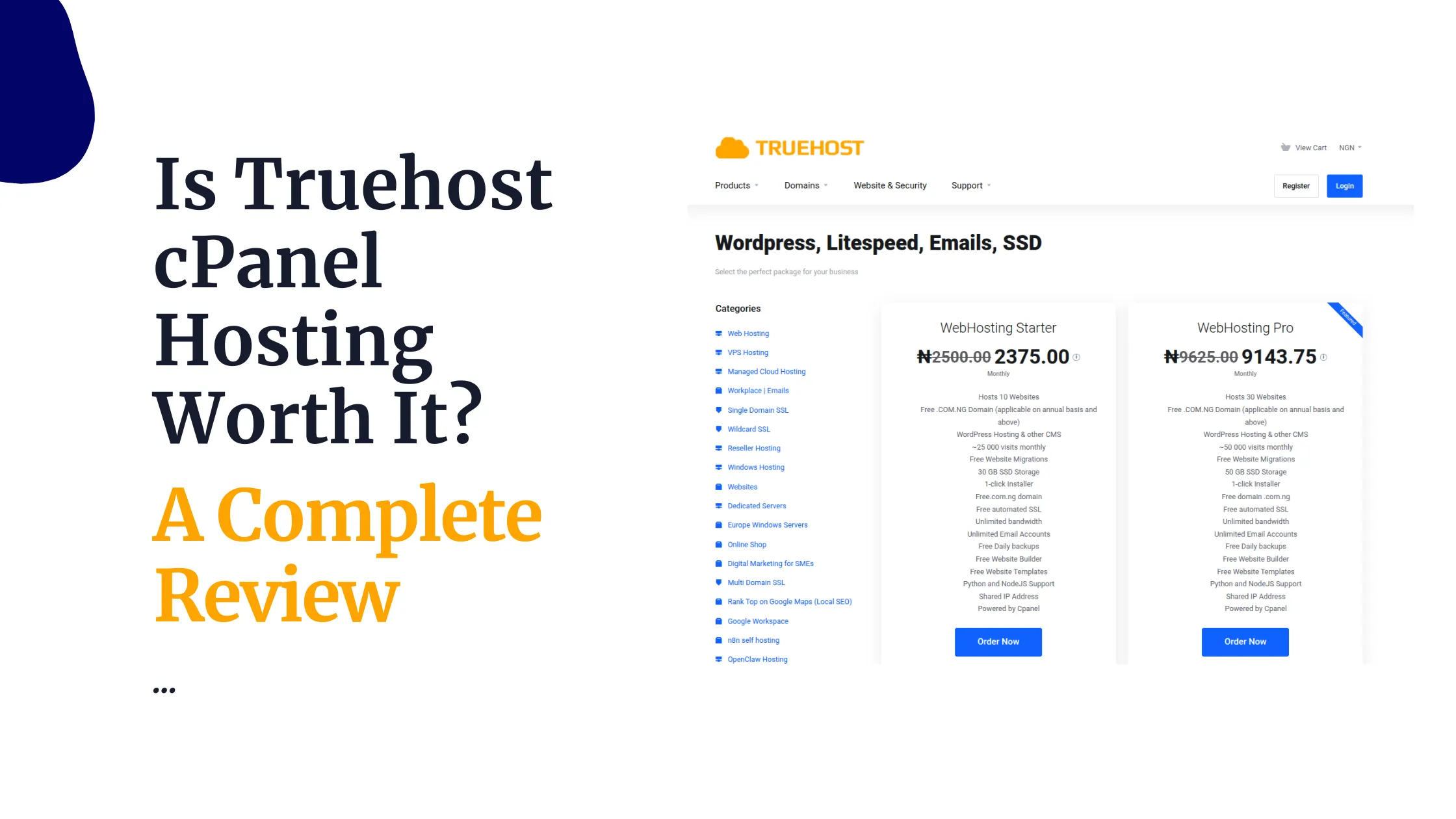
 Web HostingEasy-to-use hosting powered by cPanel — ideal for managing websites in Nigeria.
 Windows HostingRun .NET apps with Windows-optimized hosting
 Affiliate ProgramMake money promoting our services
 Reseller HostingMake money by reselling our hosting products under your own brand
 .COM Domains
 All DomainsExplore all supported tld domains in Nigeria
 WhoisFind out who owns any domain, as well as verify your registration details
 VPS Hosting
 Dedicated ServersReimagine your site speed with your own complete server
 AI Website BuilderDesign your site with drag-and-drop tools
 Online Store BuilderStart your online shop without code
 Support PortalFind answers or get expert help
 Contact UsReach our team via chat or email
 BlogRead our extensive guides on web hosting and more
Websites fail without warning.
A power cut, a hacker, a bad update, or one wrong click can wipe out your whole site.
When that happens, posts disappear, customer data is lost, and sales stop.
This is a real problem for many website owners in Nigeria.
The only real protection is a website backup. A website backup is a full copy of your site that lets you restore everything fast when something breaks.
Without it, recovery is hard and costly. With it, your website stays safe.
In this guide, you will learn why website backups are important.
The main types of backups, how often to back up your site, and how to create and restore a full backup using cPanel.
By the end, you will know how to protect your website and avoid panic when problems happen.
Why You Need To Do Backups For Your Website
Losing a website can wipe out months of work in seconds.
In Nigeria, this happens often.
Common causes:
- One wrong click deletes files
- Hackers change or destroy pages
- Power cuts interrupt updates and damage sites
Many small businesses have lost:
- Customer email lists
- Orders and payment records
- Product pages and content
Some never recovered.
A website backup gives you a working copy of your site. When a problem happens, you restore it and continue.
Small websites attract hackers because security is weak. A backup removes the damage and restores the site fast.
Routine tasks can also break a site:
- WordPress plugin updates can cause crashes
- Files can be deleted by mistake
With a backup, restoration replaces panic.
Backups support the Nigeria Data Protection Act (NDPA). The law requires the protection and recovery of customer data.
Backups protect revenue:
- Downtime reduces visits
- Offline sites stop sales
- Errors reduce trust
A backup restores your site quickly.
Truehost hosting users in Nigeria receive automatic backups that run in the background.
Skipping backups risks your business.
Backing up your website protects it.
Types of Website Backups
Not all website backups work the same way. Each one serves a different purpose.
It is like tools in a workshop. One tool tightens a screw. Another cuts wood. You choose based on the job you need to do.
Website backups work the same way.
1) Full Backup
A full backup saves your entire website in one copy.
This includes:
- Website files
- Images and videos
- Database content
- Email settings
Nothing is left out.
This type of backup gives the strongest protection. If your site crashes or gets hacked, you can restore everything at once.
The downside is size. Full backups take more storage and more time to create.
Because of that, most websites run full backups once a week.
2) Incremental Backup
An incremental backup saves only what has changed after the last backup.
If you added one blog post or changed one product page, only that new data is saved.
This makes incremental backups fast and light. They use little storage and work well for daily backups.
The downside comes during restore. Because the backup is spread across many small pieces, restoring can take longer.
3) Differential Backup
A differential backup saves all changes made since the last full backup.
It collects every change into one growing file until the next full backup runs.
This makes restoring easier than incremental backups. You need fewer files to bring your site back.
The downside is storage. Each day, the backup gets larger.
Backup Types Compared
| Backup Type | Saves | Best Use |
| Full | Entire website | Weekly |
| Incremental | New changes | Daily |
| Differential | Changes since full | Busy sites |
Where to Store Your Backups
Cloud storage works best in Nigeria.
Power cuts, laptop failure, and hard drive damage can erase local backups. A cloud backup stays safe even when devices fail.
You can combine backup types for better protection:
- Full backup once a week
- Incremental backups daily
This setup balances safety, speed, and storage use.
Always test your backups. Open them. Confirm files and databases exist.
A backup that cannot restore your website protects nothing.
How Often Should You Back Up Your Website?
How often you back up your website depends on how often your site changes.
There is no single rule for everyone. The goal is simple. Do not lose important data.
If your website changes daily, your backup should run daily.
Busy Websites and Online Stores
If you run an online store or a service website, daily backups are necessary.
These sites change often:
- New orders come in
- Payment records update
- Customer information is stored
- Products are added or edited
Losing even one day of data can mean lost money and angry customers.
For some stores, backing up several times a day is the safest option.
Blogs and Content Websites
If you run a blog, backup needs depend on how often you post.
- Posting once a week? Weekly backups work
- Posting several times a week? Back up twice a week
- Accepting comments or user submissions? Use daily backups
Even a simple blog can lose months of work if backups are rare.
Small Business and Company Websites
Business websites often change quietly.
- Contact forms receive messages
- Pages are edited
- Images are uploaded
A weekly backup may not be enough. Daily backups give better protection.
Nigerian Internet and Power Reality
In Nigeria, power cuts and unstable internet increase the risk.
An update that stops halfway can break a website. A backup fixes that fast.
Because of this, daily backups are the safest choice for most Nigerian websites.
Manual vs Automatic Backups
Manual backups depend on memory. People forget.
Automatic backups run on schedule. Once set, they work without attention.
Automatic backups are safer and more reliable.
Test Your Backup Schedule
Backups are only useful if they work.
At least once a month:
- Download a backup
- Open it
- Confirm files and databases exist
Simple Backup Guide
- Online store: Daily or multiple times daily
- Business website: Daily
- Blog: Weekly or twice weekly
- Any site with user data: Daily
Backing up often reduces stress.
When something breaks, you restore and continue
How to Create a Full Website Backup Using cPanel
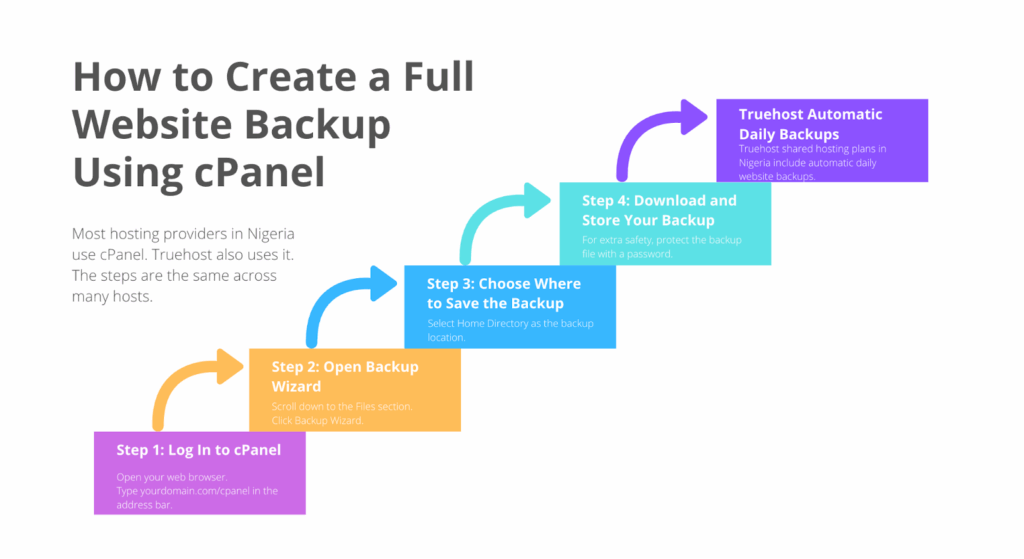
Most hosting providers in Nigeria use cPanel. Truehost also uses it.
The steps are the same across many hosts.
Before you start, make sure you have your hosting login details. These are typically sent to your email address after signing up.
Step 1: Log In to cPanel
Open your web browser.
Type yourdomain.com/cpanel in the address bar.
Enter your cPanel username and password.
Once logged in, you will see the cPanel dashboard.
This area controls your website files, emails, and databases.
Step 2: Open Backup Wizard
Scroll down to the Files section.
Click Backup Wizard.
You will see two options:
- Backup
- Restore
Click Backup.
Next, choose Full Backup.
This option creates a complete copy of your website.
A full backup includes:
- All website files
- The database that stores your content
- Email accounts and settings
Nothing is skipped.
Step 3: Choose Where to Save the Backup
Select Home Directory as the backup location.
This option works best if your internet connection is unstable. The backup stays on the server until you download it.
Enter your email address if you want a message when the backup is ready.
Click Generate Backup.
The system will start creating your backup.
- Small websites may finish in a few minutes
- Large websites may take longer
You can leave the page. The backup will continue running.
Step 4: Download and Store Your Backup
When the backup is complete:
- Return to Backup Wizard
- Click Download a Full Account Backup
- Select the newest backup file
- Download it to your device
Store your backup in more than one place:
- Your computer
- An external drive
- Cloud storage, such as Google Drive
For extra safety, protect the backup file with a password.
Once saved, your full website backup is ready whenever you need it.
Truehost Automatic Daily Backups
Truehost shared hosting plans in Nigeria include automatic daily website backups. These backups run using a tool called JetBackup.
Once your hosting is active, backups start automatically. You do not need to set anything up or click any buttons.
The system creates a full backup of your website every day and keeps the last seven backup copies.
This means you can roll your site back to how it looked yesterday or several days ago if something goes wrong.
This is useful when:
- A plugin update breaks your site
- A file is deleted by mistake
- Your site gets hacked
- An update fails because of a power cut
How to Access Your Truehost Backups
Getting your backup is simple and fast:
- Log in to your Truehost client area
- Open your active hosting plan
- Go to the JetBackup section
- Choose the backup date you need
- Download or restore the backup
You can restore files, databases, or the entire website with a few clicks.
There are no manual backup steps to remember. Your website stays protected in the background, day and night.
This setup saves time, reduces stress, and keeps your site ready for recovery whenever problems appear.
Common Backup Problems and Fixes
- Large file size: Download when the internet is stable
- Low disk space: Delete old files
- Permission issues: Fix folder permissions
- No email alert: Check spam folder
Once downloaded, your backup is ready anytime.
How to Restore a Full Website Backup
A backup is your safety net. When your website crashes, a full backup can bring everything back: your files, database, emails, and settings.
Restoring a site is straightforward if you follow the steps carefully.
Partial restores, like fixing a single page or database, are easy in cPanel. Full restores, which bring back the entire website, are more complex.
Many hosting providers, including Truehost, offer support to restore full backups quickly.
Step 1: Check Your Backup
Before restoring, open the backup file on your computer. Make sure it includes:
- All website files
- Your database
- Email settings (if included)
This ensures you won’t restore a broken or incomplete copy.
Step 2: Restore Using cPanel Backup Wizard
- Log in to your cPanel account.
- Go to the Backup Wizard under the Files section.
- Click Restore.
- Choose what you want to restore: files, databases, or emails.
- Upload the backup file from your computer.
- Wait for the process to finish.
Step 3: Restore a Database Only
If you only need the database:
- Go to Restore MySQL Database in cPanel.
- Upload the .sql file from your backup.
- Wait for the restore to complete.
Step 4: Manual Restore (Optional)
Advanced users can restore manually:
- Use File Manager in cPanel to upload files.
- Use phpMyAdmin to import the database.
Step 5: Test Your Site
After restoring, visit your website. Check pages, forms, and any dynamic content to make sure everything works correctly.
Always create a fresh backup before restoring. Restoring will replace your current website data.
Having a fresh backup ensures you can revert if anything goes wrong.
With a reliable backup and careful restore process, you can recover your website quickly without losing data, customers, or sales.
Final Thoughts
Websites can fail in an instant. A sudden power cut, a wrong click, or a hacker attack can wipe out everything you’ve worked hard to build.
The frustration, lost time, and potential loss of customers can feel overwhelming.
This is where a website backup becomes your safety net. It turns panic into peace of mind.
With a reliable backup, you can restore your site quickly, recover lost data, and continue running your business without stress.
Key takeaways:
- Back up your website regularly. Daily backups are ideal for busy sites; weekly backups work for smaller blogs.
- Restore carefully. Always check your backup files before restoring to avoid replacing good data with a broken copy.
- Protect your work. Your website is more than a collection of pages—it’s your brand, your reputation, and your income.
Nigeria’s online business scene is growing fast. Customers expect websites to load quickly and work reliably.
Waiting for a disaster to learn the importance of backups is a costly mistake.
If you want a worry-free solution, Truehost hosting in Nigeria offers automated daily backups, easy restore options, and friendly support.
Get Started with Truehost Hosting Today. Your future self will thank you.