 Domain NamesFind and register your ideal domain name instantly.
 Web HostingEasy-to-use hosting powered by cPanel — ideal for managing websites in Nigeria.
 Windows HostingRun .NET apps with Windows-optimized hosting
 Affiliate ProgramMake money promoting our services
 Reseller HostingMake money by reselling our hosting products under your own brand
 .COM Domains
 All DomainsExplore all supported tld domains in Nigeria
 WhoisFind out who owns any domain, as well as verify your registration details
 VPS Hosting
 Dedicated ServersReimagine your site speed with your own complete server
 AI Website BuilderDesign your site with drag-and-drop tools
 Online Store BuilderStart your online shop without code
 Support PortalFind answers or get expert help
 Contact UsReach our team via chat or email
 BlogRead our extensive guides on web hosting and more
Updates are important. We all know that.
They patch security holes, improve performance, and keep your site working with modern browsers and devices.
But the thing about updates is that when they go wrong, they go spectacularly wrong.
One misplaced click and you are staring at a white screen, a broken checkout, or an entire business offline for hours.
You don’t have to live in fear of that update button though.
There is a smarter way to handle updates that keeps your site safe and your stress levels manageable.
This guide walks you through the entire process.
Follow these steps, and you will be able to update your website with confidence.
Step 1: Create a complete backup
Before you even think about clicking update, you need a safety net.
A backup is your undo button.
Without it, a single misstep can mean hours, or days, of manual recovery work, trying to piece your site back together from memory.
A complete website backup isn’t just one thing. It is two distinct pieces that work together:
- Website files: these are your themes, plugins, uploads (images, documents, PDFs), and the core CMS files that run your site.
- Database: this is where your content lives. Posts, pages, user accounts, settings, and every piece of text you have ever published.
If you lose either one, you don’t have a complete site. You can’t restore from just files or just a database, you need both.
How to back up in Truehost cPanel
Truehost’s cPanel makes backup creation straightforward with the Backup Wizard.
It is designed for people who aren’t command-line experts, so you don’t need to touch a single line of code.
Partial backup (for targeted restores)
A partial backup lets you download files and the database separately.
This approach is useful when only one component needs restoration.
For instance, if a theme update breaks your layout, you can restore just the theme files without touching recent customer orders or new user registrations.
a) Log into your cPanel account
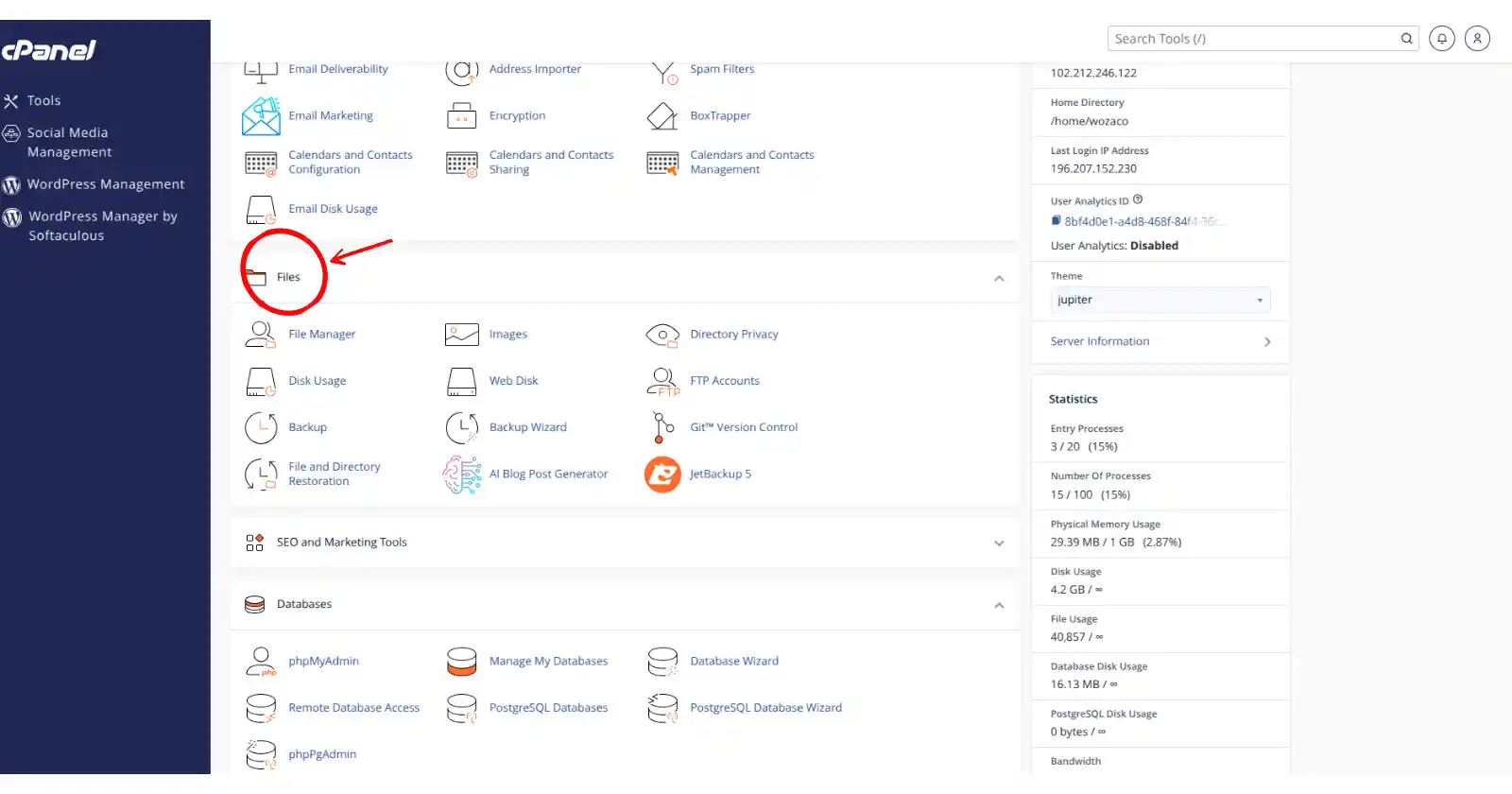
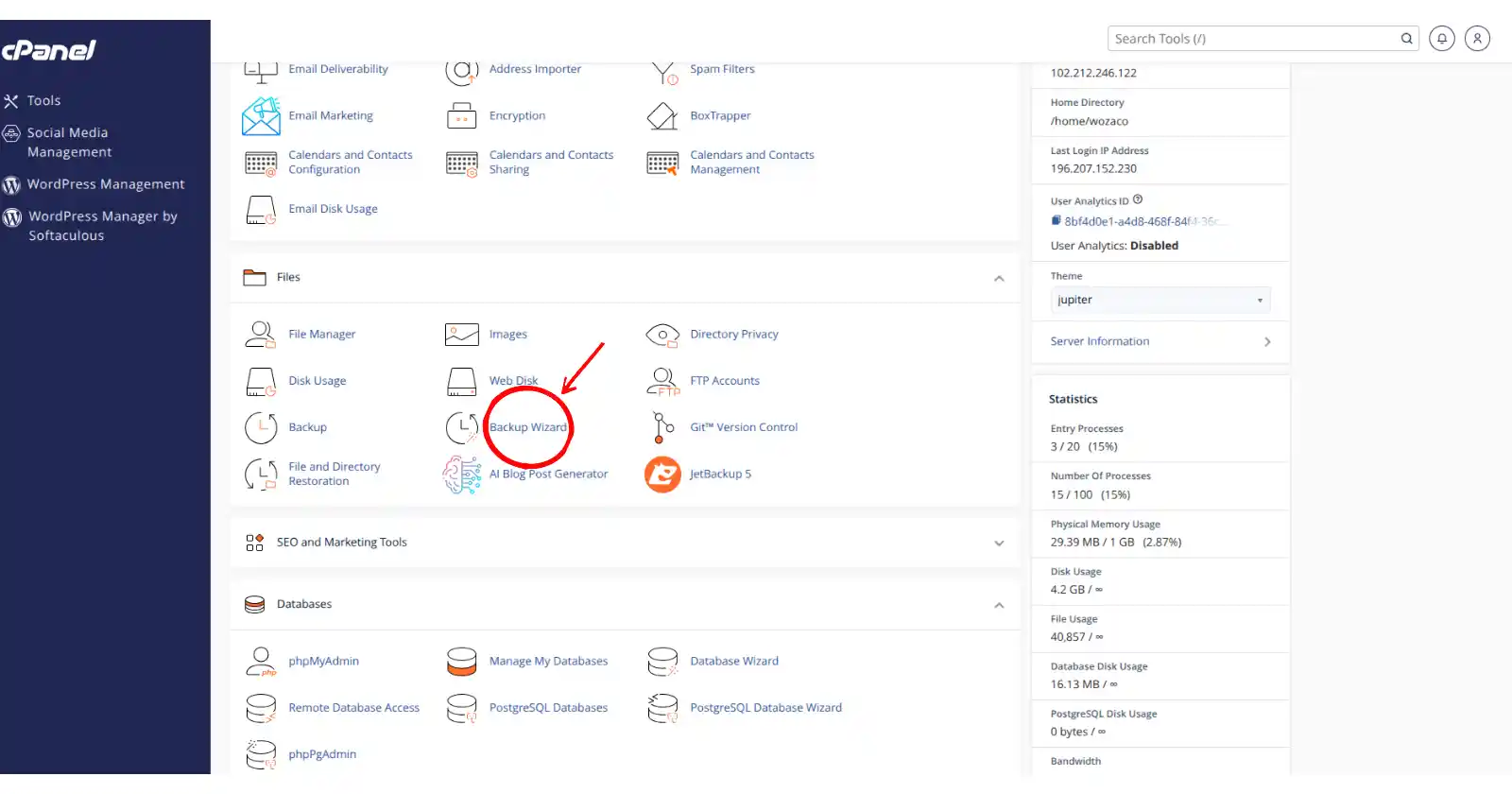
b) Navigate to the Files section and click Backup Wizard
c) Click Back Up
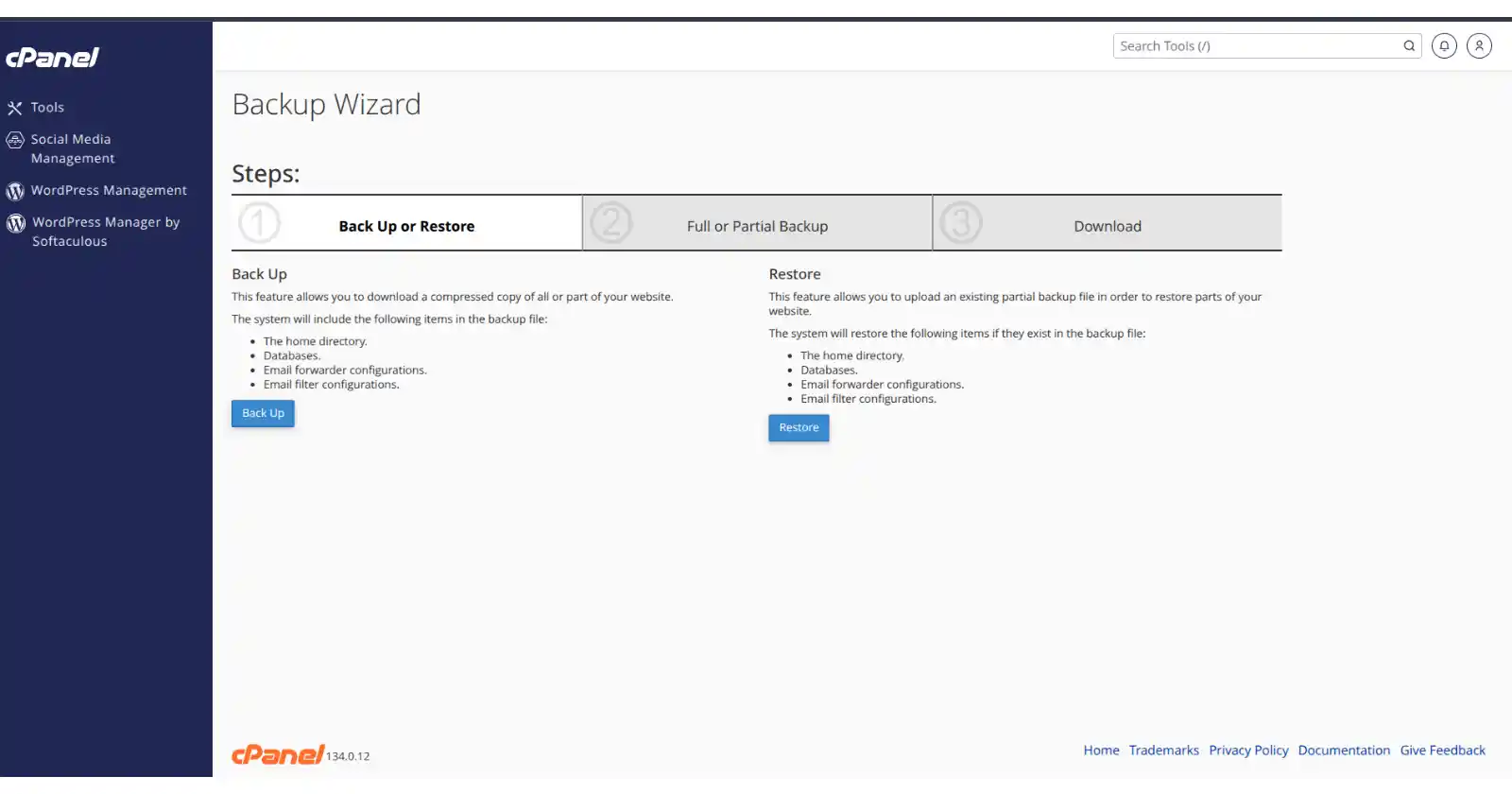
d) Select Home Directory to download all your website files
e) Select MySQL Database to download your database
These downloads produce separate files that you can store safely.
If something breaks, you can restore one component without affecting the other.
Full backup (for transfers or major overhauls)
If you are moving hosts or doing a significant site rebuild, a full backup bundles everything, files, database, email forwarders, and DNS configurations, into one compressed file.
a) Follow the same steps but select Full Backup
b) Choose where to store it (home directory, remote FTP, or download directly)
c) Enter your email address to get notified when it’s done
d) Where to store your backups
Never rely on a backup that lives only on your hosting server.
If the server becomes compromised or your account gets locked, that backup could be gone too.
Keep copies in multiple locations, your local computer, plus cloud storage like Google Drive or Dropbox.
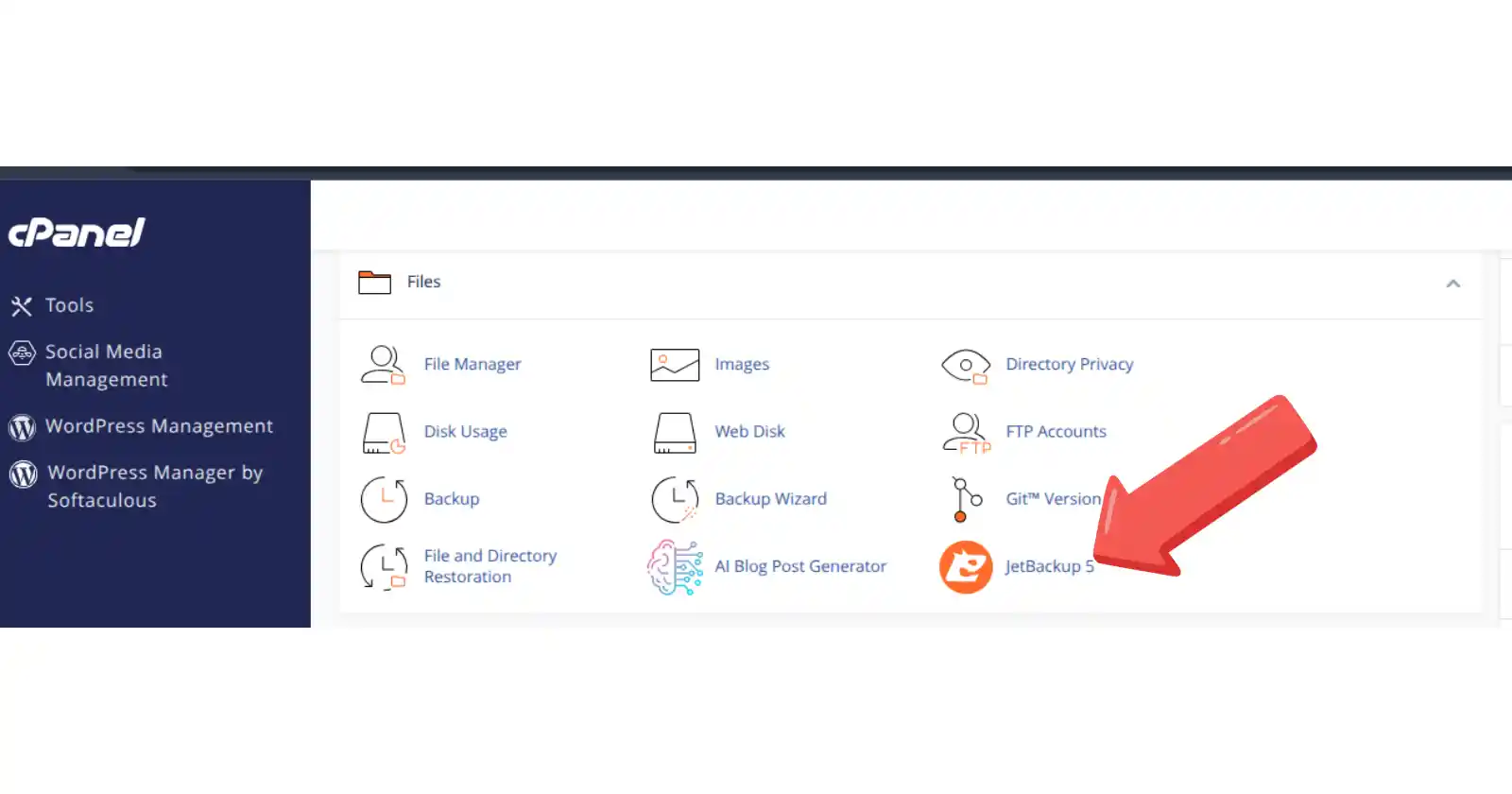
Truehost also provides daily automated backups via JetBackup, accessible from your client area, with the last seven copies retained.
Having your own off‑site copy gives you extra peace of mind and control.
Step 2: Set up a staging environment
A staging environment is an exact clone of your live site, tucked away where visitors can’t see it.
You use it to test updates, experiment with new features, and break things as much as you want, without anyone ever knowing.
When you update your website directly on the live server, you are testing in production.
That’s risky. A staging environment lets you catch problems before they affect your visitors :
- PHP errors and white screens: the kind that take your site completely offline
- Plugin conflicts: where two plugins silently kill each other’s functionality
- Layout and mobile‑responsive glitches: things that ruin the user experience
- Performance drops: slowdowns that drive visitors away before you notice
Truehost supports staging environments across their hosting plans, with tools designed for users at every technical level .
Option A: One‑click staging via Softaculous (for WordPress and other CMS)
If your site was installed through Softaculous, the auto-installer available in Truehost’s cPanel, creating a staging copy is nearly effortless :
1) Log into your cPanel account
2) Open Softaculous Apps Installer
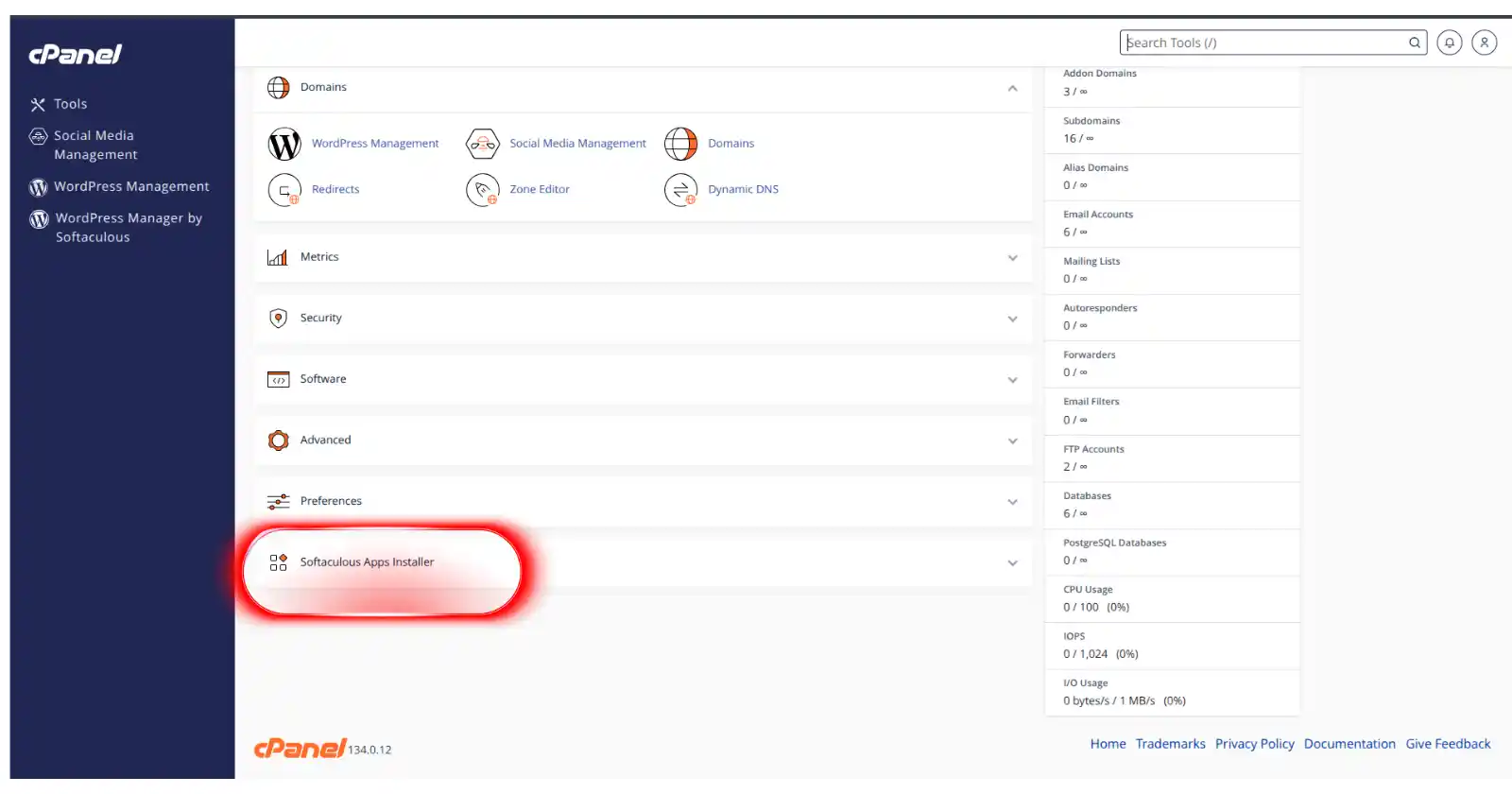
3) Go to All Installations
4) Find your live site and click the staging icon (it looks like two overlapping pages)
5) Choose a subdomain (e.g., staging.yourdomain.com) or directory for the staging copy
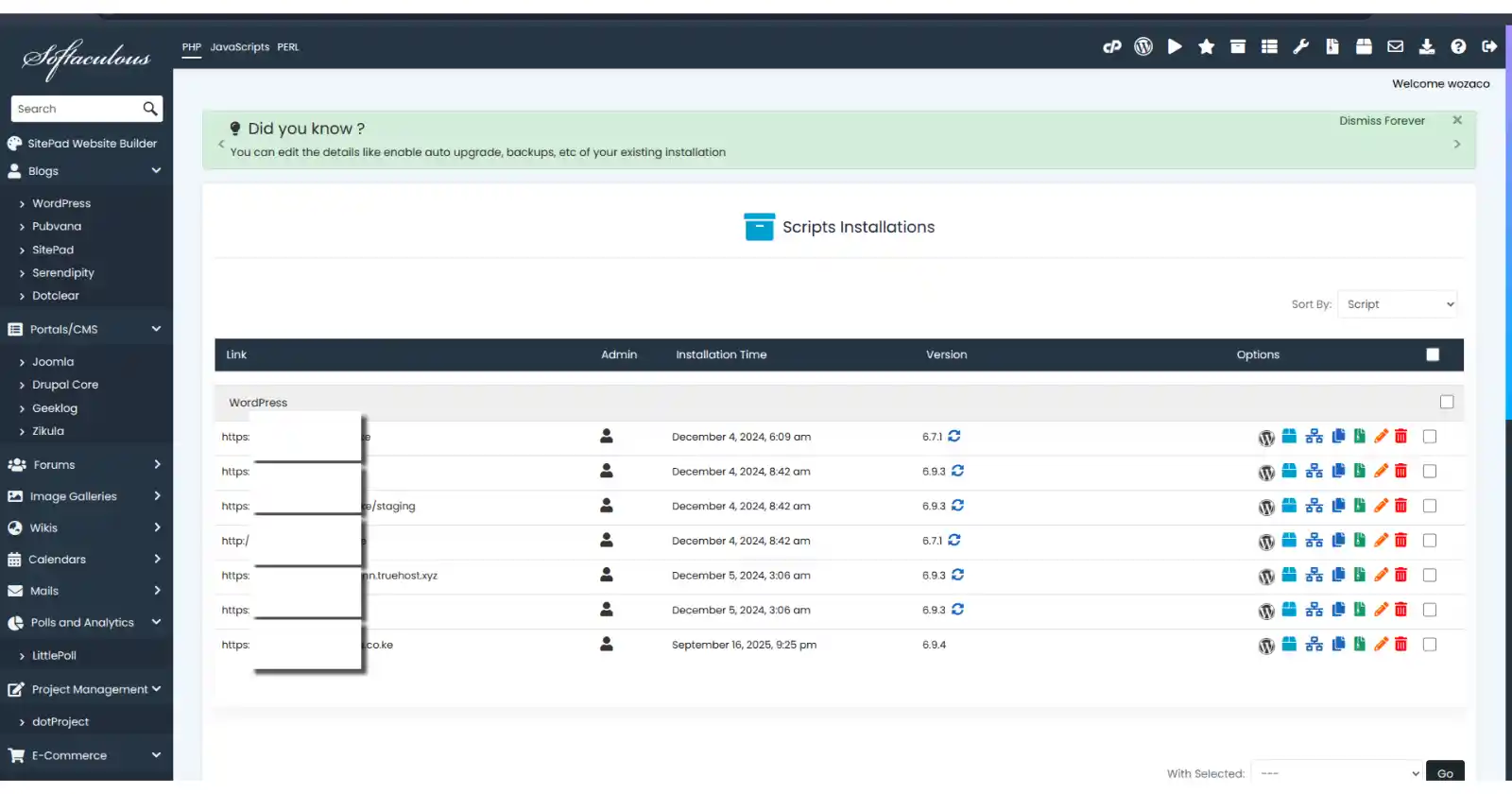
6) Click Create Staging
Softaculous handles everything automatically, cloning files, copying the database, updating configuration files to point to the new database, and giving you separate login credentials.
You can test updates freely without touching the live site .
Option B: Truehost’s built‑in staging tools
For WordPress hosting plans, Truehost includes built‑in staging tools that let you create a staging environment with a few clicks.
These tools are designed specifically for the Nigerian market, with local data centers ensuring your staging site loads quickly during testing .
Once your changes are tested and working, pushing them to your live site is equally simple, often a single click deploys everything .
Option C: Manual staging (for custom sites or advanced control)
If your site isn’t managed by Softaculous or you want full control, you can set up staging manually:
1) Create a subdomain in cPanel (e.g., staging.yourdomain.com)
2) Copy your live site files to the subdomain’s folder via File Manager or FTP
3) Export your live database and import it into a new, empty database
4) Update your CMS configuration file to use the new database credentials
If needed, modify the site URLs in the database to match the staging address
Option D: WordPress staging plugins
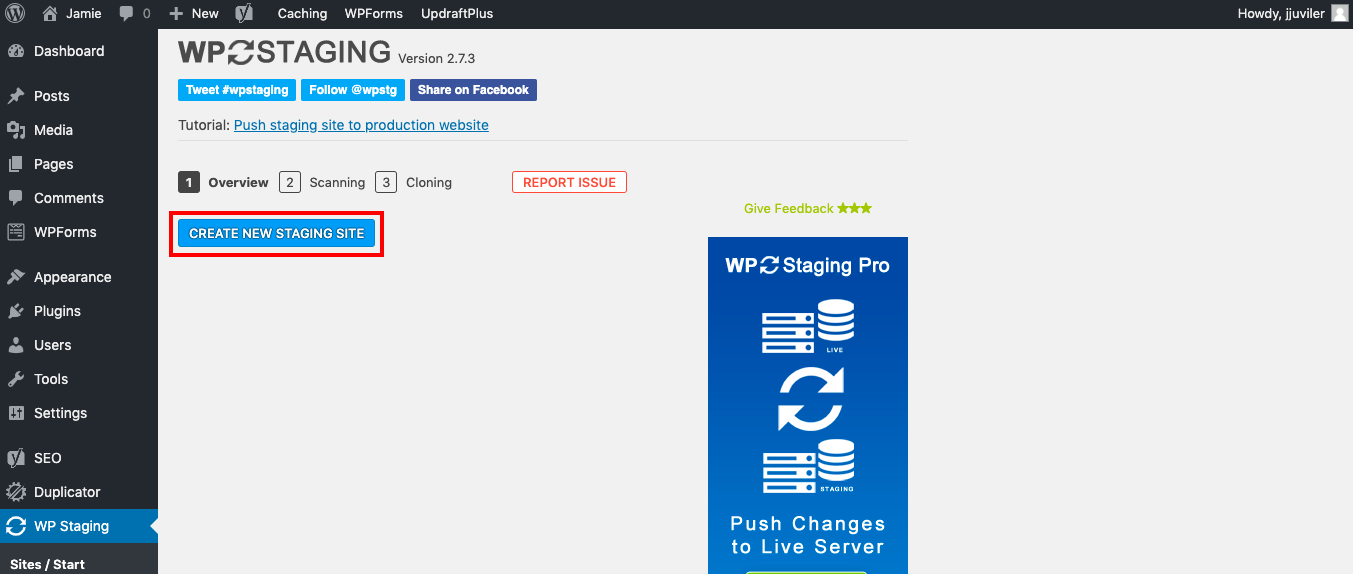
For WordPress users who prefer working entirely within the WordPress dashboard, plugins like WP Staging, Duplicator, or WPvivid can create a staging site with just a few clicks.
They handle file copying and database rewriting automatically, no cPanel access required.
Staging best practices
Once your staging site is running, take these precautions :
- Disable search engine indexing: in WordPress, go to Settings → Reading and check Discourage search engines. You don’t want Google indexing your test site and creating duplicate content issues.
- Keep staging and live databases separate: never connect your staging site to your live database. Orders, comments, and registrations happening on your live site should never mix with test data.
- Use a strong password: staging sites are still accessible via URL, so protect them with strong credentials.
For a deeper understanding of how staging works and why it matters, check out this guide: What is a Staging Site?
Step 3: Test updates in staging
You have a staging copy that mirrors your live site.
Now it’s time to put updates through their paces. This isn’t the moment to rush, thorough testing now saves emergency fixes later.
The testing workflow
- Confirm staging matches live: before testing, make sure your staging environment has the latest files and database from production.
- Apply updates systematically: start with plugins, then themes, then the CMS core. This order reduces compatibility risks.
- Run functional tests: go through the key actions visitors take on your site. Click everything. Fill out forms. Add items to cart.
- Check browser console errors: open developer tools (F12 in most browsers) and look for red error messages. Even if the page looks fine, console errors can indicate underlying problems.
- Test on mobile devices: use your actual phone or Chrome’s device toolbar to ensure responsive layouts haven’t broken.
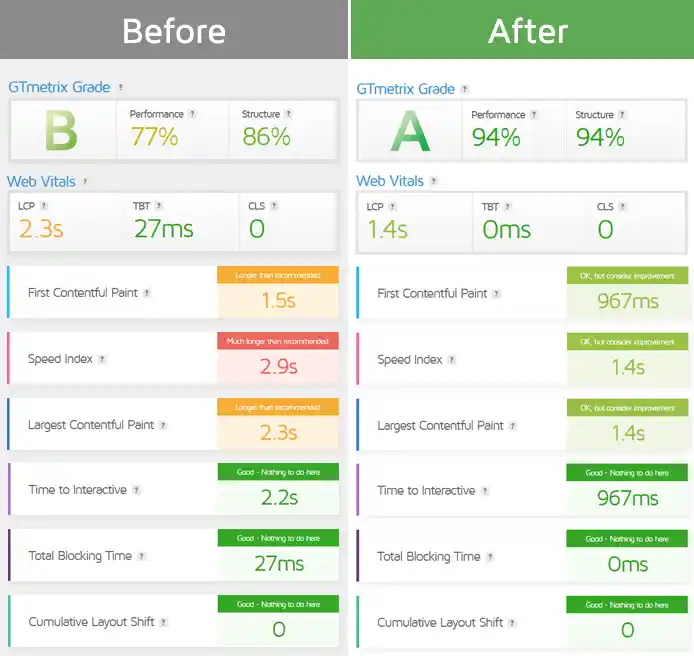
- Run performance checks: use GTmetrix, Lighthouse, or Pingdom to verify load times haven’t degraded. A slow site loses visitors.
What to test
Don’t just check the homepage and call it done. An innocent plugin update can break something unexpected. Go through this checklist:
- Homepage: does it load fully? Do images appear? Are there any layout shifts?
- 2–3 key landing pages: especially pages that drive conversions
- Navigation menus: all links working? Dropdowns functioning?
- Site search: does it return results?
- Contact forms and newsletter signups: submit test entries and verify they arrive
- Login area: if you have member accounts or admin access
- Shopping cart and checkout: for e-commerce sites, run a complete test transaction
- Page load speed: compare before and after update numbers
Step 4: Update in the correct order
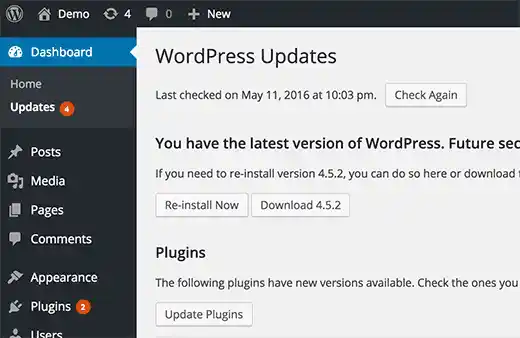
The sequence you follow is very important. Updating in the wrong order is one of the fastest ways to create compatibility issues.
The safe update sequence
- Plugins first: many plugins need updates to stay compatible with newer CMS versions. Update them before touching themes or core.
- Themes second: after plugins, update your theme. This ensures your theme works with the latest plugin code.
- Core last: update the CMS (WordPress, Joomla, etc.) after confirming everything else is compatible.
Why this order? If you update the core first, you might load a new version that plugins and themes haven’t been updated for yet. That’s when features break.
Also, resist the urge to click update all. Instead:
- Update one plugin
- Test the site briefly
- Move to the next
- Repeat
If something goes wrong, you will know exactly which update caused it. Batch updating makes troubleshooting a guessing game.
Pro tip: Start with non‑critical plugins, the ones that aren’t essential to your business, and save mission‑critical ones like WooCommerce, security plugins, and caching plugins for last. That way, if something breaks early, your core business functions stay safe.
Step 5: Read changelogs before updating
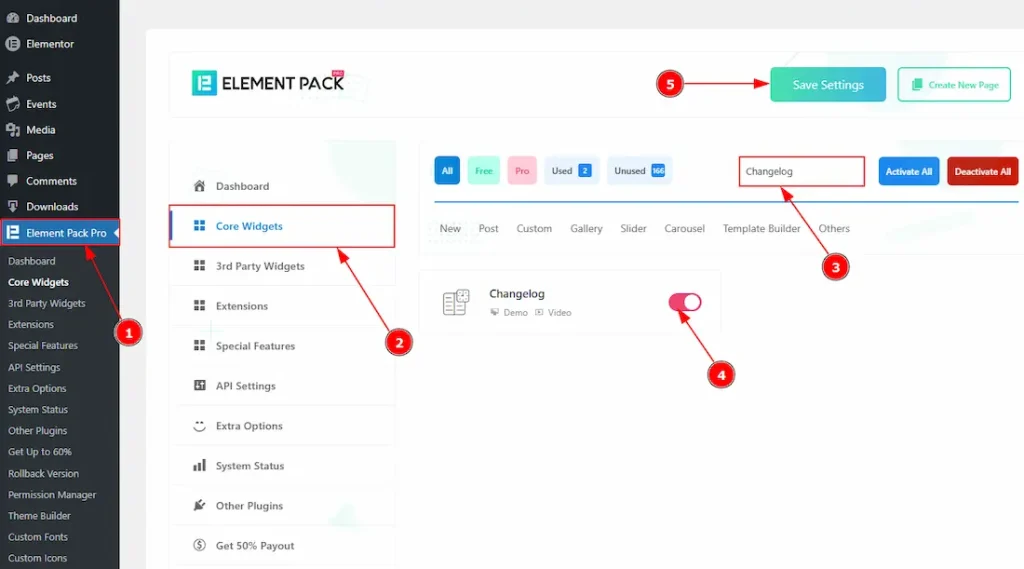
I know, reading changelogs isn’t anyone’s favorite task. But those few lines of text can save you hours of troubleshooting.
They tell you what changed, what was fixed, and, most importantly, what might break.
What to look for
- Major version jumps: moving from version 2.x to 3.x often includes breaking changes. Read the upgrade notes carefully.
- Deprecated warnings: functions that are being removed. If your site uses custom code that relies on those functions, you’ll need to update your code too.
- Compatibility requirements: minimum PHP version or CMS version requirements. If your server is running PHP 7.4 and the update requires PHP 8.1, you’ll have problems.
- Security fixes: these are the ones you want to install immediately, even if you skip other updates.
Where to find changelogs
For WordPress plugins and themes, check the Changelog tab on WordPress.org
For CMS core updates, official release notes are available on the CMS website
Many plugins display changelogs directly in the WordPress admin area before you update
Step 6: Deploy to production
Staging tests passed? Everything works? Good. Now it is time to move those updates to your live site.
The deployment workflow
- Notify your team: give a heads‑up that updates are happening. Silence the support channels for a few minutes.
- Enable maintenance mode: put up a simple “We’ll be back soon” page. Plugins like WP Maintenance Mode make this easy, or you can create a simple HTML holding page.
- Push code changes: use SFTP or Git to move only the updated files from staging to live. Do not push the entire site.
- Clear all caches: purge your CDN, server cache, browser cache, and any caching plugins. Old cached files can cause weird, hard‑to‑debug issues where some visitors see the old version and some see the new one.
- Test the live site: quickly verify critical functions. Check the homepage, a key page, and your most important form.
- Disable maintenance mode: your site is back online.
Important: push files only, not database. If you push the staging database to production, you’ll overwrite real customer data, new orders, comments, registrations, and form submissions that happened while you were testing. Those are gone forever.
When deploying from staging:
Push: updated theme files, plugin files, CSS, JavaScript, custom code
Don’t push: the database unless you’re doing a full migration and you know exactly what you are doing
Step 7: Monitor post‑update
You have deployed. Maintenance mode is off. Time to celebrate? Almost. The first 24 to 48 hours after an update are the most important monitoring period.
What to monitor
- Error logs: check your PHP error logs and browser console for anything new. Sometimes errors log silently without showing on the front end.
- Uptime: make sure your site stays online. A five‑minute downtime might go unnoticed without monitoring.
- Analytics: sudden traffic drops can indicate broken pages or missing tracking codes.
- Support tickets: be ready to respond quickly if users report issues.
- Checkout completion: if you sell things, run a test order to be sure everything processes correctly.
Tools to help
- Uptime Robot: free uptime monitoring with alerts via email or SMS
- Google Analytics: Realtime reports show if visitors are still arriving
- WordPress debug log: enable WP_DEBUG temporarily after major updates to catch hidden warnings that might not display on the front end
Should I Update my Website?
Updating your website doesn’t have to feel like a gamble.
The difference between a smooth update and a site‑breaking disaster comes down to preparation and always having a rollback plan ready.
If you don’t already have a staging environment, now is the perfect time to set one up.
Truehost’s cPanel hosting gives you all the tools you need, Softaculous for one‑click staging, the Backup Wizard for easy backups, and JetBackup for automated daily snapshots.
So go ahead, give your site the updates it needs. With the right setup, you’ll never have to fear that update button again.
And if you are not yet hosting with us, take a look at our cPanel plans.